

Portal Access via WhatsApp
Parents and guardians can log into the Parent Portal using their WhatsApp number as an alternative method to email. The system will send a verification code directly to their WhatsApp application.
1. Prerequisites
Before being able to access via WhatsApp, make sure that:
- The school administrator has registered your phone number in the system
- Your WhatsApp number is active and can receive messages
- The administrator has enabled your portal access from Settings → Portal Credentials
Note
If you don't know whether your number is registered, contact the school administrator to verify it from People → Guardians → Edit.
2. Step by Step: Log In with WhatsApp
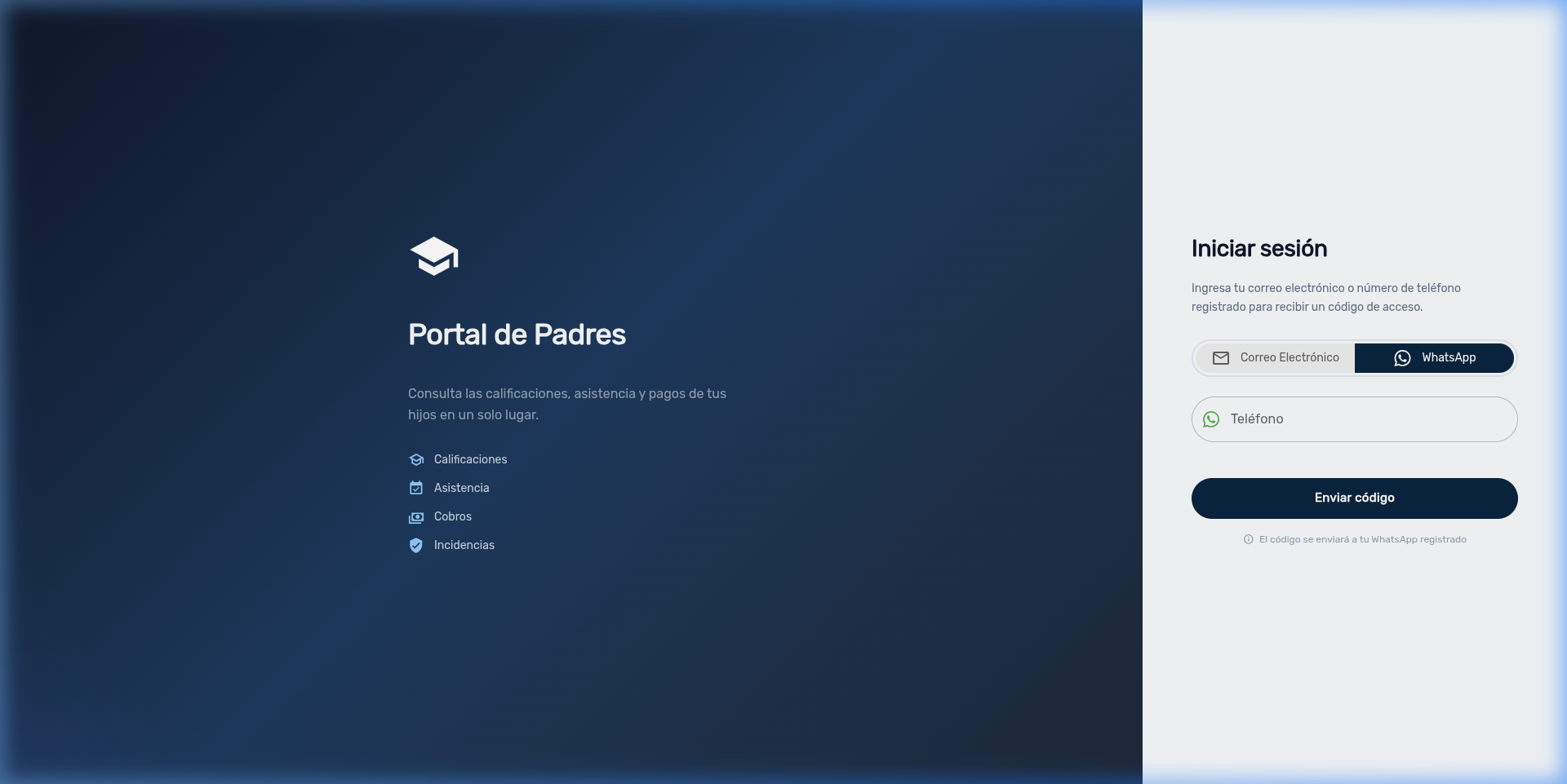
- Open the Parent Portal login screen
- In the right panel, click WhatsApp to select it (it will be highlighted in blue)
- The field will change to a phone field with the country prefix (for example, +505)
- Type your phone number (without the prefix, it is already included)
- Click the Send code button
- You will receive a WhatsApp message from the school with a 6-digit code
Note
Below the button, the message "The code will be sent to your registered WhatsApp" appears to confirm the delivery method.
3. Code Verification
After requesting the code via WhatsApp, the verification screen will appear:
- 6 boxes will be displayed where you must enter the received code
- You can type each digit one by one, or paste the complete code
- If the code is correct, you will automatically enter the portal
- If the code is incorrect, a red error message will appear
Tip
The code is valid for 10 minutes. If you do not receive it or the time runs out, you can request a new one by clicking Resend code (appears after the timer reaches zero).
Important
Each time you request a new code, the previous code becomes invalid. Only the last code sent will work.
4. WhatsApp Troubleshooting
| Problem | Solution |
|---|---|
| I'm not receiving the code via WhatsApp | Verify that the registered number is correct. Contact the school administrator |
| The phone field shows an incorrect prefix | Select the correct prefix for your country in the selector before entering your number |
| The message arrives but doesn't contain a code | Wait a few seconds, the message may take a moment to complete. If it persists, request a new code |
| My WhatsApp number changed | Contact the school administrator to update your number in People → Guardians → Edit and then sync the data in Portal Credentials |
| I prefer to use email | On the login screen you can switch to the Email method at any time |
5. Differences Between Email and WhatsApp
| Feature | ||
|---|---|---|
| Requires internet | ✅ Yes | ✅ Yes |
| Requires app installed | No (browser only) | ✅ Yes (WhatsApp) |
| Delivery speed | May take 1-2 minutes | Generally instant |
| Spam folder | May end up in spam | Not applicable |
| Switch method | Available at each login | Available at each login |
Tip
If you have both registered (email and phone), you can freely alternate between the two methods each time you log in. You don't need to always use the same one.
6. Navigation Summary
| Element | Location | Function |
|---|---|---|
| Upper right panel | Select WhatsApp access | |
| Country prefix | Phone field | Country code selector |
| Send code | Lower right panel | Request the code via WhatsApp |
| 6 boxes | Verification screen | Enter the received code |
| Resend code | Verification screen | Request a new code |
| ← Change email | Verification screen | Return to the login screen |
Module Navigation
| Path | Description |
|---|---|
| Parent Guide | Email access and portal features |
| Portal Administration | Access management (for administrators) |