

👨👩👧 Guardians
The Guardians module manages the registration of parents, mothers, guardians, and legal representatives of students. It is the key piece that connects families with the system: guardians registered here are those who can access the Parent Portal to view grades, attendance, payments, and school communications.
Access: Side menu → People → Guardians
Permissions: Guardian management (full access) or Guardian query (read-only)
1. Guardian List
When you enter the module, a table with all registered guardians is displayed. The counter next to the title shows the total (for example, 722 guardians).
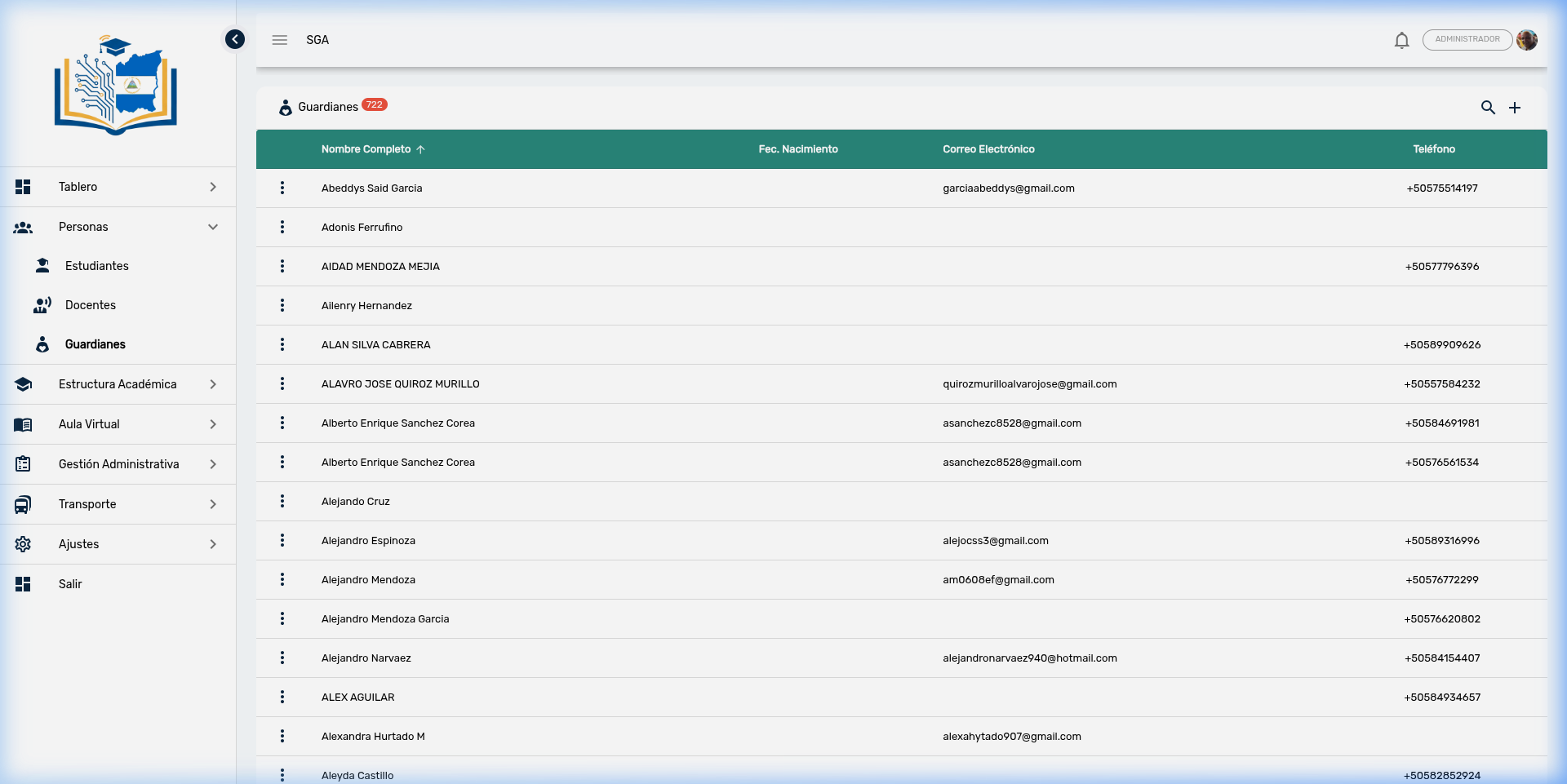
Visible columns
| Column | Description |
|---|---|
| Full Name | Guardian's first and last name, sortable alphabetically |
| Date of Birth | Date of birth (may be empty if not recorded) |
| Contact email (also serves as the Parent Portal credential) | |
| Phone | Registered phone number |
Tip
It is normal for the guardian list to be larger than the student or teacher list, since each student can have multiple guardians (father, mother, grandparent, uncle/aunt, etc.).
Mobile view
On small screens (phones), the table automatically transforms into a card view for easier reading.
2. Guardian Search
The table includes a search field that filters results automatically as you type. No button press is needed — results update in real time.
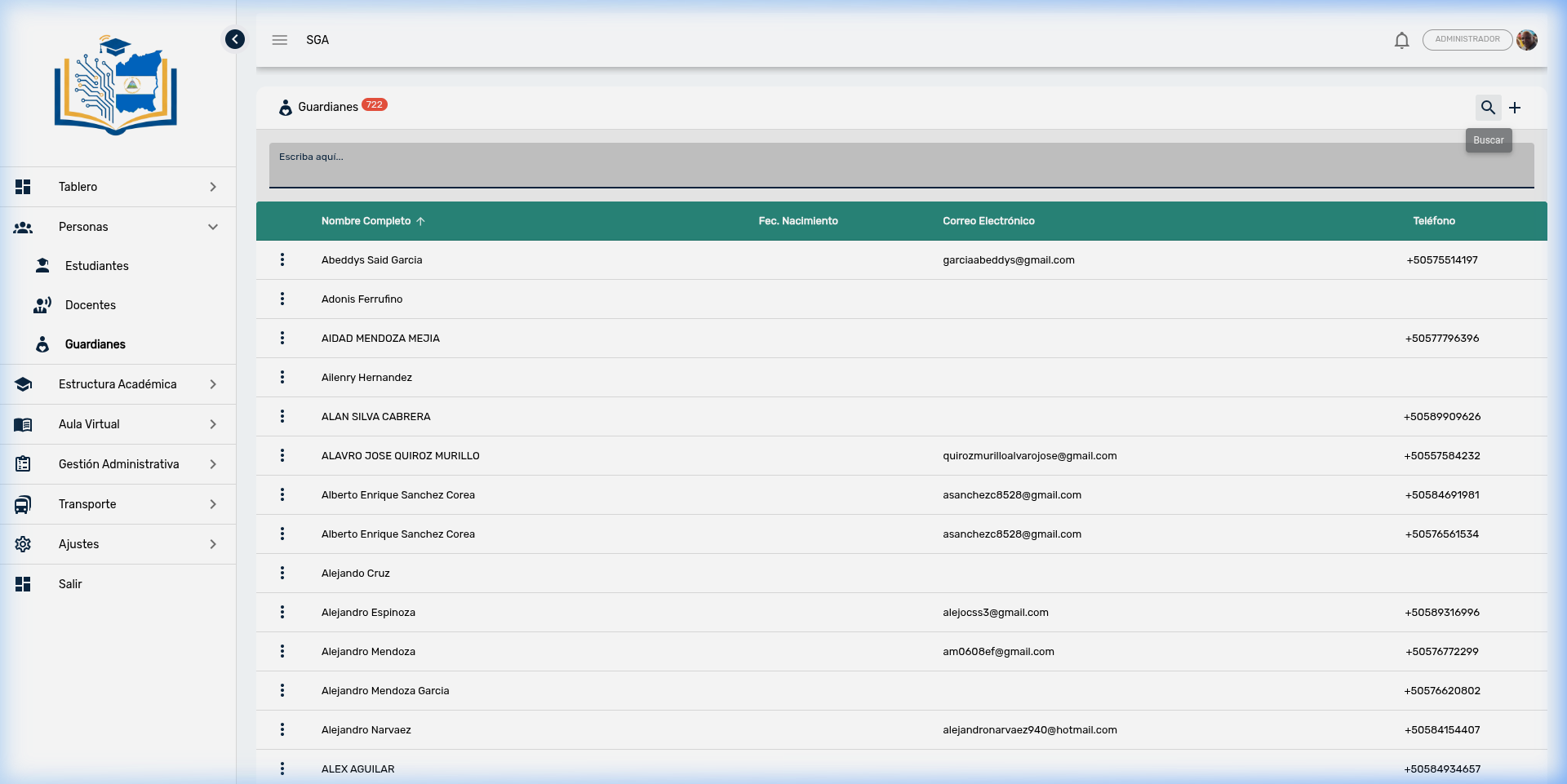
Steps to search:
- Type the guardian's name, last name, phone, or email
- The table will automatically filter to show only matching results
- Clear the text to return to the full list
Tip
The search works with any data visible in the table: name, email, or phone number.
3. Actions per Guardian
Each guardian has an actions menu represented by the three vertical dots (⋮). The available options are:
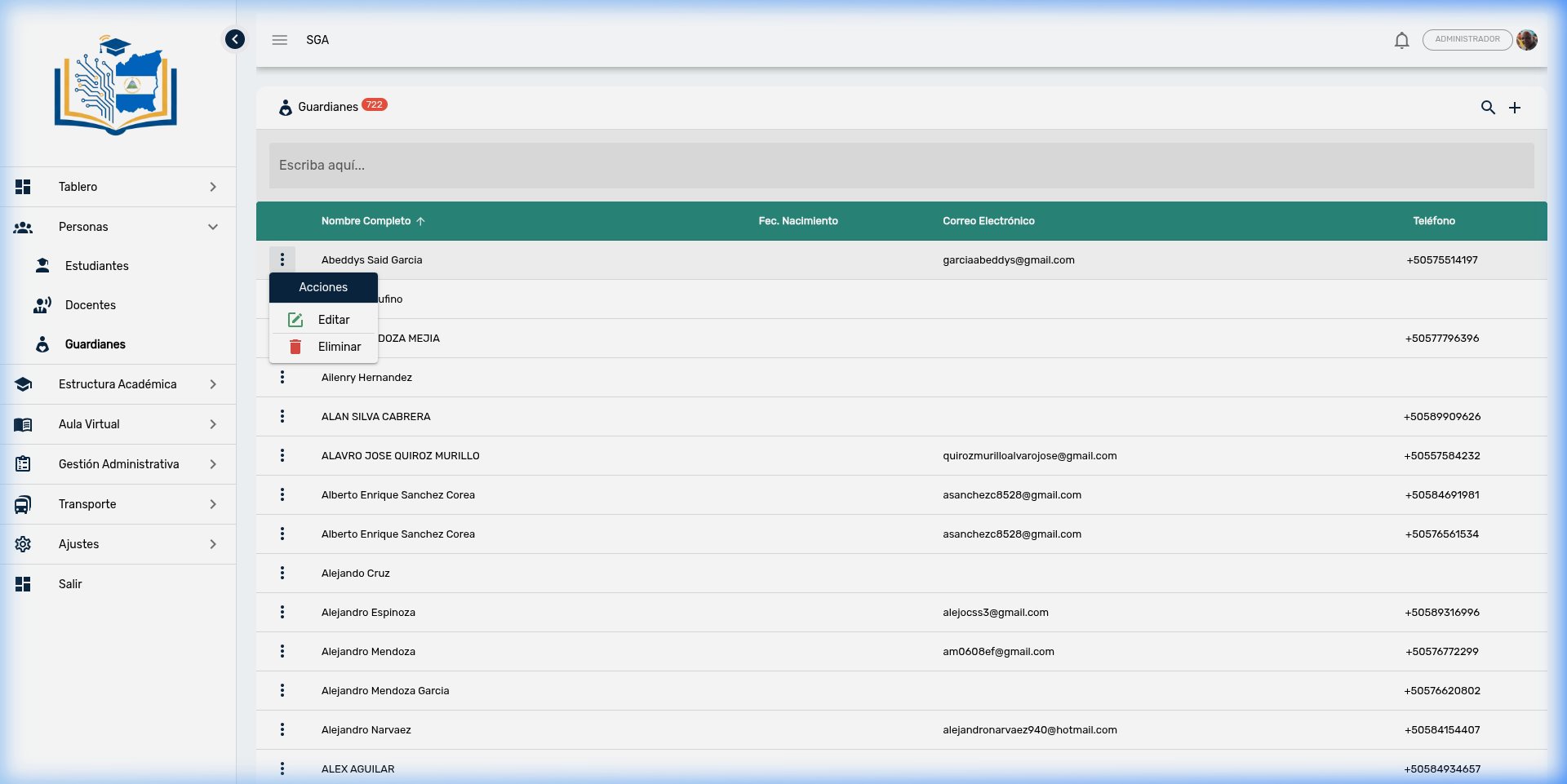
| Action | Icon | Description |
|---|---|---|
| Edit | ✏️ | Opens the guardian's complete profile for viewing or editing |
| Delete | 🗑️ | Deletes the guardian record (requires confirmation) |
Deleting guardians
When deleting a guardian, the system shows a summary of related records that will be affected (for example, links with students). Review the information carefully before confirming, as deletion will also remove all of the guardian's relationships with their students.
Permissions
The Edit and Delete actions are only available to users with the Guardian management permission. Users with Guardian query permission can view the list and profile but cannot make changes.
4. Guardian Profile
When you select Edit, the guardian's profile opens, organized into 2 tabs:
4.1 Tab: General
Contains the guardian's personal and contact data.
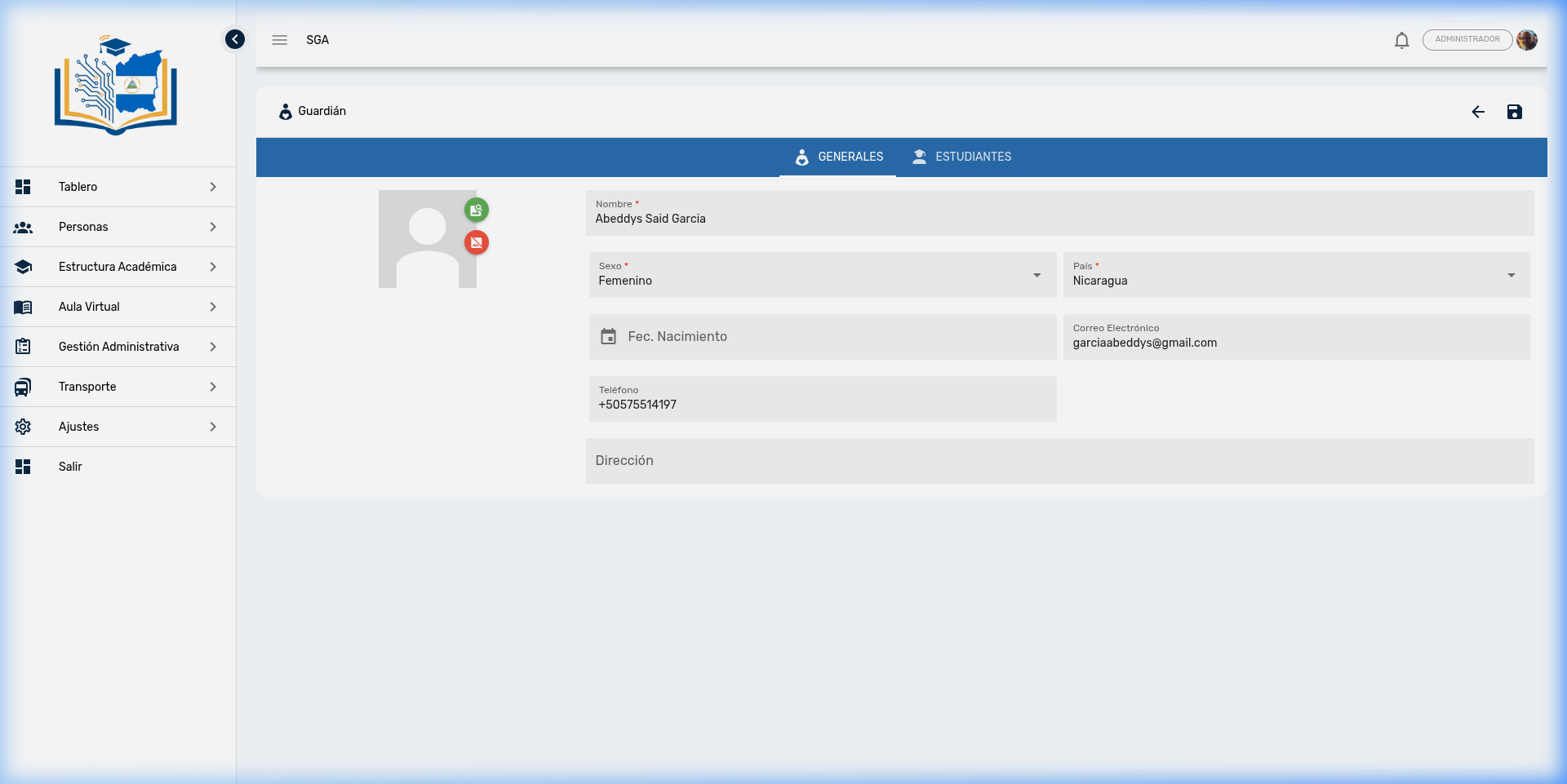
Available fields:
| Field | Description | Required |
|---|---|---|
| Photo | Guardian photograph | No |
| Name | Guardian's full name | ✅ |
| Sex | Male or Female | ✅ |
| Country | Country of nationality | ✅ |
| Date of Birth | Date of birth | No |
| Contact email (Parent Portal credential) | No | |
| Phone | Contact number | No |
| Address | Home address | No |
| Description | Additional notes about the guardian (occupation, preferred contact hours, etc.) | No |
Parent Portal access
If the guardian needs to access the Parent Portal, registering their email address is essential. This will be their access credential for viewing their children's information.
4.2 Tab: Students
This tab shows the students linked to this guardian. Each student appears as a card with their basic information:
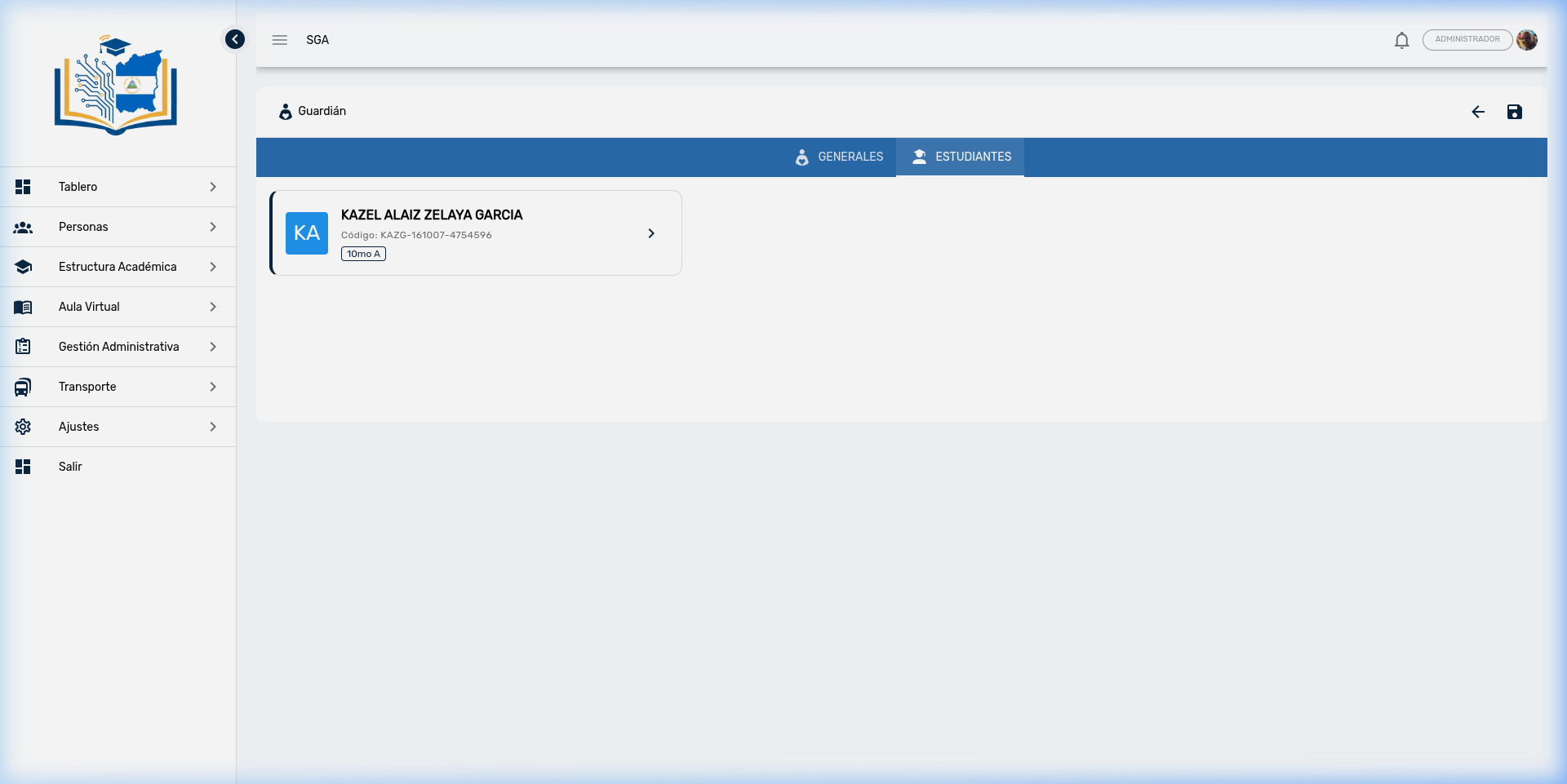
Information per card:
| Data | Description |
|---|---|
| Initials | Avatar with the student's name initials |
| Full Name | Linked student's first and last name |
| Code | Student's unique code |
| Section | Student's current grade and group (e.g., 10th A) |
| Arrow (→) | Click to go directly to the student's profile |
Note
The link between guardians and students is created from the student's profile (the Family tab), not from this screen. Here, only the existing relationship is displayed for quick reference.
Tip
If a guardian has children in different grades, they will all be listed in this tab, facilitating a comprehensive view of the family.
5. Registering a New Guardian
The registration process includes a preliminary verification to prevent duplicates:
Step 1: Search or Create
When you click the + button (upper right corner), a search dialog opens:
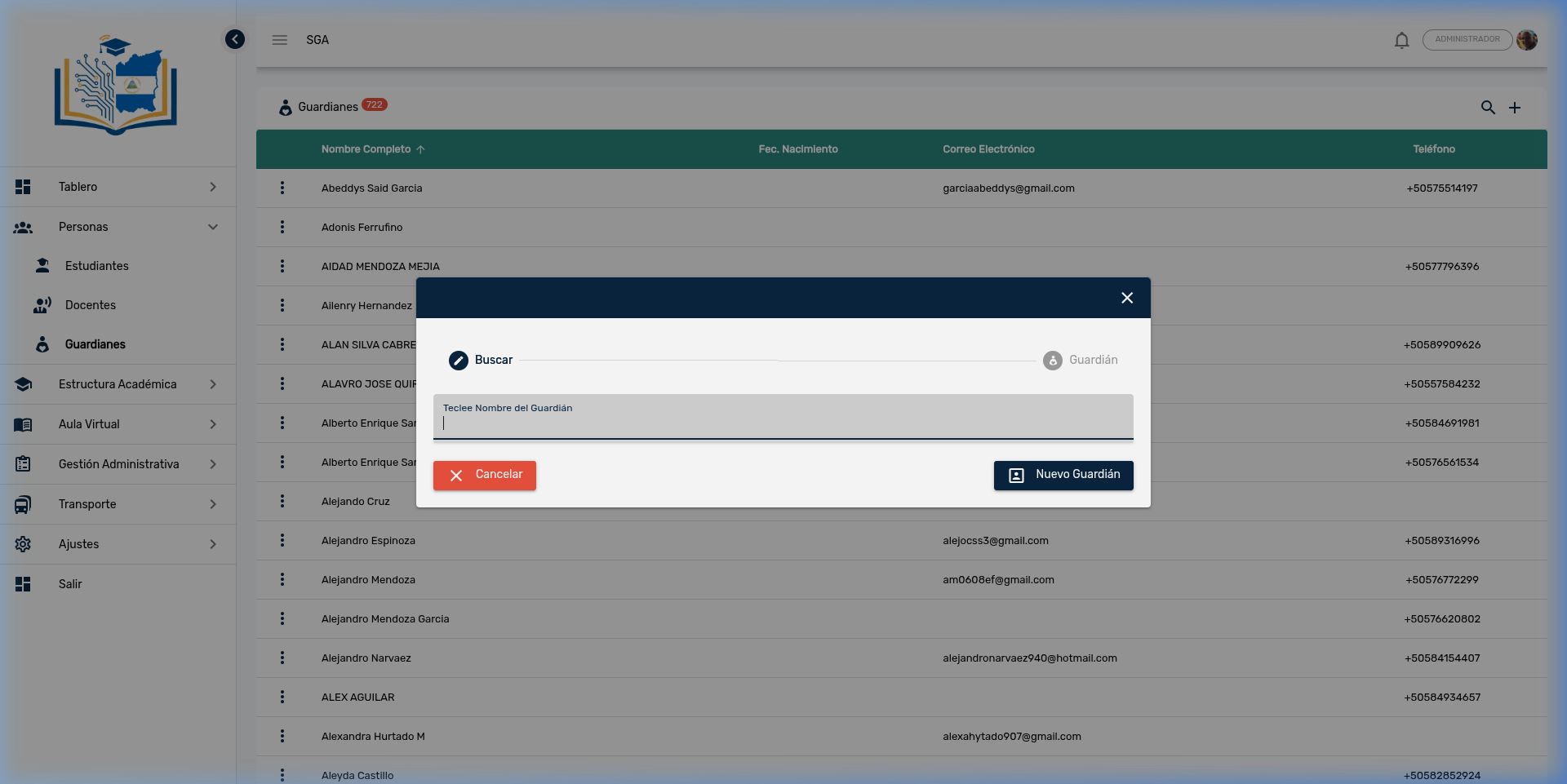
- Search: Type the guardian's name to verify if they already exist
- New Guardian: If not found, click this button to open the form
Important
Always search first. Creating duplicate guardians causes confusion in guardian assignments and can lead to problems with Parent Portal access.
Step 2: Complete the Form
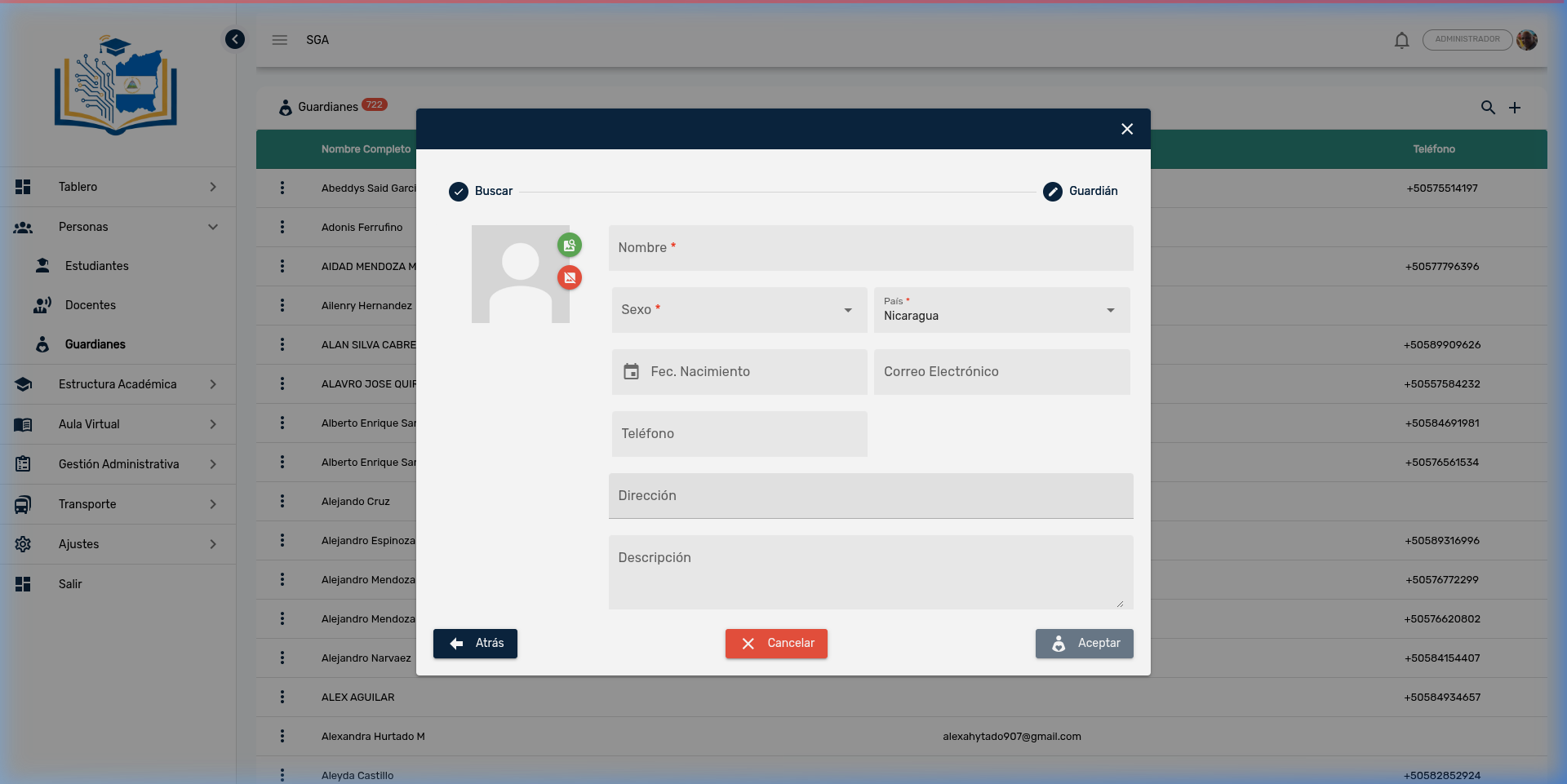
- Complete the required fields: Name, Sex, and Country
- Optionally add email, phone, address, and description
- Add a photograph if desired
- Click Accept to save the record
Form buttons:
| Button | Function |
|---|---|
| ← Back | Returns to the search step |
| ✕ Cancel | Closes the form without saving |
| 👤 Accept | Saves the new guardian in the system |
Tip
After creating the guardian, remember to link them with their child(ren) from the corresponding student's profile (the Family tab → + Guardian button).
6. Complete Flow: Guardian ↔ Student ↔ Parent Portal
For a parent or guardian to access the Parent Portal and view their children's information, three steps are needed:
| Step | Action | Where |
|---|---|---|
| 1 | Register the guardian with their email address | People → Guardians → (+) |
| 2 | Link the guardian with the student | People → Students → Edit → Family Tab |
| 3 | Create portal credentials for the guardian | Settings → Portal Credentials |
Once all three steps are completed, the guardian can log in to the Parent Portal with their email and view: grades, attendance, payments, schedules, documents, incidents, and transportation for their children. If they have multiple children, they can select the student from a selector in the portal.
Real-time notifications
Guardians with an active portal account receive real-time notifications about important events for their children (incidents, school announcements, etc.) through a notification bell within the portal.
7. Guardian-Related Reports
The system includes several reports that help monitor guardian coverage and their Parent Portal activity:
| Report | Description |
|---|---|
| R-01 — Parents without Portal access | Guardians who don't have a portal account or have never logged in |
| R-02 — Parents without communication channels | Guardians who have no registered phone or email |
| R-11 — Parent Portal activity | Access history and guardian activity in the portal |
| R-12 — Guardians without Portal account | Guardians without portal registration, distinguishing those with email from those without |
| R-17 — Students without a guardian | Active students who have no linked guardian |
Access: Side menu → Reports → select the desired report
Tip
Reports R-01 and R-02 are especially useful at the beginning of the school year to identify families that need to complete their registration and ensure effective communication with the school.
8. Navigation Summary
| Element | Location | Function |
|---|---|---|
| 🔍 Search | Table top field | Filter guardians in real time |
| ➕ More | Upper right corner | Register a new guardian |
| ⋮ Three dots | Beginning of each row | Actions: Edit, Delete |
| ← Arrow | Upper right corner (in profile) | Return to the list |
| 💾 Save | Upper right corner (in profile) | Save changes |
| Tabs | Blue top bar | General / Students |
Module Navigation
| Path | Description |
|---|---|
| People → Guardians | Main guardian list |
| People → Students | Student management (link guardians) |
| People → Teachers | Teacher management |
| Settings → Portal Credentials | Create portal accounts for guardians |
| Reports → R-01, R-02, R-11, R-12 | Guardian coverage and activity reports |
| Reports → R-17 | Students without a linked guardian |
Frequently Asked Questions
| Question | Answer |
|---|---|
| Can I delete a guardian? | Yes, but the system will show you all related records (student links) that will be deleted. Review carefully before confirming. |
| How do I link a guardian to a student? | From the student's profile: People → Students → Edit → Family tab → + Guardian button. |
| Can a guardian be linked to multiple students? | Yes. A guardian can be a tutor for multiple students. In the Parent Portal, they can select which child they want to view. |
| What does a guardian need to access the Parent Portal? | Three things: a registered email address, being linked to at least one student, and having portal credentials created from Settings → Portal Credentials. |
| How do I know which guardians don't have portal access? | Use Report R-01 (Parents without Portal access) or R-12 (Guardians without Portal account). |
| How do I know which students don't have a registered guardian? | Use Report R-17 (Students without a guardian), which lists all active students without a linked guardian. |
| Does the guardian receive school notifications? | Yes. If they have an active Parent Portal account, they receive real-time notifications about their children's events. |
| What's the difference between "Guardian query" and "Guardian management"? | With Query, you can only view the list and profiles. With Management, you can also create, edit, and delete guardians. |
| What is the Description field for? | To record additional notes about the guardian, such as their occupation, preferred contact hours, or any information relevant to the institution. |
| What happens if two guardians have the same email? | The system does not allow duplicate emails. Each guardian must have a unique email address to access the Parent Portal. |