

Enrollments (Student Registration)
Enrollment is the process by which a student becomes formally registered in a specific section within a school year. It is the last step in the Academic Structure configuration chain and directly links the student to their class group.
Access path: Side menu → Academic Structure → Enrollments
Key Concept
An enrollment is not the same as a student record. The student is created once in People → Students, but can have multiple enrollments over the years. Each student can have only one enrollment per school year.
Enrollment Structure
Each enrollment record links one student with one section within one school year, and has an associated status that reflects the student's academic condition.
| Field | Description | Example |
|---|---|---|
| School Year | School term to which the enrollment belongs | 2026-2027 |
| Section | Grade and group where the student is enrolled | 7th A |
| Student | Full name of the student | Ana Elizabeth Rojas Murillo |
| Date | Date when the enrollment was formalized | 01/26/2026 |
| Status | Current enrollment condition | Enrolled |
General View — Enrollment List
When entering the module, the system displays a table with all enrollments registered for the active school term. The view includes a total counter in the header (e.g., Enrollments 419) and automatic pagination.
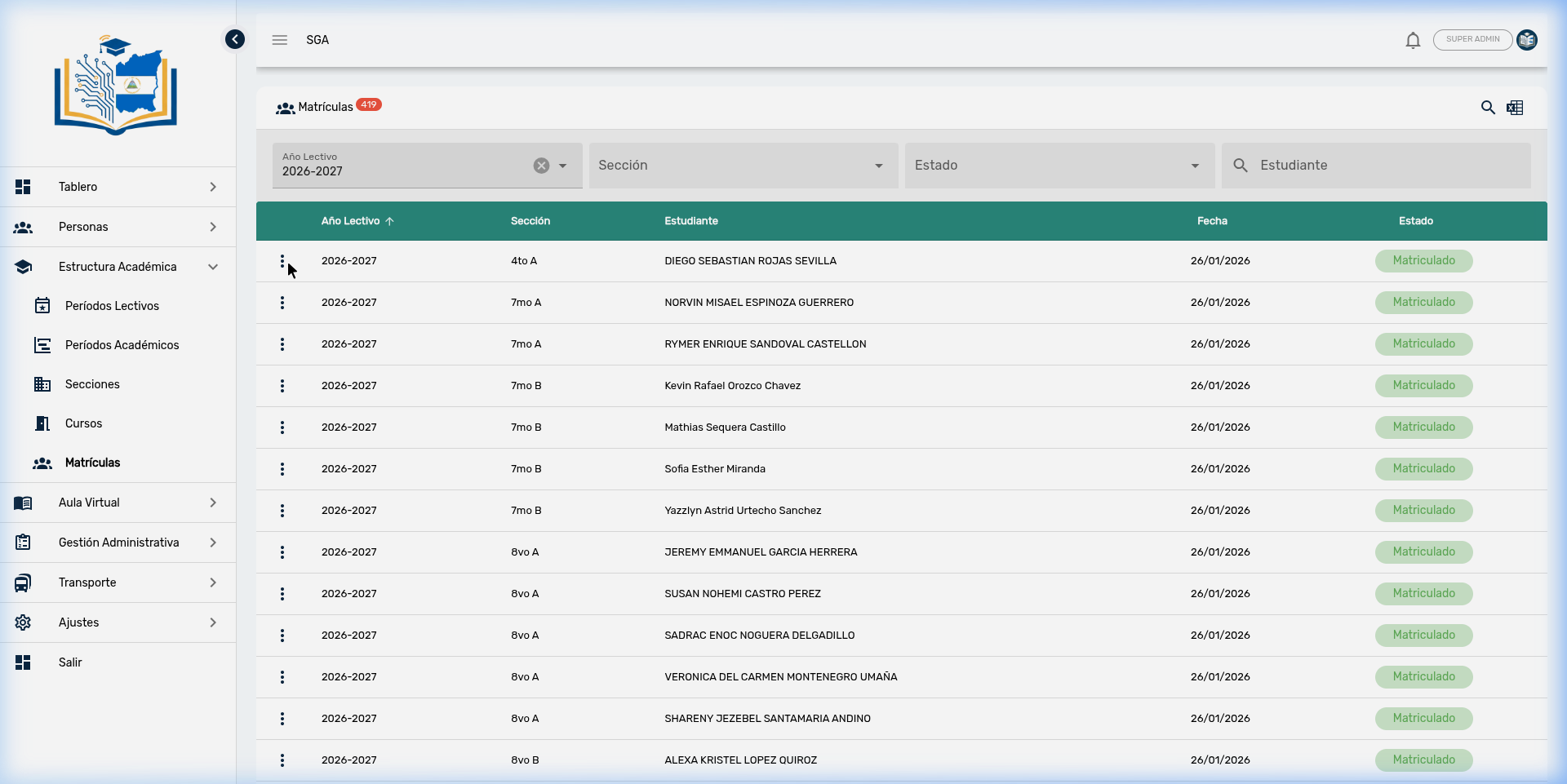
Table Columns
| Column | Description |
|---|---|
| School Year ↑ | School term to which the enrollment belongs (e.g., 2026-2027). Sortable. |
| Section | Grade and group where the student is enrolled (e.g., 7th A, 8th B). |
| Student | Full name of the enrolled student. |
| Date | Date when the registration was made (DD/MM/YYYY format). |
| Status | Current enrollment status. Displayed as a colored badge. |
Tip
The School Year column can be sorted in ascending or descending order by clicking on the column header.
Enrollment Statuses
The system handles seven statuses that reflect all possible conditions for a student during the school year. Each status has a distinctive visual color for quick identification in tables.
| Status | Color | Description |
|---|---|---|
| 🟢 Enrolled | Green | Active status. The student is formally registered and participates in all academic activities. |
| 🔵 In Process | Teal | The enrollment is being processed. Documentation or approval may be pending. |
| 🟡 Not Enrolled | Yellow | The student exists in the system but has not completed the registration process for this term. |
| ⚪ Inactive | Gray | The student stopped attending without a formal process. The history is preserved. |
| 🔴 Expelled | Red | Permanent disciplinary separation from the school. |
| 🟣 Suspended | Violet | Temporary separation for disciplinary reasons. The student can be reinstated. |
| 🟠 Withdrawn | Orange | The parent or guardian formally requested the student's withdrawal. |
Important
The "Enrolled" status is a system base status and cannot be deleted or renamed from the administration panel. The other statuses can be managed from Administrative Management → Categories → Enrollment Status.
Note
Statuses are fully configurable. The system administrator can add, rename, or change the colors of statuses from Settings → Categories → "Enrollment Status" category.
Filters and Search
The enrollment module uses a cascade filter system similar to that of courses. The filter bar allows you to locate enrollments quickly and precisely. All filters are applied in combination and results update in real time.
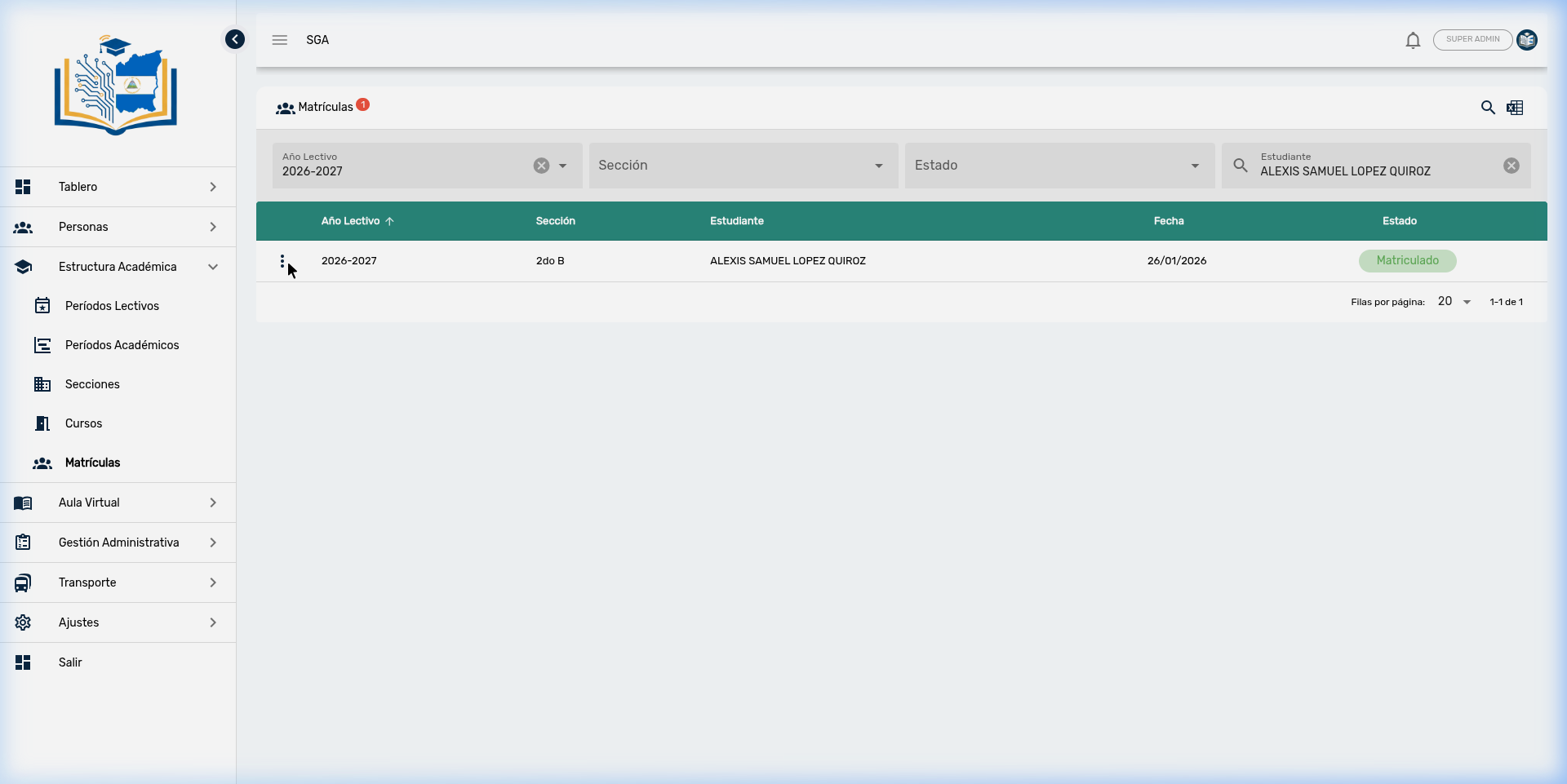
Available Filters
| Filter | Type | Behavior |
|---|---|---|
| School Year | Dropdown selector | When selecting a year, the corresponding sections are loaded. When cleared, sections are emptied. |
| Section | Dropdown selector | Depends on the selected school year (cascade selector). Filters enrollments by grade and group. |
| Status | Dropdown selector | Filters by any of the 7 enrollment statuses. |
| Student | Free text field | Search by student name. Press Enter to execute. |
Tip
The student search is accent and case insensitive. You can type "MARTINEZ" or "martinez" and get the same results.
Cascade Rule
School Year → Section → [Enrollment Table]When changing the school year:
- Sections are automatically reloaded with those belonging to that year.
- The previously selected section is cleared.
- The table updates to show enrollments matching the new filter.
Important
The Section field is a cascade selector: it only shows sections from the selected School Year. If you clear the School Year, the Section is also automatically cleared.
Create a New Enrollment
To create an enrollment, you must first select a School Year and a Section in the filters. Only then will the ➕ button appear in the upper right corner.
Steps to Enroll a Student
- Select the School Year in the top filter.
- Select the Section where you want to enroll the student.
- Click the ➕ button (appears only when both filters are selected).
- The Enrollment dialog opens with the fields to complete.
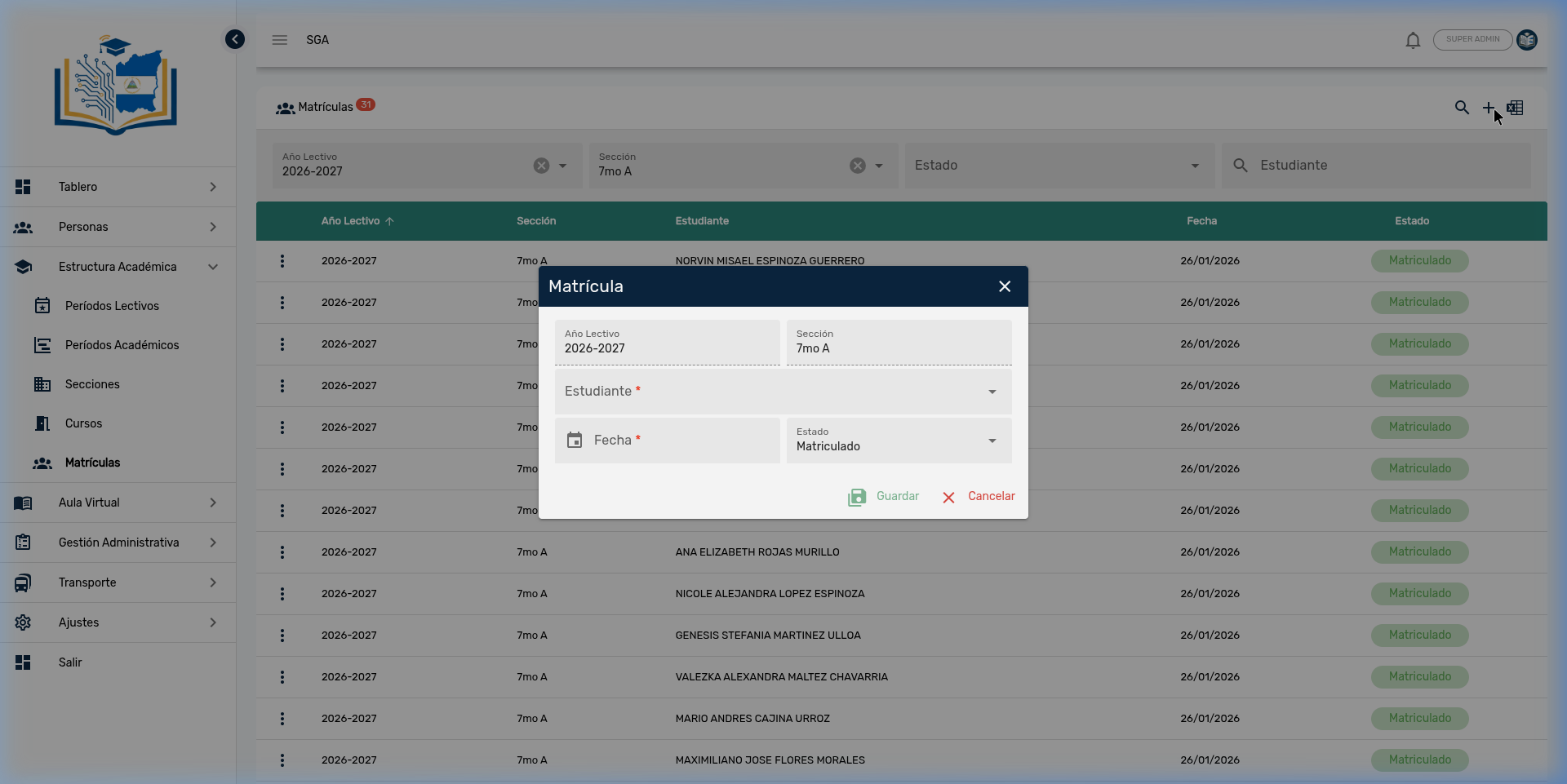
Form Fields
| Field | Type | Required | Description |
|---|---|---|---|
| School Year | Read-only | — | Automatically inherited from the filter. Not editable. |
| Section | Read-only | — | Automatically inherited from the filter. Not editable. |
| Student | Searchable selector | ✅ | List of students registered in the system. You can search by name. |
| Date | Date picker | ✅ | Enrollment date. Defaults to the current date. |
| Status | Selector | No | Initial enrollment status. Default: Enrolled. |
- Click Save (💾) to register the enrollment, or Cancel (✕) to discard.
Tip
The School Year and Section fields appear grayed out with a dotted border, indicating they are values inherited from the filter context and cannot be modified from the dialog. The Student field uses a smart search — as you start typing the name, the system will show suggestions with matching registered students.
Important
If you don't see the + button, verify that you have both the School Year and the Section selected in the filter bar.
Edit an Enrollment
To edit an existing enrollment:
- Locate the enrollment in the table (use filters if needed).
- Click the ⋮ menu (three dots) at the beginning of the student's row.
- Select Edit.
- In the edit dialog you can modify:
- The enrollment Date.
- The enrollment Status (e.g., change from "Enrolled" to "Withdrawn").
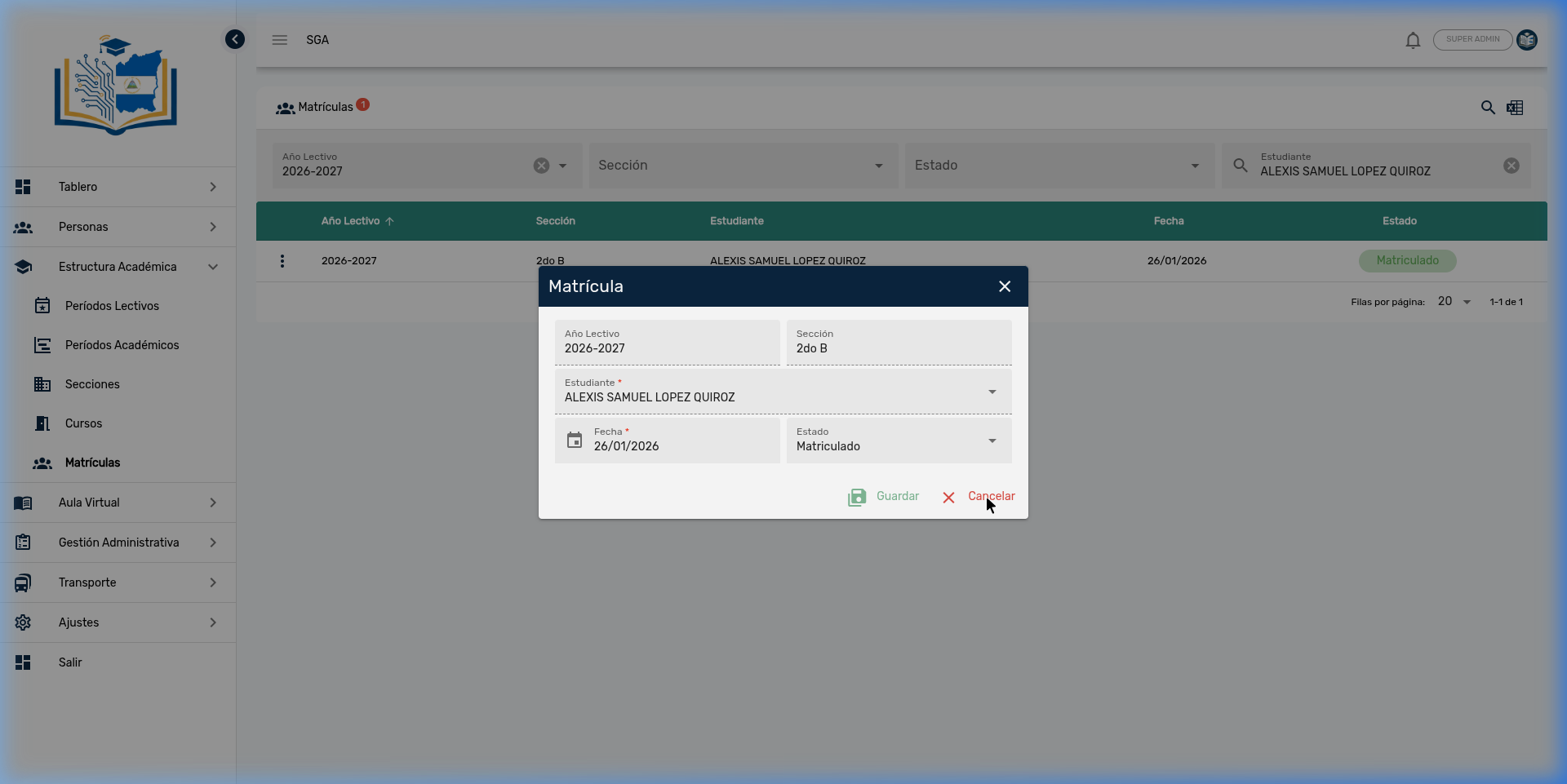
- Click Save (💾).
Note
When editing an enrollment, the Student field appears as read-only to prevent accidental identity changes. If you need to change the student, delete the current enrollment and create a new one. The School Year and Section fields also remain locked during editing.
Tip
The most common editing case is a status change: for example, from "Enrolled" to "Withdrawn" when a student leaves the school during the academic year. From the actions menu you can also directly access the student record by clicking the student icon (🎓). This redirects you to People → Students with the selected student's file.
Delete an Enrollment
Data Integrity Warning
Enrollment deletion is protected by the system. Deleting an enrollment will not be allowed if the student has registered payments associated with it. You must first manage or delete the related payments.
To delete an enrollment:
- Click the ⋮ menu at the beginning of the row.
- Select Delete.
- Confirm the action in the confirmation dialog.
Data Protection Rules
| Related Data | Restriction | Effect |
|---|---|---|
| Payments | Protected | Cannot delete enrollment if it has associated payments |
Likewise, enrollments are also protected against deletions from their related data:
| Relation to | Deletion Restriction | Meaning |
|---|---|---|
| Students | Protected | Cannot delete a student that has enrollments |
| Sections | Protected | Cannot delete a section that has enrollments |
| School Years | Protected | Cannot delete a school year that has enrollments |
| Enrollment Statuses | Protected | Cannot delete a status that is in use |
Conclusion
The system is fully protected against data loss from accidental deletion. All relationships are protected, meaning no record can be deleted if it has active dependencies. If the student already has recorded grades, it is recommended to change the status to "Withdrawn" instead of deleting, to preserve the academic history.
Excel Export
The module allows downloading the enrollment list in Microsoft Excel (.xlsx) format.
How to Export
- Set the desired filters (school year, section, status, or student search).
- Click the Excel button (green spreadsheet icon 📊) in the upper right corner.
- The file downloads automatically with the name:
Matrícula-DD-MM-YYYY HH-mm.xlsx
Excel Report Columns
| Column | Content |
|---|---|
| A | School Year |
| B | Section |
| C | Student |
| D | Enrollment Date |
| E | Status |
Tip
The export respects active filters. If you have a specific section selected, only enrollments from that section will be exported. To export all enrollments for the year, leave the Section and Status filters empty.
Row Action Menu
Each row in the enrollment table has a three-dot menu (⋮) with the following options:
| Action | Icon | Description |
|---|---|---|
| Edit | ✏️ | Opens the dialog to modify date and status |
| Student | 🎓 | Navigates directly to the student record in People → Students |
| Delete | 🗑️ | Deletes the enrollment (requires confirmation and absence of payments) |
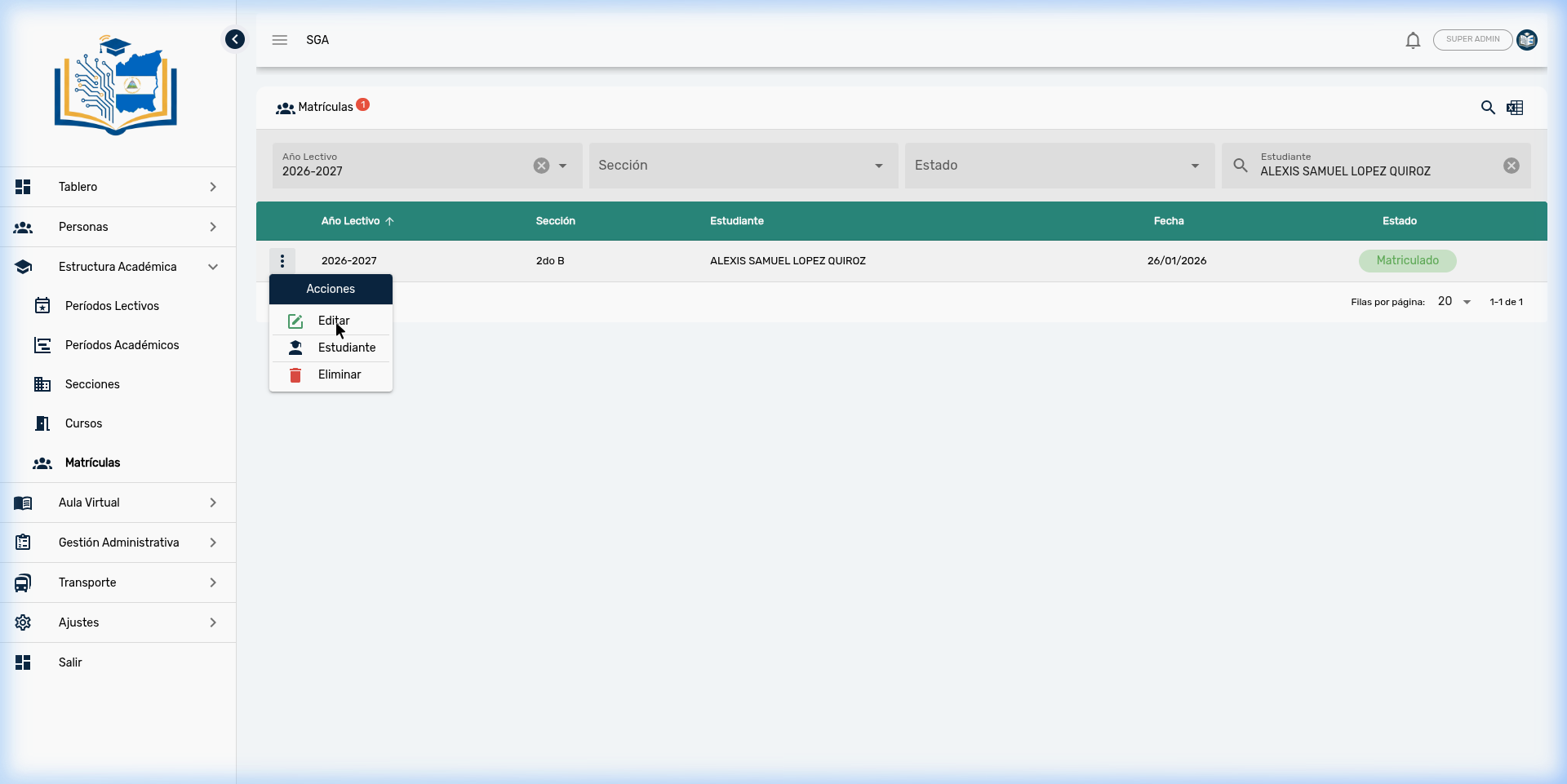
Tip
The Student action is a very useful shortcut. It allows you to navigate to the student's complete file without having to search for them manually in the People module.
Recommended Workflow
The Enrollment module is the final point of the configuration chain. Before you can enroll students, make sure you have completed the following steps in order:
| Step | Module | Action |
|---|---|---|
| 1️⃣ | School Terms | Create the school year (e.g., 2026-2027) |
| 2️⃣ | Academic Periods | Define the evaluation periods (bimesters, trimesters) |
| 3️⃣ | Sections | Create grades and groups (7th A, 8th B, etc.) |
| 4️⃣ | Courses | Assign subjects and teachers to each section |
| 5️⃣ | Enrollments | Enroll students in their corresponding sections |
Tip
Once enrolled, the student will automatically appear in the attendance lists, evaluations, and virtual classroom activities for all courses assigned to their section.
Relationship Between Enrollments and Other Modules
Enrollment is the fundamental link between the student and the academic system. Without enrollment, the student simply does not exist within a section:
| Module | Relationship with Enrollment |
|---|---|
| Sections | Enrollment assigns the student to a specific section |
| Attendance | Only enrolled students appear in attendance lists |
| Evaluations | Only enrolled students can receive grades |
| Report Cards | Academic reports are generated for students with active enrollment |
| Billing | Tuition charges are automatically generated when a student is enrolled |
| Virtual Classroom | The student accesses the virtual classroom for courses in their section |
Navigation Summary — Enrollments
| Element | Location | Function |
|---|---|---|
| 🔍 Search | Upper right corner | Activate search (not applicable, filters are always visible) |
| ➕ Add | Upper right corner | Create new enrollment (requires School Year and Section selected) |
| 📊 Excel | Upper right corner | Download list in .xlsx format |
| School Year | Filter bar (first column) | Filter by school term — triggers section loading |
| Section | Filter bar (second column) | Filter by grade and group |
| Status | Filter bar (third column) | Filter by enrollment status |
| Student | Filter bar (fourth column) | Search by student name |
| ⋮ Three dots | Beginning of each row | Actions: Edit, View Student, Delete |
| 💾 Save | Inside the dialog | Confirm creation or editing |
| ✕ Cancel | Inside the dialog | Discard changes |
Module Navigation
| Path | Description |
|---|---|
| Academic Structure | Module overview |
| Periods | School terms and evaluation periods |
| Sections | Grades and class groups |
| Courses | Subjects, teachers, and grading types |