

📱 Parent Portal — Parent Guide
The Parent Portal is an exclusive space for parents and guardians to view their children's academic information from any device. You do not need to create a password: access is through a verification code sent to your email or WhatsApp.
1. Login
When accessing the portal, you will see a screen with two panels:
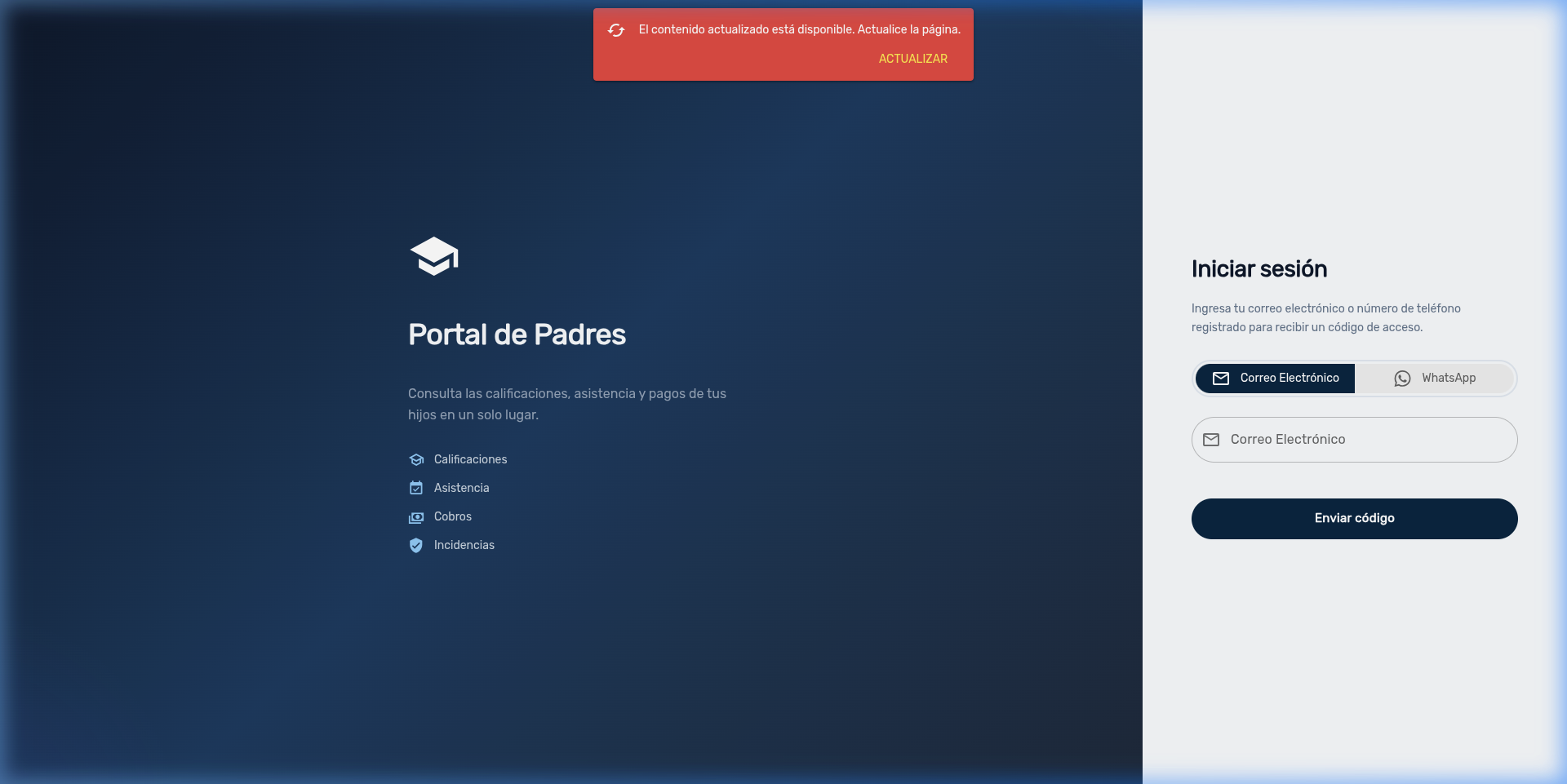
Left panel: Portal information with the school's logo and name.
Right panel: Access form with two methods:
| Method | Description |
|---|---|
| Enter your registered email → receive a 6-digit code in your inbox | |
| Select your country, enter your number → receive the code via WhatsApp message |
Steps to Log In
- Select your access method (Email or WhatsApp)
- Enter your email address or phone number
- Press Send code
- Enter the 6-digit code you received in the verification boxes
- If the code is correct, you will automatically enter the portal
Verification Code
The code is valid for 10 minutes. If you do not receive it or the time runs out, press Resend code to request a new one. Each new code invalidates the previous one.
Active Session
Your session remains active for 24 hours. If you close the browser tab, you will need to enter a new code.
For details on WhatsApp access, see the WhatsApp Access Guide.
2. Main Dashboard
Upon logging in, you will see a welcome message with your name and the school's name. Below it, a card for each child linked to your account appears.
Child Card
Each card displays:
- Photo of the student (or their initials if they have no photo)
- Full name
- Current Section (e.g., 1st Level A)
- Grade (e.g., 5th Grade)
- Relationship (Father, Mother, Guardian, etc.)
Quick Access
Each card includes 5 buttons for direct access to the child's information:
| Button | Color | Function |
|---|---|---|
| 📅 Schedule | Indigo | View class schedule |
| 📊 Grades | Blue | View grade report card |
| 📋 Attendance | Teal | View attendance records |
| 💰 Billing | Orange | View payment status |
| ⚠️ Incidents | Red | View disciplinary reports |
Multiple Children
If you have several children at the school, you will see a card for each one. Pressing any button will open the corresponding child's information.
3. Portal Navigation
The portal has a side menu (left bar) with the following options:
| Section | Icon | Description |
|---|---|---|
| Home | 🏠 | Returns to the dashboard with your children's cards |
| Schedule | 📅 | Weekly class schedule |
| Grades | 📊 | Consolidated grade report card |
| Attendance | 📋 | Absence and tardiness records |
| Incidents | ⚠️ | Disciplinary reports |
| Billing | 💰 | Payment history |
| Documents | 📄 | Student file documents |
At the top of the menu you will see the school's logo and name. Below that, your profile photo (or initials), name, and email address.
Child Selector
In all modules, if you have more than one child, a dropdown selector will appear at the top to switch between students. If you have only one child, it is selected automatically.
4. Grade Report Card
The Grades section displays the student's official report card with all their subjects and results.
Report Card Structure
Subjects are grouped by academic area (e.g., Sciences, Humanities, Art). For each subject, results are shown organized by semester:
| Column | Description |
|---|---|
| Subject | Course name |
| Semester I | Results by evaluation period + semester average |
| Semester II | Results by evaluation period + semester average |
| Final Assessment | Definitive grade for the school year |
For each period, both the qualitative value (AA, AS, AF, AI) and the quantitative value (numerical) are shown, depending on the course's grading type.
Grade Colors
| Code | Meaning | Color |
|---|---|---|
| AA | Advanced Learning | 🟢 Green |
| AS | Satisfactory Learning | 🔵 Blue |
| AF | Fundamental Learning | 🟡 Orange |
| AI | Initial Learning | 🔴 Red |
Printing the Report Card
Press the print button 🖨️ in the upper right corner to generate a printable version of the report card with the school's letterhead. A preview will open where you can confirm printing.
Closed Periods
The report card only shows results for periods that have already been closed by the school administration. If a period is still open, its grades will not appear in the report card.
Pending Payments
If your child has pending payments, access to the grade report card may be restricted. A message will appear indicating the situation. Clear the pending payments to view grades.
5. Attendance
The Attendance section displays the student's attendance record with a visual summary and a detailed table.
Summary Cards
At the top, summary cards appear, one for each status type:
| Card | Color | Meaning |
|---|---|---|
| Present | 🟢 Green | Total classes attended |
| Unexcused Absence | 🔴 Red | Absences without justification |
| Excused Absence | 🟡 Yellow | Absences with approved justification |
| Tardiness | 🔵 Blue | Arrivals outside of schedule |
| Total | Gray | Overall total of records |
Records Table
| Column | Description |
|---|---|
| Date | Day of the event |
| Subject | Course where it was recorded |
| Status | Colored badge with the record type |
| Notes | Additional notes from the teacher |
Mobile View
On mobile devices, records are displayed as individual cards with colored borders for easier reading.
6. Billing and Payments
The Billing section displays the student's payment history.
Summary
At the top, a card shows the total paid for the school year (in córdobas C$).
Payments Table
| Column | Description |
|---|---|
| Date | Payment date |
| Receipt | Receipt number |
| Amount | Amount paid (in C$) |
| Payment Method | Cash, transfer, etc. |
| Notes | Additional notes |
View Only
The portal is view-only. It is not possible to make payments from the portal. To pay, visit the school's cashier department.
7. Incidents
The Incidents section displays the student's disciplinary reports.
Summary
Similar to attendance, summary cards are shown with the count for each incident status type (colors according to the school's configuration).
Records Table
| Column | Description |
|---|---|
| Date | Day of the event |
| Description | Details of what occurred |
| Status | Colored badge with the follow-up status |
If there are no recorded incidents, you will see the message "No data available".
Mobile View
Like attendance, on mobile devices records are displayed as individual cards for better readability.
8. Class Schedule
The Schedule section displays the student's weekly schedule with two views adapted to the device.
On Desktop
A complete weekly table is displayed (Monday to Friday, or Saturday if applicable) with all subjects organized by time. Includes a print option.
On Phone or Tablet
A day-by-day view is displayed:
- Day selector: Circular buttons (Mon, Tue, Wed, Thu, Fri, Sat) — the current day is selected by default
- Timeline: Each class appears as a card with:
- ⏰ Start and end time
- 📚 Subject name
- 👨🏫 Teacher name
- 🏫 Assigned classroom
- Each subject has a unique color for easy identification
Printing
Both in the desktop and mobile views, you can print the complete schedule using the print button.
9. Documents
The Documents section displays the student's file documents stored in the cloud by the school (birth certificate, diplomas, transcripts, etc.).
File Table
| Column | Description |
|---|---|
| Icon | File type (PDF in red, image in blue, Word in indigo, Excel in green) |
| Name | File name |
| Size | File size |
| Date | Last modification date |
| Download | Button to download the file to your device |
School Files
The documents that appear here are those that the school has uploaded to the student's file (People → Students → Documents). Parents cannot upload files from the portal.
10. School Transportation
If your child uses the school's transportation service, you can view the assigned route details from the dashboard (main screen).
Available Information
| Section | Data |
|---|---|
| Route | Route name, shift (morning/afternoon), departure time |
| Driver | Name and phone (if the school allows it) |
| Vehicle | Make, model, license plate number, color |
| Stop | Stop order, pickup address, reference, estimated time |
If the student does not have assigned transportation, you will see the message "No transportation assigned".
Access
The Transportation module is accessed from the dashboard (main screen), it does not appear in the side menu.
11. Notifications
The portal includes a real-time notification system to keep you informed about important events regarding your children.
Notification Bell 🔔
In the upper right corner you will see a bell icon with a counter indicating unread notifications. Pressing it opens a panel with:
- List of notifications with an icon based on type (attendance, incident, payment, announcement)
- Title and description of each notification
- Relative time (e.g., "5 minutes ago")
- Mark all as read button
Unread notifications are highlighted with a blue background.
Push Notifications
The portal can send you push notifications to your browser (like mobile app notifications), even when you don't have the portal open.
The first time you log in, the system will ask if you want to allow notifications. If you accept:
- You will receive automatic alerts when there are updates (new grade, absence, incident, etc.)
- The status icon in the top bar will display in green (notifications active)
If you decline, you can still manually check notifications from the bell.
Recommendation
Enabling push notifications lets you stay up to date with your children's academic situation without needing to constantly open the portal.
Frequently Asked Questions
| Question | Answer |
|---|---|
| Do I need to create a password? | No. Access is through a verification code sent to your email or WhatsApp. |
| How long does my session last? | The session stays active for 24 hours. After that, you will need to request a new code. |
| I'm not receiving the code by email | Check your spam folder. If it doesn't appear, contact the school administrator. |
| I'm not receiving the code by WhatsApp | Verify that the registered number is correct and that you have WhatsApp active. Contact the administrator. |
| My access is disabled | The school administrator may have temporarily deactivated your access. Contact the school. |
| Can I switch from email to WhatsApp? | Yes. On the login screen you can freely choose between both methods each time you log in. |
| I have multiple children, can I see all of them? | Yes. On the dashboard you will see a card for each child. Within each module, use the student selector to switch between them. |
| Why can't I see the grades? | It may be because the period has not been closed yet, or because there are pending payments. Check with the school. |
| Can I pay from the portal? | No. The portal is view-only. To make payments, visit the school's cashier department. |
| How do I enable push notifications? | When logging into the portal, the browser will ask if you want to allow notifications. Accept to receive automatic alerts. |
| Can I download my child's documents? | Yes. In the Documents section, press the download button next to each file. |
| Where do I see transportation? | From the main screen (dashboard), if your child has assigned transportation. |