

📁 Storage — Institutional Files
The Storage module is the school's digital archive. It works as a folder explorer connected to the institutional Google Drive account, allowing administrative staff to organize, safeguard, and access official documents without leaving the SGA.
👤 Primary profile: Academic Office / Administration
Access: Side menu → Administrative Management → Storage
Required permissions:
| Permission | Scope |
|---|---|
| File query | Read-only: browse folders and download documents |
| File management | Read and write: create folders, upload and delete documents |
1. Why an Integrated Digital Archive?
In the administrative management of an educational institution, it is essential to have a centralized document repository. The Storage module addresses three operational needs:
| Need | How it solves it |
|---|---|
| Centralization | All official documents are in one place accessible from the SGA |
| Cloud backup | Files are stored in Google Drive — protected against local equipment loss |
| Access control | Only authorized staff can upload or delete files; others view in read-only mode |
💡 Operational advantage
Staff do not need a Gmail account or direct access to Google Drive. Everything is managed from the SGA interface with the same system permissions.
2. Main Screen
When entering the module, the file explorer with the school's folder structure is displayed.
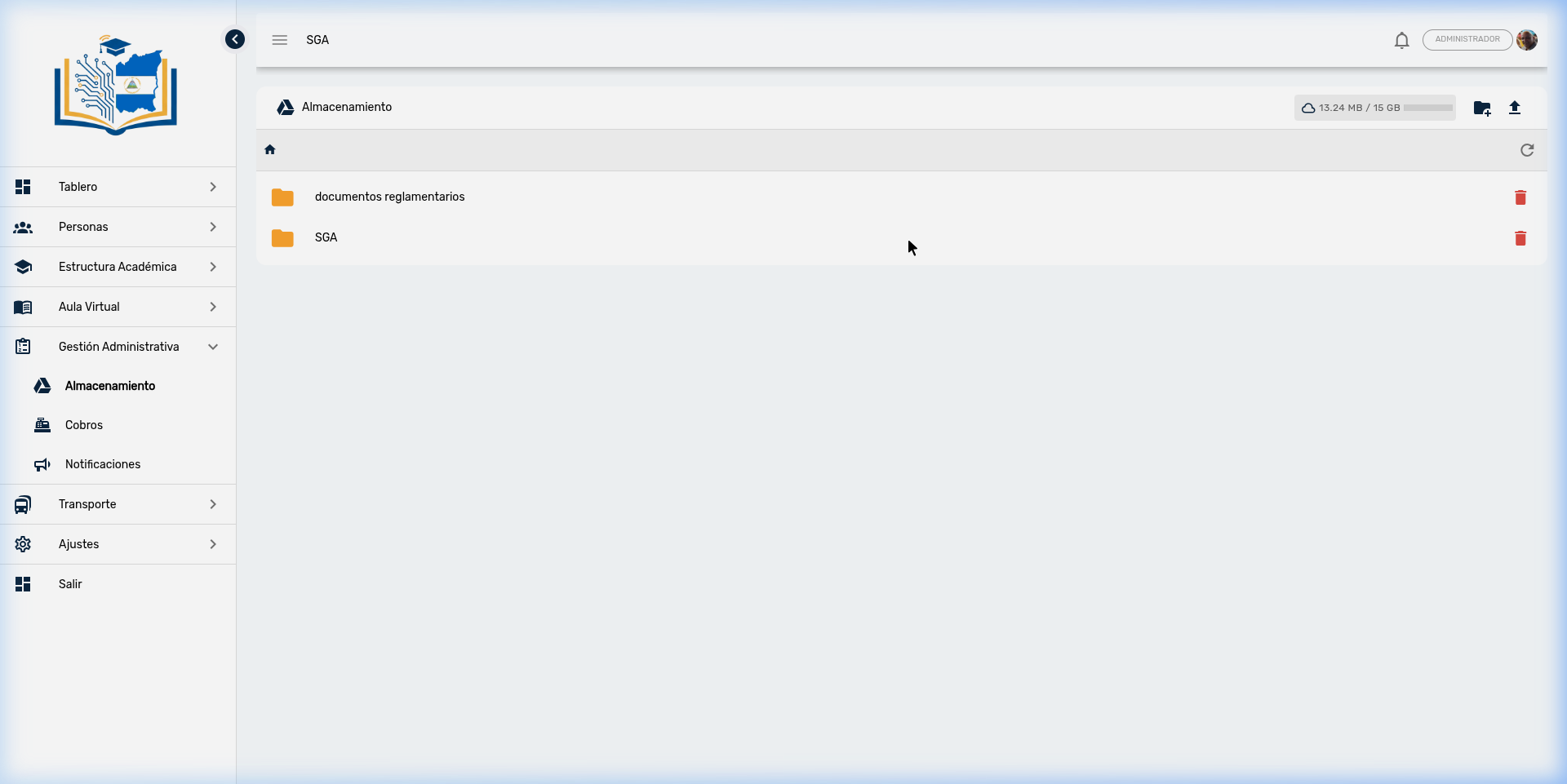
Toolbar
| Button | Function | Who sees it? |
|---|---|---|
| 📁 New Folder | Creates a folder in the current location | Only staff with management permission |
| ⬆️ Upload File | Uploads a document from the computer | Only staff with management permission |
| 🔄 Refresh | Updates the view to reflect recent changes | Everyone |
Space indicator
At the top, a progress bar is displayed showing the space used relative to the total available:
- Example: 13.24 MB of 15 GB used
- Hovering over the bar shows the exact detail
- When space approaches the limit, the bar changes color as a warning
Folder navigation
Navigation works like a conventional file explorer:
| Action | Result |
|---|---|
| Click on a folder | Opens the folder and shows its contents |
| Click on the breadcrumb (top path) | Returns to any previous level in the path |
| Click on the 🏠 Home icon | Returns to the root folder |
File information
| Column | Description |
|---|---|
| Icon | Document type with distinctive color |
| Name | File or folder name |
| Size | File size (folders don't show size) |
| Date | Last modification date |
| Actions | Download ⬇️ and Delete 🗑️ (according to permissions) |
Visual identification by document type
The system assigns a different icon and color based on file type for quick identification:
| Document type | Icon | Color |
|---|---|---|
| Folder | 📁 Folder | 🟡 Amber |
| Image (JPG, PNG, etc.) | 🖼️ Image | 🔵 Blue |
| 🔴 Red | ||
| Spreadsheet (Excel) | 📊 Excel | 🟢 Green |
| Other formats | 📄 Document | ⚪ Gray |
Empty folder
When a folder has no content, an icon is displayed with the message "No files found". This is normal for newly created folders.
3. Creating a Folder
Folders allow organizing the school's documents by category, year, or department.
Procedure
- Navigate to the location where you want to create the folder
- Press the 📁 New Folder button
- Type a descriptive name for the folder (e.g.,
Circulars 2026,Meeting Minutes) - Press Create
- The folder appears immediately in the list
Duplicate protection
If you create a folder with a name that already exists in the same location, the system does not generate a duplicate. This protects the archive organization against accidental double-clicks or unintentional errors.
Recommended structure
For an organized institutional archive, the following organization is suggested:
📁 Home
├── 📁 Circulars
│   ├── 📁 2025
│   └── 📁 2026
├── 📁 Meeting Minutes
├── 📁 Regulations and Policies
├── 📁 Official Forms
│   ├── 📁 Enrollment
│   ├── 📁 Certificates
│   └── 📁 Requests
├── 📁 Parent Communications
└── 📁 Internal Documents
4. Uploading a Document
Procedure
- Navigate to the destination folder
- Press the ⬆️ Upload File button
- Select the document from your computer's file explorer
- Wait for the upload to complete (a progress indicator is shown)
- The file appears in the list when finished
System behavior when uploading
| Situation | What happens |
|---|---|
| The file is new | It is created normally in the selected folder |
| A file with the same name already exists | The content is replaced with the most recent version |
| File types | Any format is accepted (PDF, Word, Excel, images, etc.) |
| Size limit | Defined by the Google Drive account (generally 15 GB for standard accounts) |
⚠️ Automatic replacement
If you upload a file with the same name as an existing one, the system updates the content without warning. This is useful for maintaining updated versions of official forms, but be careful not to overwrite documents by mistake. If you need to keep both versions, rename the file before uploading.
5. Downloading a Document
- Locate the file in the list
- Press the ⬇️ Download button (visible only for files, not folders)
- The document downloads to your computer with its original name and format
For the office
When a parent requests a copy of an official document (circular, regulations, enrollment form), you can download it from here and print it or send it via email directly.
6. Deleting a File or Folder
- Locate the item you want to delete
- Press the 🗑️ Delete button (only visible to staff with management permission)
- Confirm the action in the dialog box
Irreversible deletion
Deletion is permanent. The file is deleted directly from Google Drive and cannot be recovered from the SGA. Before deleting:
- Verify that the document is not needed by other areas
- Consider moving the file to a "Historical Archive" folder instead of deleting it
- If you deleted something by mistake, contact the school's Google account administrator
7. Files in Other SGA Areas
In addition to the Storage module, the SGA manages files in other areas that are saved in separate Google Drive folders:
| SGA Area | Type of documents | Who uploads them |
|---|---|---|
| Storage (this module) | Circulars, minutes, forms, regulations | Administration and office |
| Virtual Classroom — Activities | Teaching materials, guides, assignments | Teachers |
| Student Record | Birth certificate, report cards, certificates | Academic office |
Each area has its own root folder in Google Drive. Virtual Classroom and Student Record documents do not appear in this explorer — they are managed from their respective modules.
8. Document Management Best Practices
| Practice | Benefit |
|---|---|
| Descriptive file names | Facilitates searching. E.g., Circular_001_Start_Classes_Feb2026.pdf instead of doc1.pdf |
| One folder per category | Maintains order. Avoid accumulating all files in the root |
| Dates in folder names | Allows locating documents by period (e.g., Minutes 2026) |
| Check space periodically | The progress bar tells you how much space remains available |
| Don't delete, archive | Create a "Historical Archive" folder for documents that are no longer used but may be needed |
| Standard formats | Prefer PDF for final documents and Excel for editable spreadsheets |
Frequently Asked Questions — Office
| Question | Answer |
|---|---|
| Do I need a Gmail account to use this module? | No. Access is managed with your SGA user. The module automatically connects to the school's institutional Google Drive account. |
| What happens if I upload a file that already exists? | The system replaces the existing file's content with the new version. The name stays the same. If you want to keep both versions, rename the new file before uploading. |
| Can I recover a deleted file? | Not from the SGA. Deletion is permanent. Contact the school's Google account administrator if you need to recover a file deleted by mistake. |
| Is there a space limit? | Yes. The limit is defined by the school's Google Drive account (15 GB for free accounts, more with Google Workspace for Education). The progress bar at the top shows current usage. |
| Who can see the files? | All users with file query or management permission. Parents and guardians do not have access to this module — documents for parents are shared through other means (WhatsApp, portal). |
| Do teachers use this module? | Generally not. Teachers upload their materials from the Virtual Classroom Activities module, which uses a different Drive folder. |
| Does it work without internet? | No. The module requires an internet connection since files are stored in the Google Drive cloud. |
| Can I create subfolders within folders? | Yes. Navigate inside the desired folder and use the New Folder button. You can create as many levels of organization as needed. |