

Parent Portal Administration
The Parent Portal is an exclusive space for parents and guardians to view their children's academic information from any device with internet access. Through the portal, they can view grades, attendance, incidents, payment status, transportation information, and receive notifications from the school.
This guide covers portal administration — how the school administrator manages parent access.
Before a parent can access the portal, the administrator must register their login credentials. This is done from the Portal Credentials screen.
Access path: Side menu → Settings → Portal Credentials
1. Registered Access List
When entering this screen, a table is displayed with all parents who have access to the portal. The total number appears next to the title (for example, 2 registered access entries).
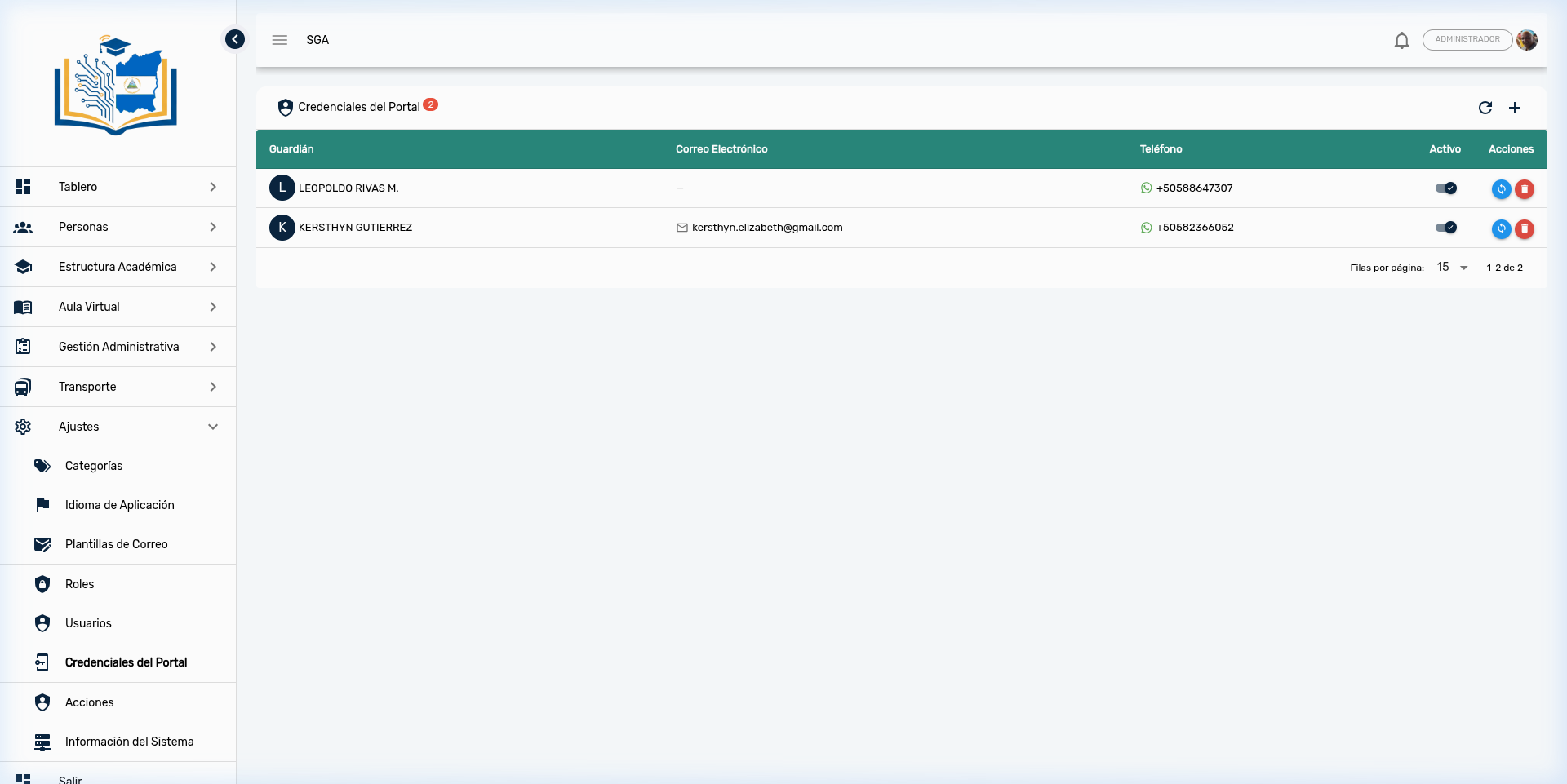
Visible Columns
| Column | Description |
|---|---|
| Guardian | Name of the parent or guardian, with their initial as avatar |
| The email where they will receive access codes | |
| Phone | The WhatsApp number where they will receive access codes |
| Active | Toggle switch indicating whether the parent can access the portal |
| Actions | Buttons to update data or delete access |
Tip
A parent can have their email address, WhatsApp number, or both registered. At least one of the two is required for them to receive the access code.
2. Add a Parent to the Portal
To grant portal access to a new parent or guardian:
- Click the + button (upper right corner)
- A search field will open where you can type the guardian's name
- Select the parent or guardian from the results list
- The system will automatically take their email and phone number from the record
- Access will be enabled immediately
Important
The parent must be previously registered as a Guardian in the People module. If they don't appear in the search, first register them from People → Guardians.
Note
If the guardian has neither an email address nor a phone number registered, the system will display an error message indicating that they have no contact information. In that case, first update the guardian's data from People → Guardians → Edit.
3. Actions on an Access Entry
Each registered parent has two action buttons at the end of their row:
| Action | Icon | Description |
|---|---|---|
| Sync | 🔄 (green) | Updates the parent's email and phone with the most recent data from their guardian record |
| Delete | 🗑️ (red) | Deletes the parent's portal access (requires confirmation) |
Tip
Use the Sync button when you have updated a guardian's email or phone in the People module and need those changes reflected in their portal access.
4. Enable or Disable Access
To temporarily activate or deactivate a parent's access without deleting it:
- Locate the parent in the table
- In the Active column, click the toggle switch
- If the switch is on (blue), the parent can access the portal
- If the switch is off (gray), the parent will not be able to access until it is reactivated
Tip
Disabling access is useful when you need to temporarily suspend a parent's login without losing their record. For example, if there is a pending administrative matter.
5. WhatsApp Requirement: First Contact
For a parent to receive codes via WhatsApp, the parent must have initiated a conversation first with the school's WhatsApp number. This is a WhatsApp platform requirement to prevent unsolicited messages.
If a parent tries to log in via WhatsApp without having initiated contact, they will receive a message indicating that they must send a message to the school's number first.
The administrator can verify and manage the status of this requirement from the actions column of each credential.
6. Portal Analytics Panel
From the Portal Credentials screen, the administrator has access to an analytics panel that displays portal usage statistics.
Key Indicators
| Indicator | Description |
|---|---|
| Total accesses | Total number of times parents have accessed the portal |
| Accesses today | Number of logins for the current day |
| Active parents | Number of unique parents who have accessed |
| Enabled credentials | Total number of enabled access entries |
| Primary channel | Usage percentage of email vs. WhatsApp |
Charts
| Chart | Description |
|---|---|
| Channel distribution | Proportion of accesses via email vs. WhatsApp |
| 30-day trend | Access evolution over the last month |
| Hourly distribution | Times of day when parents access the portal most |
Listings
| Listing | Description |
|---|---|
| Most active parents | The 10 parents with the highest number of accesses |
| Recent accesses | The last 20 logins with parent name, channel used, and date |
Use Case
These analytics allow the administrator to measure portal adoption by parents and identify whether more communication or training is needed to increase usage.
7. Complete Flow: From Registration to Portal Access
For a parent to view their children's information in the portal, these steps are needed in order:
| Step | What to do | Where |
|---|---|---|
| 1 | Register the guardian with their email and/or phone | People → Guardians → (+) |
| 2 | Link the guardian with their child(ren) | People → Students → Edit → Family tab |
| 3 | Create portal access | Settings → Portal Credentials → (+) |
| 4 | The parent logs into the portal with their code | Home screen → Parent Portal |
8. Navigation Summary
| Element | Location | Function |
|---|---|---|
| ➕ Add | Upper right corner | Add a new parent to the portal |
| 🔄 Refresh | Upper right corner | Reload the access list |
| 🔄 Sync | Actions column (per row) | Update parent data |
| 🗑️ Delete | Actions column (per row) | Delete parent access |
| Toggle switch | Active column | Enable or disable access |
| 📊 Analytics | Upper panel | View portal usage statistics |
Frequently Asked Questions
| Question | Answer |
|---|---|
| Can a parent have multiple children? | Yes. When accessing the portal, they will see a card for each linked child. They can view each one's information. |
| Can parents see grades for open periods? | No. Only grades for periods that have already been closed by the administration are shown. |
| Can I block grade access for unpaid balances? | Yes. The system automatically checks for pending payments and blocks access to the report card if there are any. |
| What if a parent changes their WhatsApp number? | Update the number in People → Guardians → Edit, and then press Sync in the Portal Credentials. |
| Do parents receive automatic notifications? | Yes, if they accept the browser's push notifications. They will receive alerts for grades, attendance, incidents, and announcements. |
| How do I know if parents are using the portal? | Check the Analytics panel to view access statistics, trends, and the most active parents. |