

School Transportation
The Transportation module manages the school's transportation service. It allows you to manage drivers, vehicles, and routes with individual stops per student, including pickup address, estimated time, and stop order.
Parents can view their children's transportation information from the Parent Portal.
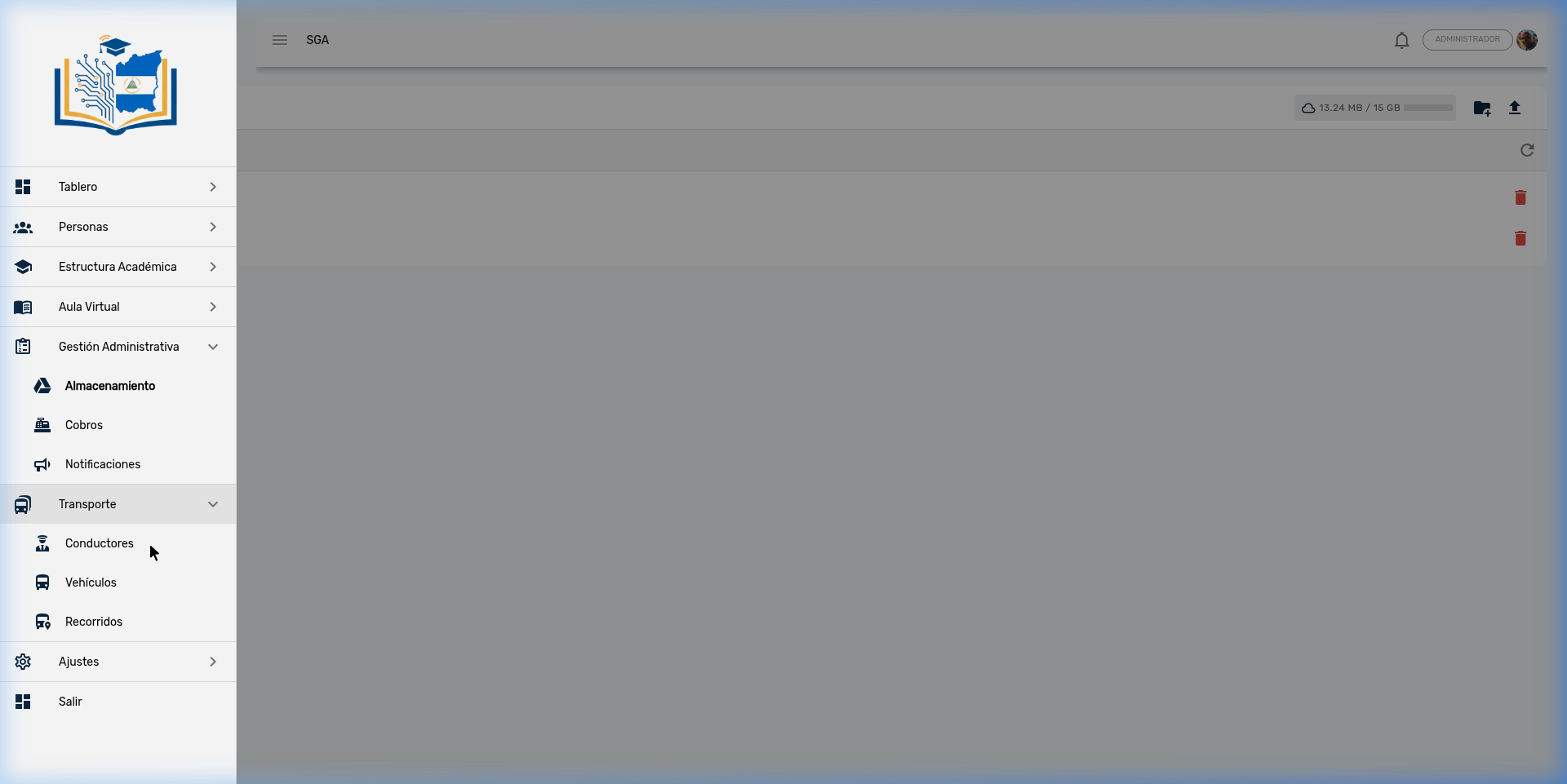
Access: Administrative Management → School Transportation
Required permissions: Transportation management (full access) or Transportation viewing (read-only)
Drivers
Driver List
The main view displays all registered drivers in a table format.
| Column | Description |
|---|---|
| Name | Driver's full name |
| ID Number | Identity document |
| Phone | Contact number |
| License | Driver's license number |
| Expiration | License expiration date |
| Active | Toggle to enable/disable |
List features:
- 🔍 Search by name, ID number, phone, or license
- 🔄 Status filter: All / Active / Inactive
- 🖨️ Print: Generates a printable report with school letterhead, driver list, total count, and signature line
- 📱 Card view on mobile devices
Inactive Drivers
Drivers marked as inactive are highlighted in red in the table and do not appear in route selectors.
Driver Registration
Registration uses a 2-step wizard:
- Search for existing person: The database is searched to avoid duplicates. If found, data is pre-populated.
- Data form: If not found, the full form is completed.
Form fields:
| Field | Type | Required | Description |
|---|---|---|---|
| Name | Text (max. 150) | ✅ | Full name |
| Gender | Selector | ✅ | Male / Female |
| Country | Selector | ✅ | Country of origin |
| ID Number | Text (max. 20) | — | Identity document |
| Phone | Text (max. 20) | ✅ | Contact number |
| Text (max. 190) | — | Email address | |
| License | Text (max. 20) | ✅ | Driver's license number |
| Expiration | Date | ✅ | License expiration date |
| Address | Long text | — | Driver's address |
| Description | Long text | — | Additional notes |
Driver Profile
The individual profile has 2 tabs:
Tab: General Information
Edit form with all driver fields. Includes a save button (enabled only when there are valid changes).
Tab: Routes
Shows cards with all routes assigned to this driver. Each card includes:
- Route name
- Assigned vehicle (plate — make model)
- School year
- Shift (color badge: 🟡 morning / 🔵 afternoon)
- Student count
- Active/inactive status
- Button to navigate to route details
Restricted Deletion
A driver cannot be deleted if they have assigned routes. You must first reassign or delete the routes.
Vehicles
Vehicle List
Table with all vehicles in the school fleet.
| Column | Description |
|---|---|
| Plate | Vehicle plate number |
| Make | Manufacturer (e.g., Toyota) |
| Model | Vehicle model (e.g., Coaster) |
| Year | Vehicle year |
| Color | Badge with the vehicle color |
| Capacity | Maximum passenger capacity |
| Active | Toggle to enable/disable |
List features:
- 🔍 Search by plate, make, or model
- 📱 Card view on mobile devices
Vehicle Registration and Editing
Registration is done through a modal dialog (not a separate page). The fields are:
| Field | Type | Required | Description |
|---|---|---|---|
| Plate | Text (max. 20) | ✅ | Plate number |
| Color | Color selector | — | Visual selector with color palette |
| Make | Text (max. 50) | ✅ | Vehicle manufacturer |
| Model | Text (max. 50) | ✅ | Vehicle model |
| Year | Number | ✅ | Manufacturing year |
| Capacity | Number | ✅ | Maximum passenger capacity (default: 20) |
Color Selector
The color field uses a visual color picker that allows selecting the exact vehicle color. This color is displayed as a badge in the list and is also visible in the Parent Portal.
Restricted Deletion
A vehicle cannot be deleted if it is assigned to an active route.
Routes
Routes are the heart of the transportation module. Each route combines a driver, a vehicle, and a list of per-student stops, linked to a specific school year.
Route List
| Column | Description |
|---|---|
| Name | Route name (e.g., "North Route", "Highway to Masaya") |
| Driver | Assigned driver name |
| Vehicle | Plate — Make Model |
| Shift | 🟡 Morning / 🔵 Afternoon |
| Departure Time | Vehicle departure time |
| School Year | School year it belongs to |
| Active | Status toggle |
List features:
- 🔍 Search by route name
- 📅 Filter by school year (defaults to the active year)
- 🖨️ Print: Printable route sheet (see next section)
Route Registration and Editing
The route profile has 2 tabs:
Tab: General Information
| Field | Type | Required | Description |
|---|---|---|---|
| Name | Text (max. 100) | ✅ | Route identifier name |
| Driver | Selector | ✅ | List of active drivers |
| Vehicle | Selector | ✅ | List of active vehicles (plate — make model) |
| School Year | Selector | ✅ | School year |
| Shift | Selector | ✅ | Morning or Afternoon |
| Departure Time | Time (##:##) | — | Vehicle departure time |
| Description | Long text | — | Route notes |
Tab: Students (Stops)
Dynamic list of cards where each card represents a route stop. Each stop contains:
| Field | Type | Required | Description |
|---|---|---|---|
| Student | Search selector | ✅ | Search student by name |
| Order | Number | — | Stop sequence (1, 2, 3...) |
| Estimated Time | Time (##:##) | — | Approximate pickup time |
| Address | Text (max. 255) | — | Pickup address |
| Reference | Text (max. 255) | — | Reference point (e.g., "In front of the corner store") |
Actions in the students tab:
- ➕ Add stop: Button to add a new student to the route
- 🗑️ Delete stop: Each card has a delete button with confirmation
- The student counter is displayed in the tab header
Duplicate Restriction
A student can only be assigned once per route. The system enforces a unique constraint at the database level to prevent duplicates.
Route Sheet (Print)
When printing a route, a route sheet with school letterhead is generated that includes:
- Header: School logo, institution name, tax ID, phone, address
- Route data: Name, shift, departure time
- Driver data: Name, phone, license
- Vehicle data: Plate, make, model, color
- Stop list: Table ordered by stop number with:
- Stop order
- Student name
- Pickup address
- Reference point
- Estimated time
- Footer: Print date and signature line
Practical Use
The printed route sheet is given to the driver each year so they have the pickup sequence, addresses, and schedules for each student on hand.
Parent Portal — Transportation View
Parents can view their children's transportation information from the Parent Portal.
Access: Parent Portal → Transportation
Information Visible to the Parent
If the student has a route assigned for the active school year, the portal shows:
| Section | Information |
|---|---|
| Route | Route name, shift (morning/afternoon), departure time |
| Driver | Name, photo (avatar with initial), phone (configurable) |
| Vehicle | Make and model, plate, color |
| Student's Stop | Stop number, pickup address, reference point, estimated time |
No Transportation Assigned
If the student does not have a route assigned for the active year, a "No Transportation Assigned" message is displayed with a bus icon.
Privacy Settings
In the System Settings there is an option to show driver phone number that controls whether the driver's phone is visible to parents in the portal. It is enabled by default.
Module Navigation
| View | Description |
|---|---|
| Driver list | Driver listing |
| Driver profile | Driver data and assigned routes |
| Vehicle list | Vehicle listing |
| Route list | Route listing |
| Route profile | Route data and stops |
| Parent Portal → Transportation | Transportation view for parents |
Frequently Asked Questions
Can routes be created for previous school years?
Yes, the school year selector allows choosing any period. However, the list filters by the active year by default.
What happens if I deactivate a driver who has routes?
The driver is deactivated but their existing routes are not affected. However, they will not be available for selection on new routes.
Can a student be on more than one route?
Yes, a student can be on different routes (e.g., morning and afternoon), but cannot be on the same route twice.
Do parents see the driver's phone number?
Only if the show driver phone number option is enabled in the System Settings. The school can disable it for privacy.
Can the driver list be printed?
Yes, from the driver list there is a print button that generates a report with school letterhead. The vehicle list does not have this feature.