

📅 Schedule
The Schedule module allows you to configure the weekly class programming for each section. It uses an interactive visual calendar that displays class blocks organized by day and time, enabling intuitive management of school time.
Access path: Side menu → Virtual Classroom → Schedule
1. What Is a Schedule?
A schedule is the time distribution of courses (subjects) for a section throughout the week. Each schedule block defines:
- Day of the week: Monday through Saturday (Sundays optional)
- Start and end time: Time range for the block
- Course: The subject being taught (includes the assigned teacher)
- Classroom: Room where the class is held (optional, for specialized rooms)
📌 Note
The schedule is directly linked to the Courses module in Academic Structure. Each calendar block belongs to a course previously configured in the section.
2. Calendar View
When you enter the module, an interactive weekly calendar based on the Vue-Cal library is displayed. The calendar shows class blocks as color-coded events, organized by day and time slot.
Available view modes:
| Mode | Description |
|---|---|
| Week (default) | Monday through Friday view with all blocks visible |
| Day | Detailed view of a single day |
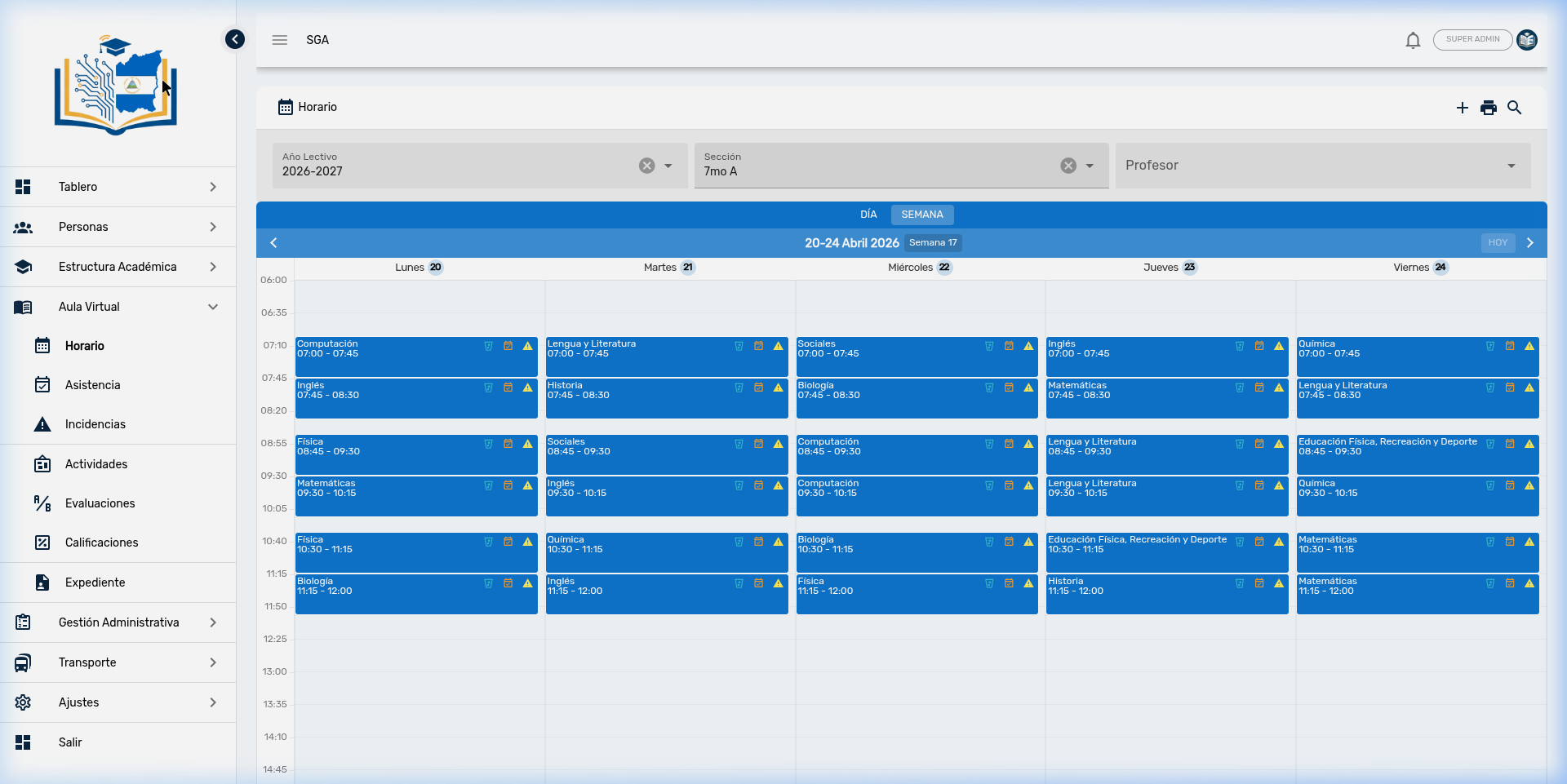
Each event block displays:
- Title: Course/subject name
- Schedule: Start and end time (e.g., 07:00 - 07:35)
- Action buttons: Delete (🗑️), Attendance (📋), Incident (⚠️)
📌 Note
The visible time range of the calendar is configured globally in system settings (for example, from 07:00 to 15:00). Weekends are hidden by default.
3. Schedule Filters
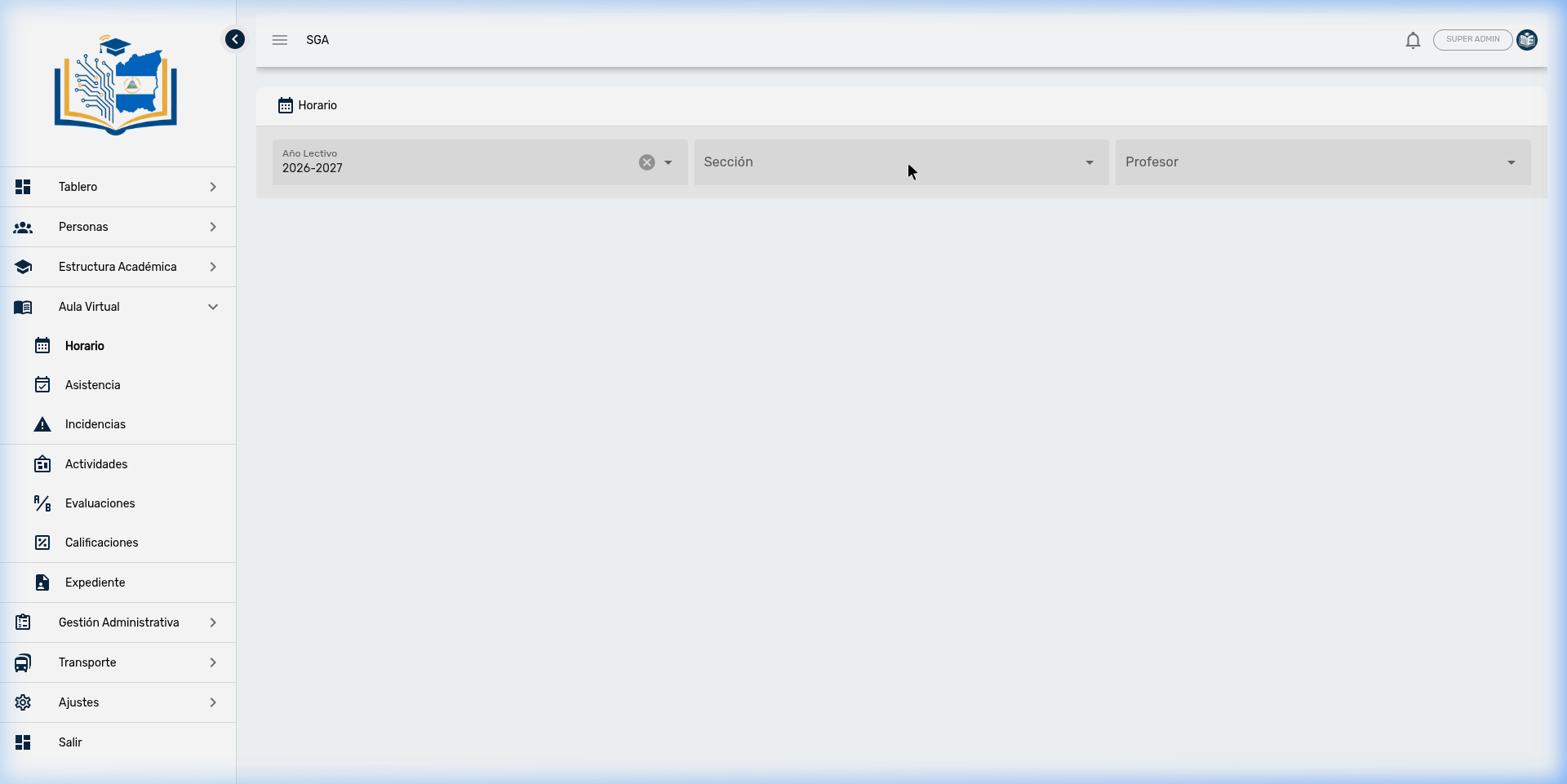
The top filter bar allows you to select which schedule to view:
| Filter | Type | Function |
|---|---|---|
| School Year | Selector | Filters by academic cycle (active year is preselected) |
| Section | Searchable selector | Filters by grade and group. Enabled when a School Year is selected |
| Teacher | Searchable selector | Filters by instructor (shows all blocks for that teacher) |
💡 Tip
You can search the schedule in two ways: by Section (see all classes for 7th A) or by Teacher (see all classes for Prof. Juan Pérez across all sections). Both modes require the School Year to be selected.
⚠️ Important
For the search button (🔍) to be enabled, you must select the School Year AND at least one Section or a Teacher.
4. Creating a Schedule Block
To add classes to a section's schedule:
- Select a School Year and a Section in the filters.
- Click the + button (only visible with both filters selected).
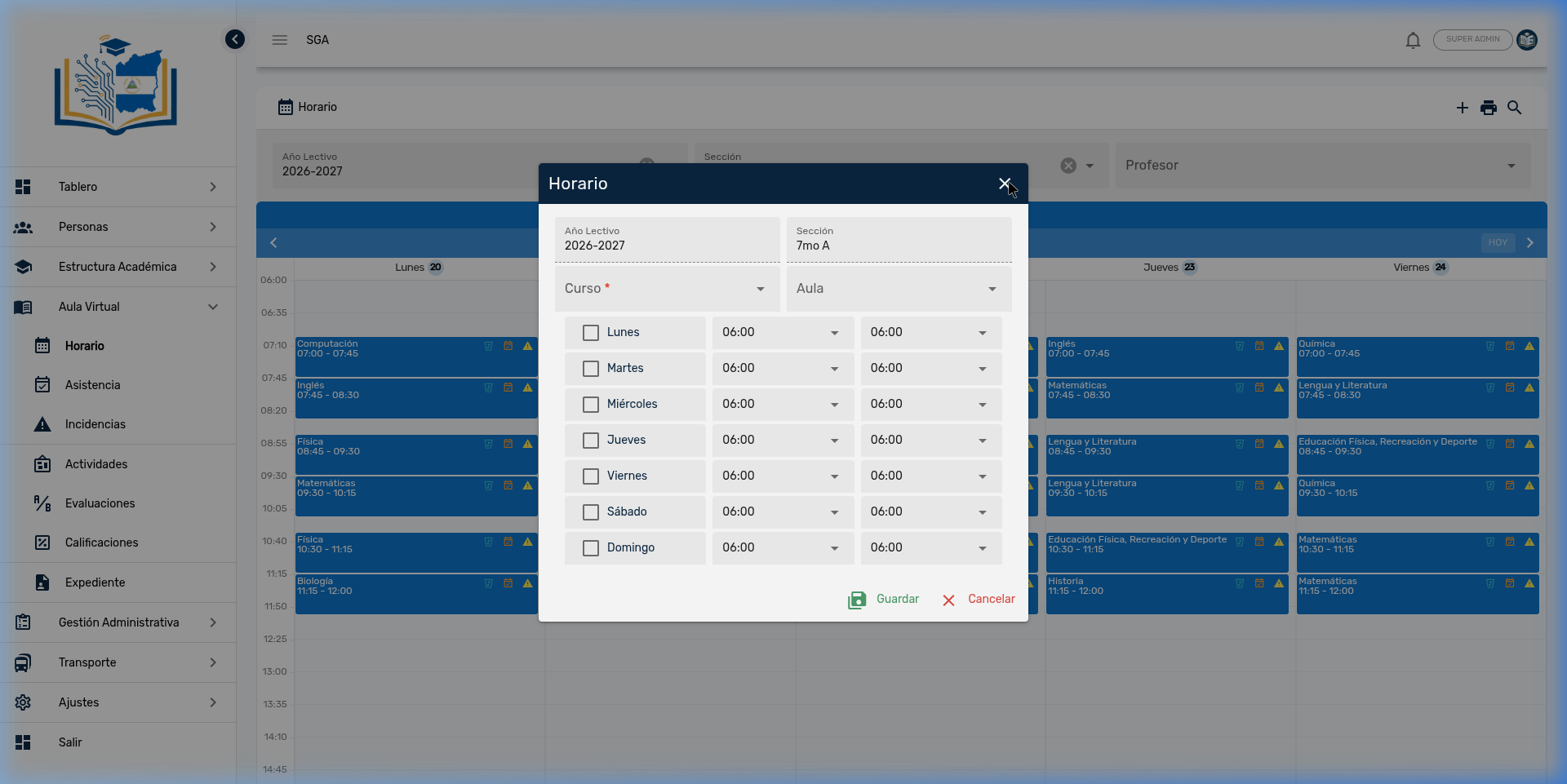
- The creation form will open with the following fields:
| Field | Required | Description |
|---|---|---|
| School Year | — | Read-only, taken from the filter |
| Section | — | Read-only, taken from the filter |
| Course | ✅ | Subject to schedule (only courses from the selected section) |
| Classroom | — | Specific classroom (optional, for labs or special rooms) |
Below these fields, a list of days of the week (Monday through Sunday) appears, each with:
- Checkbox: Enables or disables that day
- Start time: Start time selector
- End time: End time selector
💡 Tip
You can check multiple days at once in a single form. For example, if Mathematics is taught Monday, Wednesday, and Friday from 08:00 to 08:35, you can check all three days and save once. The system will automatically create all three schedule blocks.
📌 Note
The available times in the selectors are automatically generated at regular intervals based on system configuration.
- Check the desired days, select the times, and click Save (💾).
5. Actions on Calendar Blocks
Each class block in the calendar has three direct action buttons in the upper right corner:
| Action | Icon | Color | Description |
|---|---|---|---|
| Delete | 🗑️ | Cyan | Deletes the schedule block (requires confirmation) |
| Attendance | 📋 | Orange | Navigates directly to the attendance record for that class |
| Incident | ⚠️ | Yellow | Navigates to the incident form for that class |
💡 Tip
The Attendance and Incident buttons are contextual shortcuts. When clicked, the system automatically pre-loads the section, date, and time from the selected block, saving you from having to look up the information manually.
📌 Note
The visibility of these buttons depends on the user's permissions. A teacher with Attendance permission will see the 📋 button, but not the 🗑️ if they don't have schedule editing permission.
6. Printing the Schedule
The module allows generating a printable version of a section's schedule:
- Select a Section in the filters and load the schedule.
- Click the printer button (🖨️) in the toolbar.
- A full-screen preview dialog will open with the schedule formatted as an HTML table.
- From the dialog, click Print to send to the printer or save as PDF.
📌 Note
The print report uses the system's internationalized title. If the system language is set to English, the report title will be "Class Schedule" instead of "Horario de Clases".
7. Holidays and the Calendar
The schedule calendar automatically integrates holidays registered in the system. When a day has a configured holiday, the system replaces all class blocks for that day with a special full-day event displaying the holiday name.
Where are holidays configured?
Holidays are managed from the administrative Categories module:
Path: Side menu → Settings → Categories → 🏖️ Holidays tab
| Field | Required | Description |
|---|---|---|
| Date | ✅ | Exact date of the holiday (DD/MM/YYYY format) |
| Description | ✅ | Holiday name (e.g., "Independence Day", "Christmas") |
💡 Tip
By registering the school year's holidays at the beginning of the cycle, the schedule calendar will automatically display them across all sections, avoiding confusion about non-class days.
⚠️ Important
When a day is a holiday, no class blocks are displayed for any section. The system gives the holiday precedence over the regular schedule.
8. Relationship Between Schedule and Other Modules
The schedule is the backbone of daily academic operations. It connects the organizational structure with daily operations:
| Module | Relationship with Schedule |
|---|---|
| Courses | Each schedule block belongs to a course (subject + teacher + section) |
| Sections | The schedule is configured per section |
| Attendance | Each block provides direct access to attendance recording |
| Incidents | Each block allows reporting a disciplinary incident |
| Classes Now | The real-time dashboard uses the schedule to determine which class is currently in session |
| Parent Portal | Parents can view their children's class schedule |
9. Navigation Summary — Schedule
| Element | Location | Function |
|---|---|---|
| 🔍 Search | Upper right corner | Load the schedule based on filters (requires Year + Section or Teacher) |
| ➕ More | Upper right corner | Create schedule blocks (requires School Year and Section) |
| Upper right corner | Generate print preview (requires Section) | |
| School Year | Filter bar (left) | Filter by academic cycle |
| Section | Filter bar (center) | Filter by grade and group (with search) |
| Teacher | Filter bar (right) | Filter by instructor |
| 🗑️ Delete | Corner of each block | Delete a class block |
| 📋 Attendance | Corner of each block | Go to attendance recording for that class |
| ⚠️ Incident | Corner of each block | Report an incident for that class |
| 💾 Save | Inside the dialog | Confirm block creation |