

🔔 Notifications — Instant Communication
The Notifications module is the school's direct communication channel with parents, teachers, and administrative staff. It allows sending mass announcements and, additionally, the SGA generates automatic notifications when important events occur such as charges, incidents, or absences.
👤 Profiles: Administration (sending announcements) · Guardians and teachers (receiving)
Access: Side menu → Administrative Management → Notifications
1. How Do Notifications Arrive?
The SGA uses three complementary mechanisms to ensure each message reaches the recipient:
| Channel | How it works | Does it require the SGA to be open? |
|---|---|---|
| System bell 🛎️ | A red number appears on the bell in the top bar with pending notifications | Yes — visible when logged into the SGA |
| Real-time update | If the user has the SGA open, the notification appears instantly without reloading the page | Yes — active tab |
| Browser push notification | Appears as a native device notification (computer or phone), even with the browser closed | No — arrives even when not in the SGA |
💡 For the administrator
The combination of all three channels guarantees message delivery: if the parent doesn't have the SGA open, it arrives as a push notification to their phone. If they have push disabled, they will see it in the bell the next time they log into the portal.
2. Notification Types
Each notification has an icon and color that allows quickly identifying its nature:
| Type | Icon | Color | Who generates it? | Who receives it? |
|---|---|---|---|---|
| Charge / Payment | 💵 | 🔵 Blue | The system, when creating or collecting an invoice | Student's guardian |
| Incident | ⚠️ | 🔴 Red | The system, when recording a disciplinary incident | Student's guardian |
| Attendance | 📅 | 🟢 Green | The system, when recording an absence or tardiness | Student's guardian |
| Announcement | 📢 | 🟣 Purple | The administrator, from the announcements form | Selected group |
3. Automatic Notifications
The SGA sends notifications automatically when key events occur. These require no staff intervention — the system generates and delivers them without anyone having to write them.
3.1 Charges and Payments
| Event | When it is sent | What the parent receives |
|---|---|---|
| An invoice is created | When registering an individual charge for a student | Notice of the charge with amount and due date |
| Mass charges are generated | When creating charges for an entire section or level | Each guardian receives the invoice corresponding to their child |
| An installment plan is created | When generating advance payments (multiple installments) | Notice of the payment plan with scheduled installments |
When receiving the notification, the parent can press it and the system takes them directly to the Payments section of the portal.
3.2 Disciplinary Incidents
| Event | When it is sent | What the parent receives |
|---|---|---|
| Incident reported | When creating a new disciplinary incident | Summary of the incident with recorded details |
The guardians of all students involved in the incident are notified. When pressing the notification, the parent is directed to the Incidents section of the portal.
3.3 Attendance
| Event | When it is sent | What the parent receives |
|---|---|---|
| Absence or tardiness | When recording the day's attendance | Notice that their child was not marked as "Present" |
Only absences are notified
The system does not send a notification when the student attends normally. The notice is only generated when the attendance status is different from "Present" (absent, tardy, excused absence, etc.). This avoids overwhelming parents with unnecessary messages.
4. Manual Announcements (Mass Sending)
In addition to automatic notifications, the administrator can send mass announcements from the notifications form.
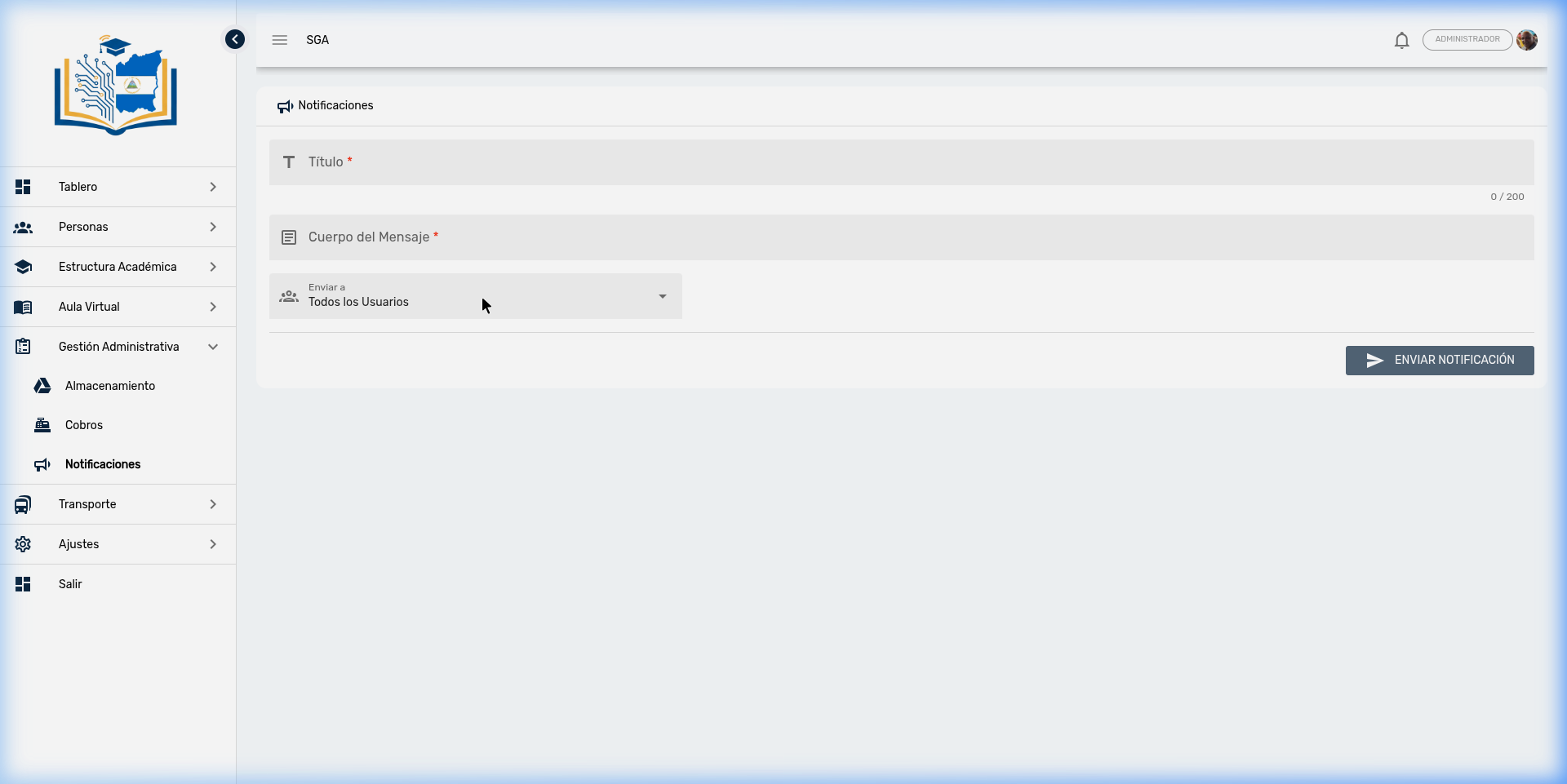
4.1 Form fields
| Field | Required | Description |
|---|---|---|
| Title | ✅ | Announcement subject — clear and concise (max. 200 characters) |
| Message Body | ✅ | Detailed announcement content |
| Send to | ✅ | Select the target group |
4.2 Target groups
The system allows segmenting the delivery according to communication needs:
| Destination | Additional selector | Example use |
|---|---|---|
| All users | None | General school notice, class suspension |
| By level | Select the educational level | Primary parents meeting |
| By section | Select level → section | Special activity for 5th grade A |
| By student | Search for the student by name | Summons for a specific student's guardian |
| By teacher | Search for the teacher by name | Internal communication for a teacher |
4.3 Reach verification
When selecting a student as the recipient, the system displays an informational panel with the linked guardians:
| Data | Meaning |
|---|---|
| Guardian name | Father, mother, or registered responsible person |
| Portal ✅ | The guardian has an active account on the parent portal |
| Portal ❌ | The guardian has not registered on the portal |
| Push ✅ | The guardian has push notifications enabled — they will receive the notice on their device |
| Push ❌ | The guardian doesn't have push — they will only see the notice in the bell when logging into the portal |
When selecting a teacher, the following is displayed:
| Data | Meaning |
|---|---|
| User ✅ | The teacher has system access |
| Push ✅ | Has active push — will receive the notice on their device |
Before sending
Review the ✅ and ❌ badges to know if the recipient will receive the message via push. If the parent doesn't have Portal ✅, they will not receive the notification through any SGA channel — in that case, consider communicating via WhatsApp or phone call.
4.4 Step-by-step sending procedure
- Go to Administrative Management → Notifications
- Write a descriptive Title (e.g., "Parent Meeting — March 2026")
- Write the Message Body with all relevant information
- Select the appropriate target group
- If you selected "By student" or "By teacher," verify the Portal and Push badges
- Press the "SEND NOTIFICATION" button in the lower right corner
- Confirm the send
⚠️ Notifications are irreversible
Once sent, the notification cannot be canceled or modified. All users in the selected group will receive it on their device. Carefully review the content, spelling, and target group before pressing Send.
4.5 Usage examples
| Situation | Suggested title | Destination |
|---|---|---|
| Class suspension | "Class Suspension — Friday, March 21" | All users |
| Parent meeting | "Parent Meeting — Preschool" | By level: Preschool |
| School activity | "Science Fair — 3rd Grade B" | By section: 3rd B |
| Parent summons | "Meeting Summons with Administration" | By student |
| Teacher notice | "Teacher Training — Saturday, March 15" | By teacher |
5. The Notification Bell
All SGA users — administrators, teachers, and parents on the portal — have a notification bell 🔔 in the application's top bar.
How it works
| Element | Description |
|---|---|
| Red badge | Number of unread notifications (shows 99+ when there are more than 99) |
| Dropdown panel | Clicking the bell opens a list with recent notifications |
| Click on a notification | Marks it as read and navigates to the related section (payments, incidents, etc.) |
| "Mark all as read" | Clears all pending notifications in one step |
| Automatic update | New notifications appear instantly without needing to reload the page |
Time format
The bell shows the age of each notification in a friendly format:
| Age | Displayed as |
|---|---|
| Less than 1 minute ago | Now |
| Less than 1 hour ago | 5m, 15m, 45m |
| Less than 24 hours ago | 2h, 8h, 23h |
| More than 24 hours ago | Full date (e.g., 06/15/2026) |
6. Push Notifications on the Device
Push notifications are the alerts that appear on the user's computer or phone screen, even when the browser is closed. It is the most effective form of immediate communication.
How are they activated?
The first time a user logs into the SGA, the system asks if they want to receive push notifications:
- A dialog box appears explaining the benefits
- The user presses "Allow"
- The browser shows its own confirmation window
- Upon accepting, the device is registered to receive notifications
Compatible browsers
Push notifications work on Chrome, Edge, Firefox, and Safari (version 16.4 or higher) on both computers and phones. In some browsers like Edge, if the permission dialog doesn't appear automatically, the system displays a step-by-step guide to enable it manually from settings.
What does the notification show?
When a push notification arrives on the device:
| Element | Content |
|---|---|
| Title | Notification subject (e.g., "Charge Generated") |
| Message | Event detail (e.g., "A charge of C$ 2,500.00 has been generated for Juan Pérez") |
| Icon | SGA logo |
| Click | Opens the SGA and navigates directly to the corresponding section |
What happens when you click?
| Situation | Behavior |
|---|---|
| The SGA is already open | Focuses the existing tab and navigates to the corresponding section |
| The SGA is not open | Opens a new browser window with the SGA |
What if the parent doesn't enable push?
It is not mandatory. The parent who doesn't enable push will still receive their notifications:
- In the bell 🔔 each time they log into the portal
- In real time if they have the portal open
What they lose is the ability to receive alerts with the browser closed.
7. Guaranteed Delivery
The system is designed so notifications arrive with high reliability:
| Aspect | How it's handled |
|---|---|
| Automatic retries | If push delivery fails, the system retries up to 3 times with increasing intervals |
| 24-hour validity | A push notification has up to 24 hours to be delivered. If the device is off, it will be delivered when turned on |
| Device cleanup | If a device is no longer valid (the parent changed phones or uninstalled the browser), the system detects it and automatically removes it from the list |
| Bell backup | Even if push fails, the notification is always saved in the portal bell for later viewing |
8. WhatsApp Channel (Complementary)
In addition to SGA notifications, the school has a WhatsApp messaging service for communications that require more direct contact.
| Aspect | Detail |
|---|---|
| Use | Special communications, payment reminders, urgent notices |
| Who operates it | Administrative staff, from a separate module |
| Relationship with notifications | It is an independent channel — it is not automatically triggered by system events |
When to use WhatsApp vs. Notifications
- SGA Notifications → Automatic events (charges, attendance, incidents) and general announcements
- WhatsApp → Personalized communications, individual follow-up, or when the parent doesn't have an active portal
9. Historical Record
All notifications are recorded in the SGA database with the following information:
| Data | Description |
|---|---|
| Recipient | User or guardian who receives the notification |
| Title and message | Full content of the notice |
| Type | Charge, incident, attendance, or announcement |
| Read status | Whether the recipient has read it (marked as read) |
| Push delivery | Whether the notification was successfully delivered to the device |
| Date and time | Exact moment of generation |
This record allows verifying which notifications have been sent and whether they were read by recipients.
Frequently Asked Questions — Administration
| Question | Answer |
|---|---|
| Do parents receive automatic notifications? | Yes. When recording charges, incidents, or absences, guardians receive notifications automatically through all three channels (bell, real-time, and push). |
| What if a parent doesn't accept push notifications? | They will continue receiving notifications in the portal bell 🔔 each time they log in. They only miss alerts when the browser is closed. |
| Can I send a notification to a single parent? | Yes. In the announcements form, select "By student," search for the student, and the system will send the notification to all guardians linked to that student. |
| Can I send files or images? | No. Notifications only carry text (title and message). To send files, use the WhatsApp channel or share them through the Storage module. |
| How do I know if a parent has push enabled? | When selecting a student in the announcements form, the information panel shows ✅ or ❌ badges for Portal and Push for each linked guardian. |
| Can I resend a notification? | Not directly. Create a new announcement with the same content. Sent notifications are records that cannot be modified. |
| What if push delivery fails? | The system automatically retries up to 3 times. If delivery still fails, the notification remains available in the portal bell as a backup. |
| How many notifications does the user see in the bell? | The last 50 unread notifications. When one is marked as read, it disappears from the list. |
| Do teachers receive notifications? | Yes, when an announcement is sent to them via "By teacher." They do not receive automatic notifications for charges, attendance, or incidents (those are exclusive to guardians). |
| Can I see if a parent read the notification? | The database records the read status and push delivery confirmation. Currently there is no visual read confirmation report in the interface. |
| Does WhatsApp send automatic notifications? | No. WhatsApp is a manual channel operated independently. SGA automatic notifications only use the bell, real-time, and push. |
| Which browsers support push? | Chrome, Edge, Firefox, and Safari 16.4+ on computers and phones. Internet Explorer is not compatible. |