

⚠️ Incidents
The Incidents module allows recording conduct reports, disciplinary situations, or important observations about students. Like attendance, it can be operated directly from the calendar or from the incidents list.
📍 Access path: Side menu → Virtual Classroom → Incidents
1. Incident Statuses
Statuses are configurable by the administrator and support custom colors, just like attendance statuses.
| Property | Description |
|---|---|
| Name | Status identifier (e.g., Not Notified, Notified, Addressed, Resolved) |
| Color | Background color of the visual chip |
| Active | Controls whether it appears as an available option |
⚙️ Configuration: Side menu → Settings → Categories → Incident Status tab
2. Recording Flow — Two Paths
There are two ways to record an incident:
Path A — From the Calendar (Schedule)
By clicking the ⚠️ Incident button on a class block:
📅 Calendar → ⚠️ Click Incident → 👥 Student List → 💾 Save
When using this path, the date is automatically inherited from the block and the school year/section from the active calendar filter.
Path B — From the Incidents List
Using the ➕ More button in the upper right corner of the list (requires having a School Year and Section selected):
📋 Incidents List → ➕ More Button → 👥 Bulk Form → 💾 Save
3. Bulk Recording Form
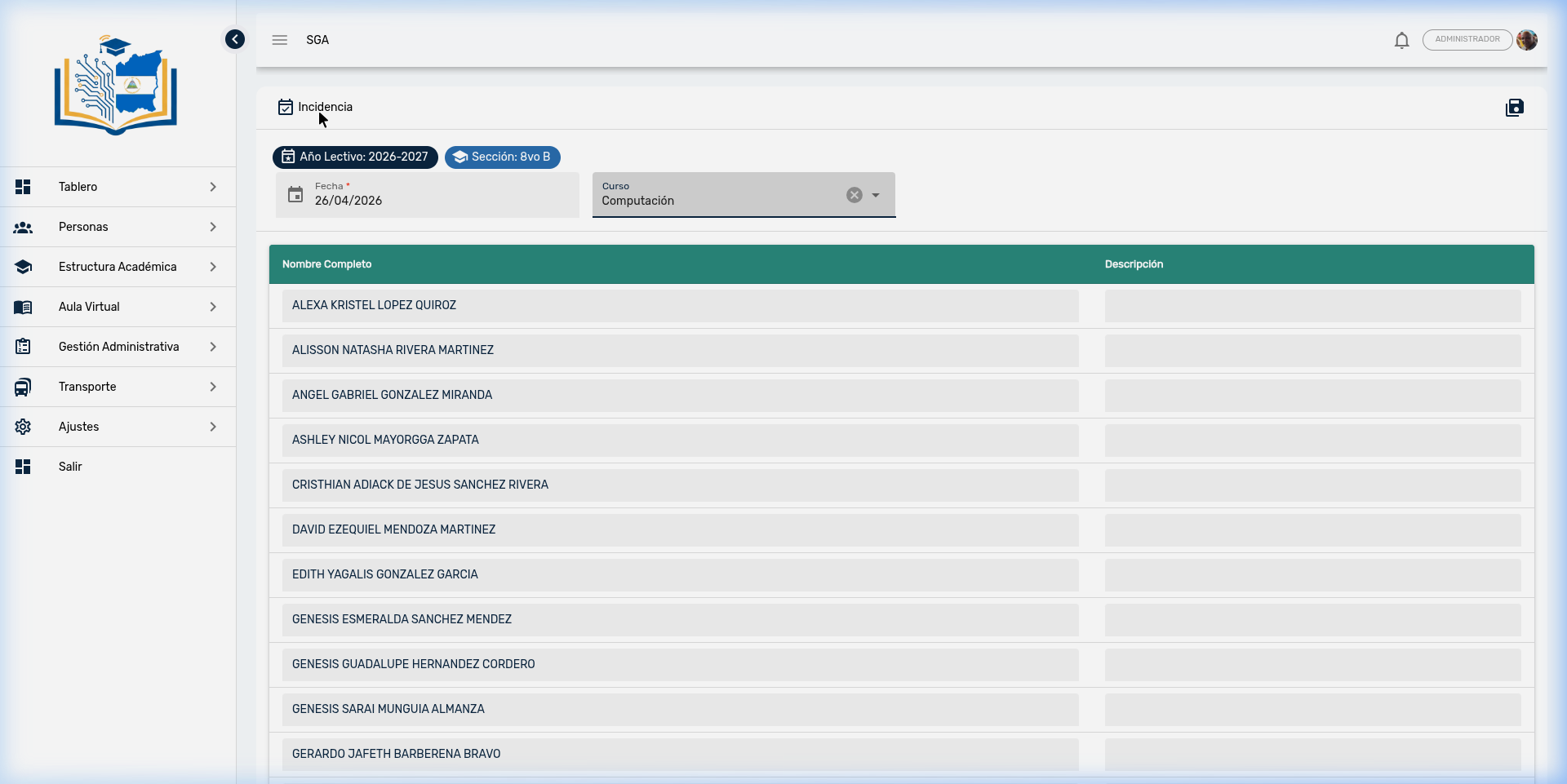
The creation screen shows the class context (informational chips) and a table with all enrolled students.
| Field | Description |
|---|---|
| School Year / Section | Informational chips (read-only, inherited from context) |
| Date | Date selector (defaults to current date or the calendar block's date) |
| Course | Optional selector to associate the incident with a specific subject |
Student table:
| Column | Description |
|---|---|
| Full Name | Student name (read-only) |
| Description | Text field to describe the student's incident |
💡 Note
Only students with a written description are saved. If a student has no description, they are omitted from the record. This allows selective incident reporting.
🔔 Automatic Notifications
When saved, the system automatically sends a push notification to the guardians of each reported student, informing them about the incident.
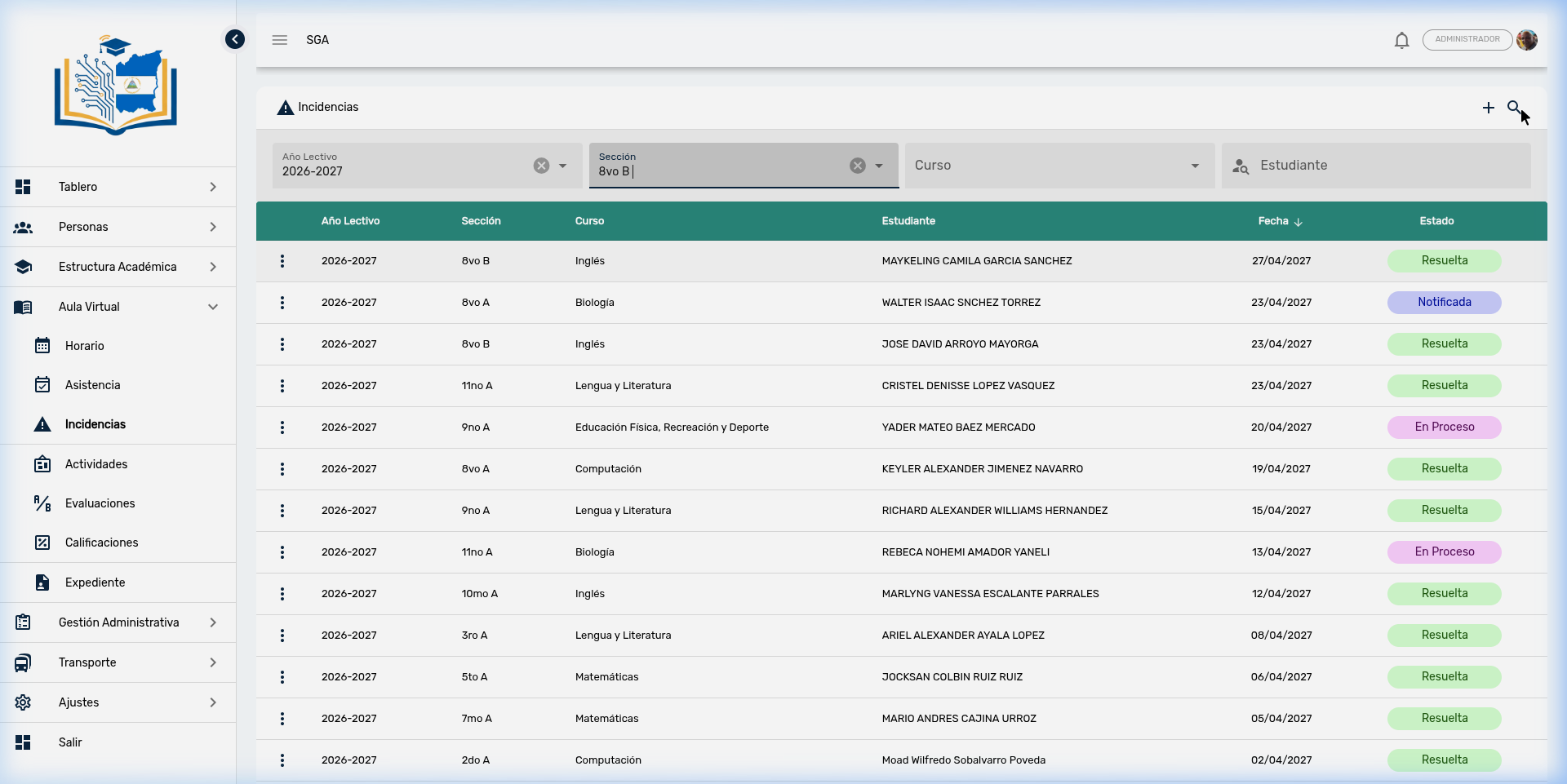
4. Incidents List
The main view displays all reports in a table format with cascading filters:
🎓 School Year → 🏫 Section → 📚 Course → 🔍 Student
Table columns:
| Column | Description |
|---|---|
| School Year | Academic cycle |
| Section | Grade and group |
| Course | Associated subject (may be empty if not selected) |
| Student | Full name of the reported student |
| Date | Report date |
| Status | Color chip with the incident status |
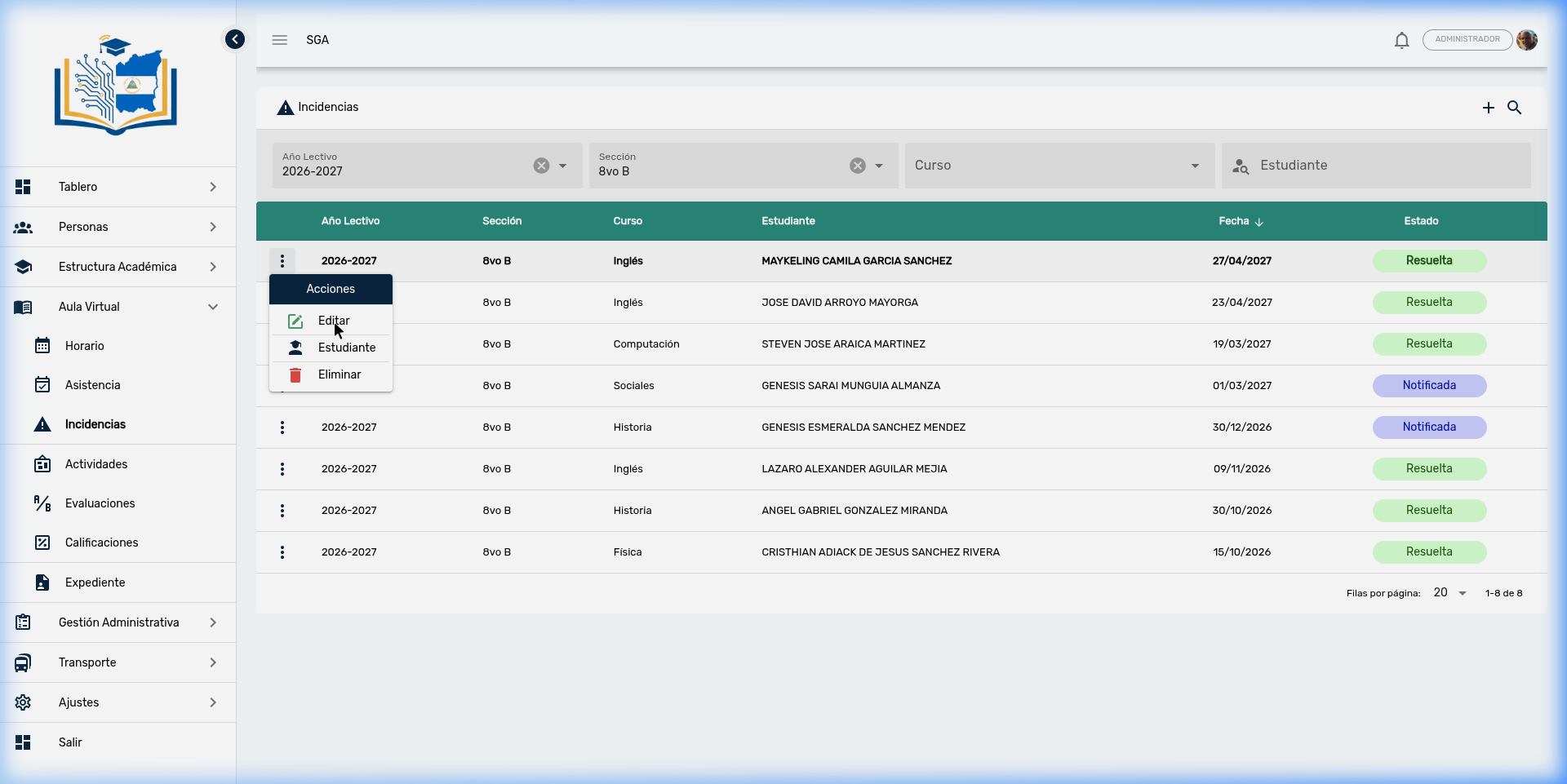
Available actions per record (three-dot menu):
| Action | Icon | Description |
|---|---|---|
| Edit | ✏️ | Opens a dialog to change the status and description of the report |
| Student | 🎓 | Navigate to the student's complete record |
| Delete | 🗑️ | Delete the incident report (with confirmation) |
5. Editing an Incident
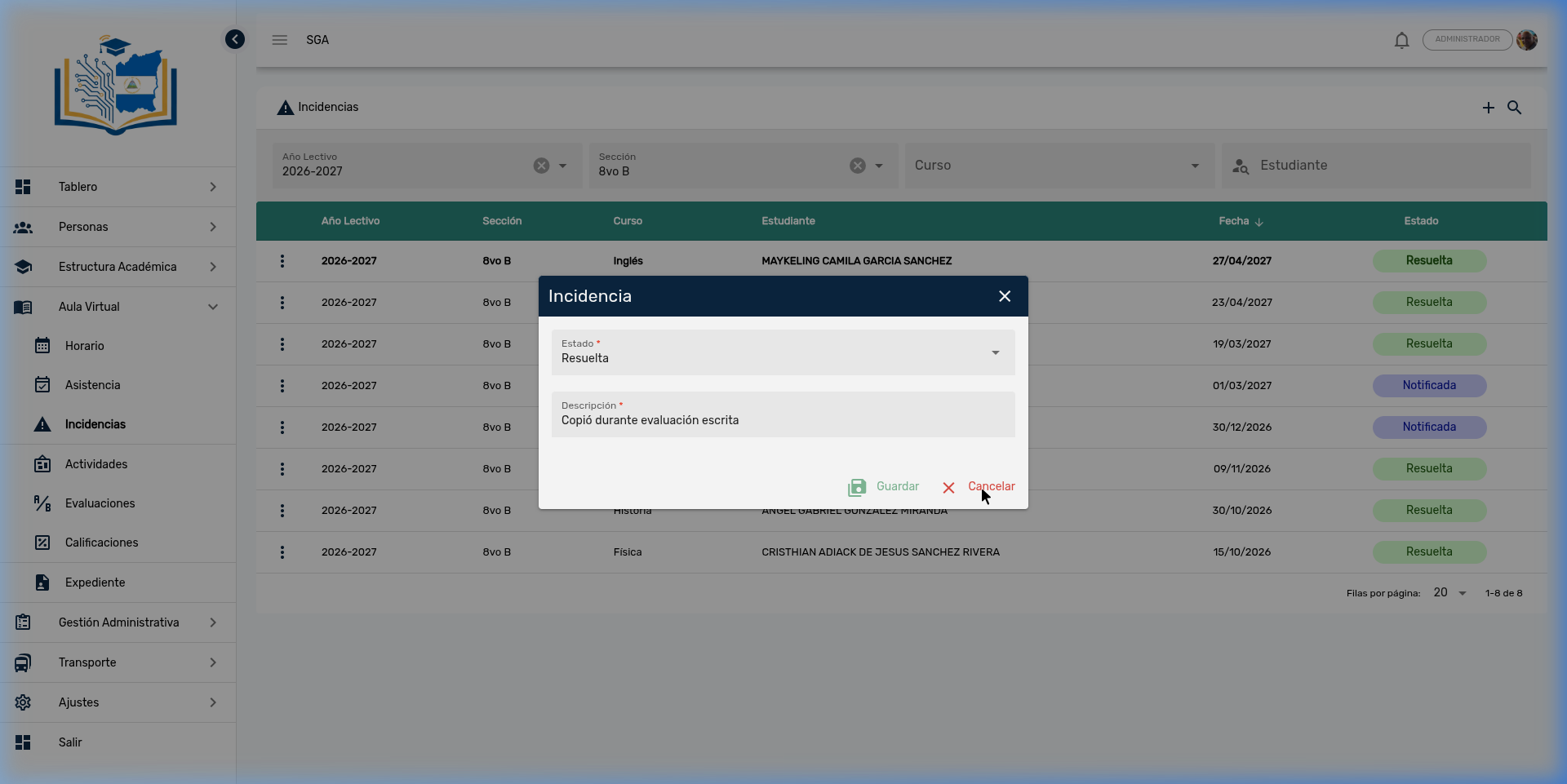
When you select Edit, a dialog opens with two fields:
| Field | Description |
|---|---|
| Status | Selector with configured statuses (Not Notified → Notified → Addressed → Resolved) |
| Description | Text describing the incident (required field) |
📌 Typical lifecycle
Not Notified → Notified (guardian contacted) → Addressed (meeting held) → Resolved (case closed)
6. Incidents Analytics Dashboard
The module includes a visual analytics panel with interactive charts, similar to the attendance dashboard.
📍 Access path: Side menu → Virtual Classroom → Incidents Panel
Available charts:
| Chart | Type | Description |
|---|---|---|
| Incidents by Status | Bar | Distribution of reports grouped by each status |
| Trend (30 days) | Line | Daily evolution of incident reports |
| Distribution by Grade | Pie (Donut) | Proportion of reports by academic grade |
| Distribution by Level | Pie | Proportion of reports by educational level |
The dashboard also includes a recent incidents table (last 10 reports) with student name, section, course, date, and status with color chip.
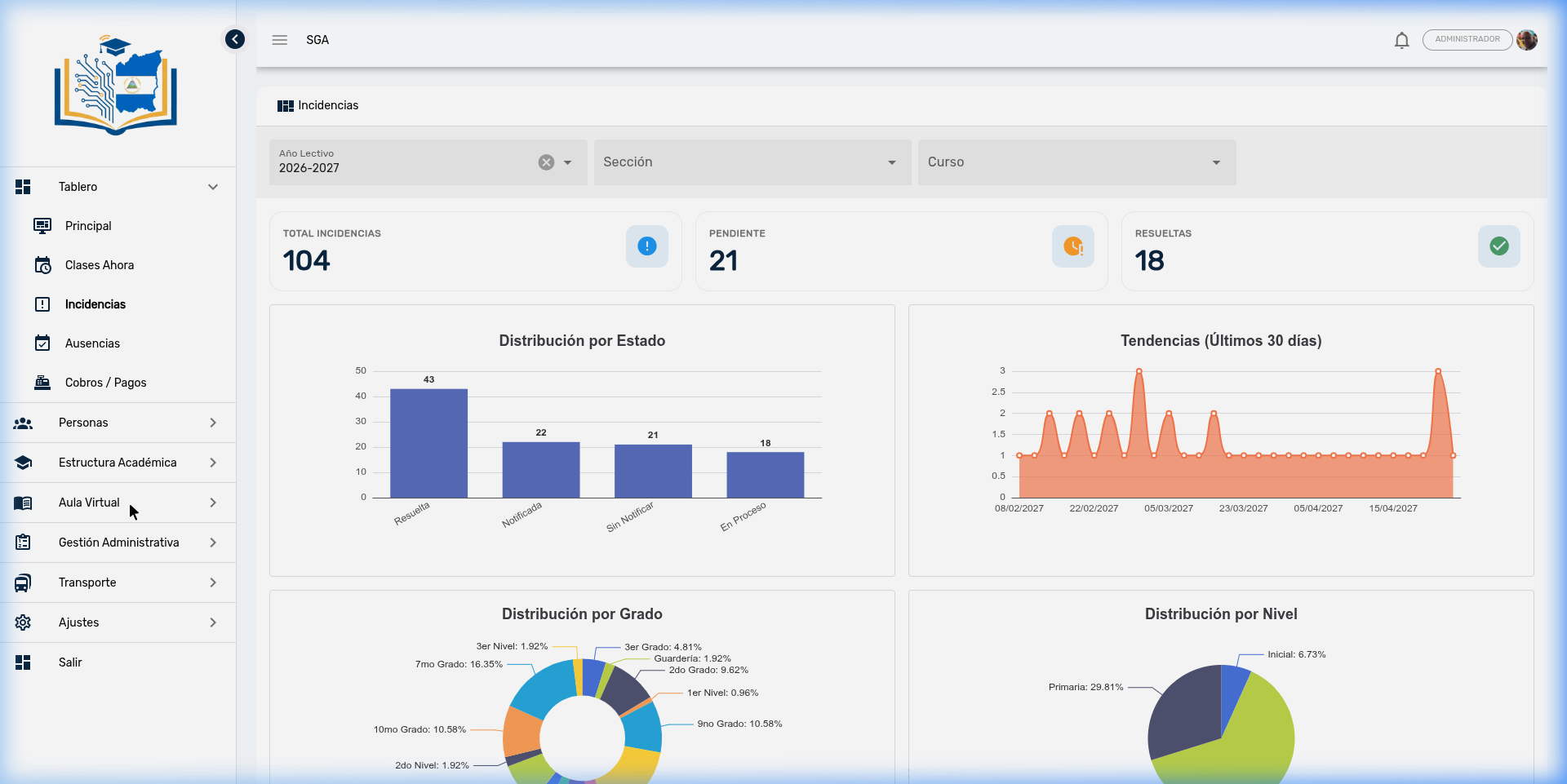
🔍 Dashboard Filters
Supports the same cascading filters (School Year → Section → Course). Charts update automatically when any filter changes.
7. Navigation Summary — Incidents
| Element | Location | Function |
|---|---|---|
| ⚠️ Incident (Button) | Calendar block | Start bulk recording from the schedule |
| ➕ More | Upper right corner of the list | Create incidents (requires Year + Section) |
| 🔍 Search | Upper right corner of the list | Execute search with current filters |
| School Year | Filter bar | Primary filter of the cascading selector |
| Section | Filter bar | Depends on the selected School Year |
| Course | Filter bar | Depends on the selected Section |
| Student | Filter bar | Search by student name |
| ✏️ Edit | Row actions menu | Open dialog to modify status and description |
| 🎓 Student | Row actions menu | Navigate to the student's record |
| 🗑️ Delete | Row actions menu | Delete report with confirmation |
| 💾 Save | Bulk recording form | Confirm and store incidents |
| 📊 Dashboard | Side menu | Access the analytics panel with interactive charts |