

👨🏫 Teachers
The Teachers module manages the registration of the institution's teaching staff. Here you store personal data, contact information, and the employment status of each teacher, facilitating the administration of academic human resources.
Access: Side menu → People → Teachers
Permissions: Teacher management (full access) or Teacher query (read-only)
1. Teacher List
When you enter the module, a table with all registered teachers is displayed. The counter next to the title indicates the total (for example, 21 teachers).
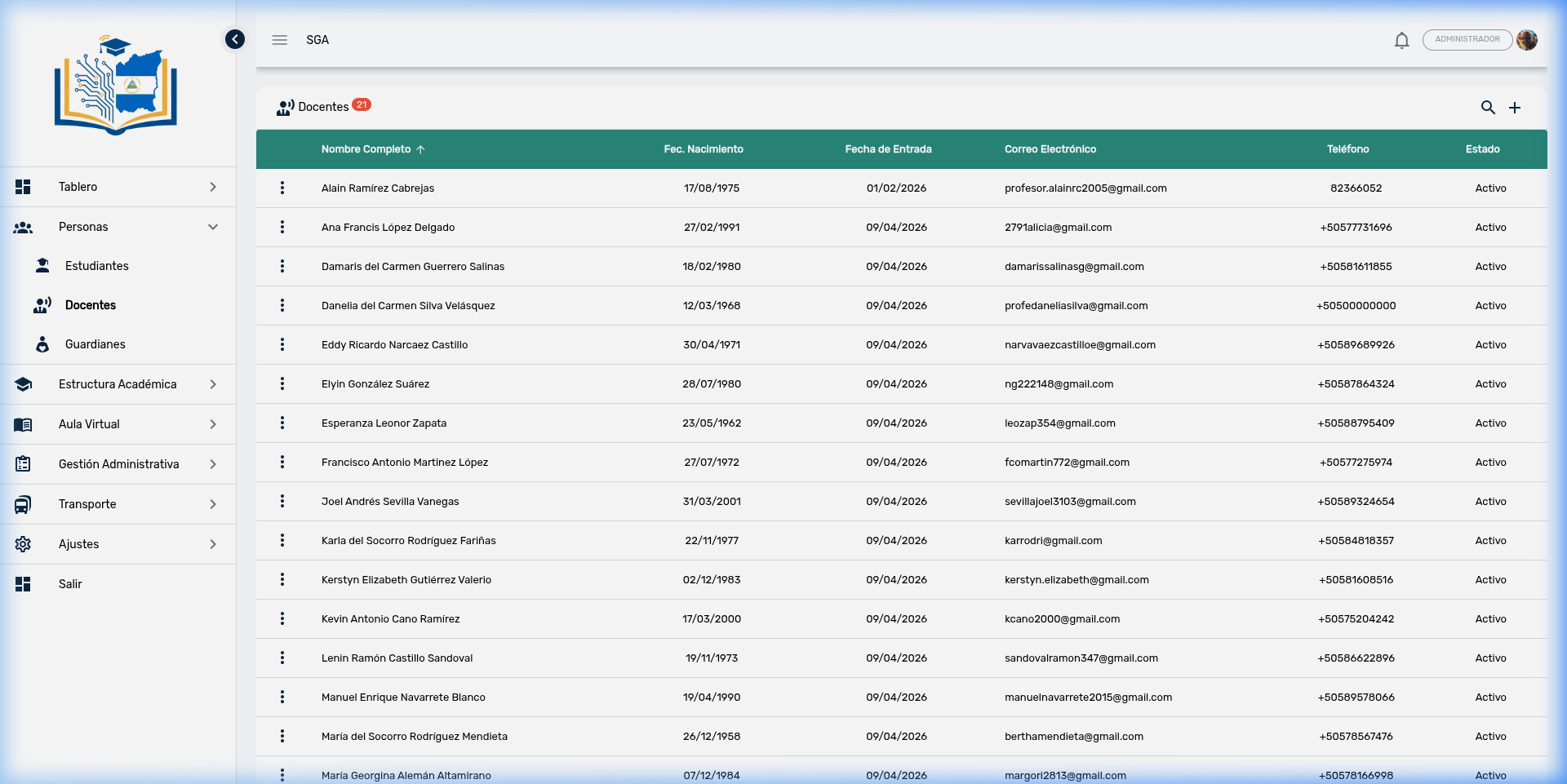
Visible columns
| Column | Description |
|---|---|
| Full Name | Teacher's first and last name, sortable alphabetically |
| Date of Birth | Teacher's date of birth |
| Start Date | Date the teacher joined the institution |
| Institutional or personal email | |
| Phone | Direct contact number |
| Status | Current employment situation (for example: Active, Inactive, Suspended) |
Tip
The Status column allows you to quickly identify which teachers are active in the current school year. A teacher marked as Inactive will not appear in course and schedule assignment options.
Mobile view
On small screens (phones), the table automatically transforms into a card view for easier reading. Each card shows the teacher's main data in a compact format.
2. Teacher Search
To quickly locate a teacher, click the magnifying glass icon (🔍) in the upper right corner. A text field with the message "Type here..." will appear.
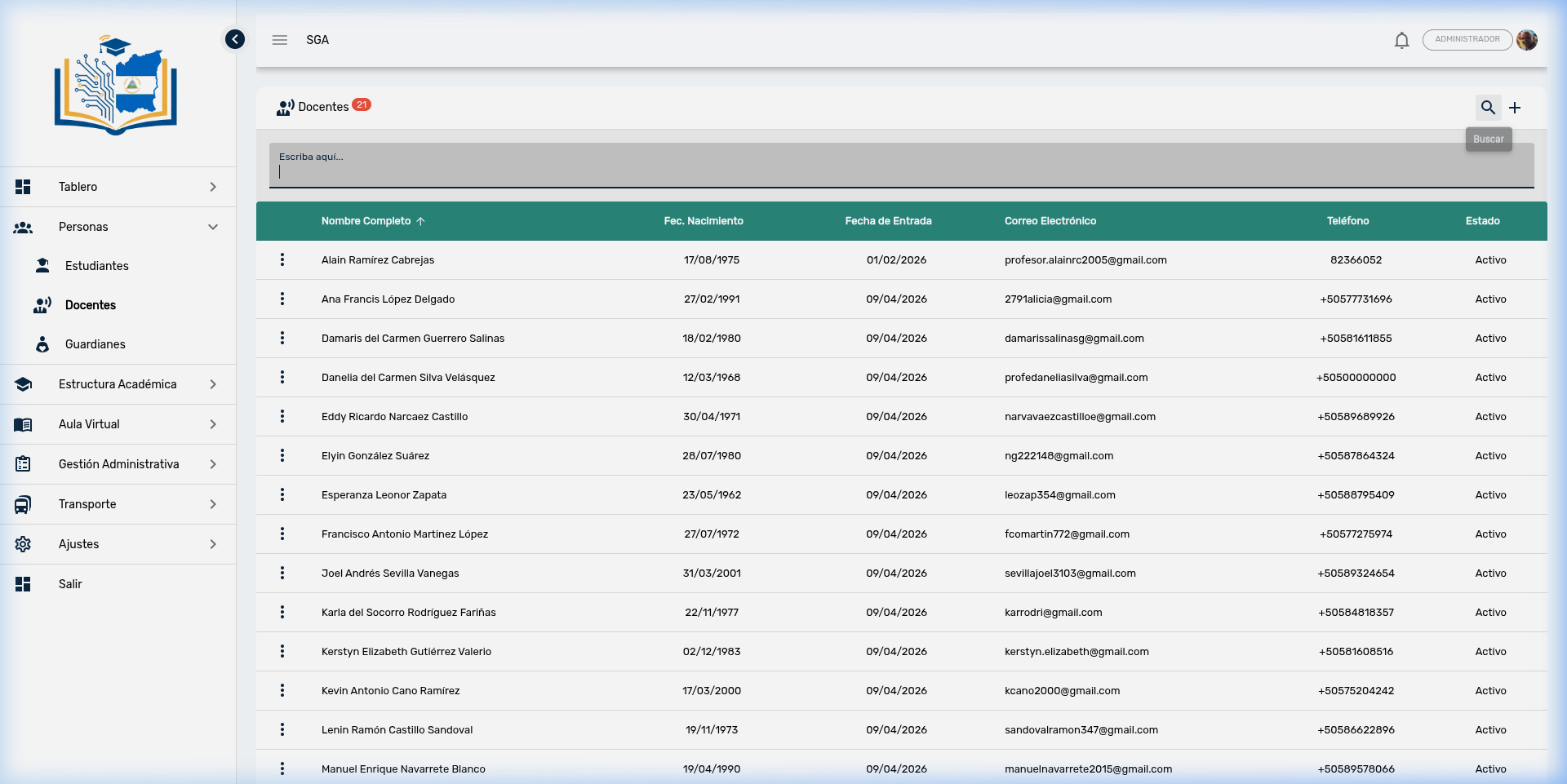
Steps to search:
- Click the magnifying glass icon (🔍)
- Type the teacher's name or last name
- Press the Search button or the Enter key
- The table will filter to show only matching results
3. Actions per Teacher
Each teacher has an actions menu represented by the three vertical dots (⋮) at the beginning of their row. The available options are:
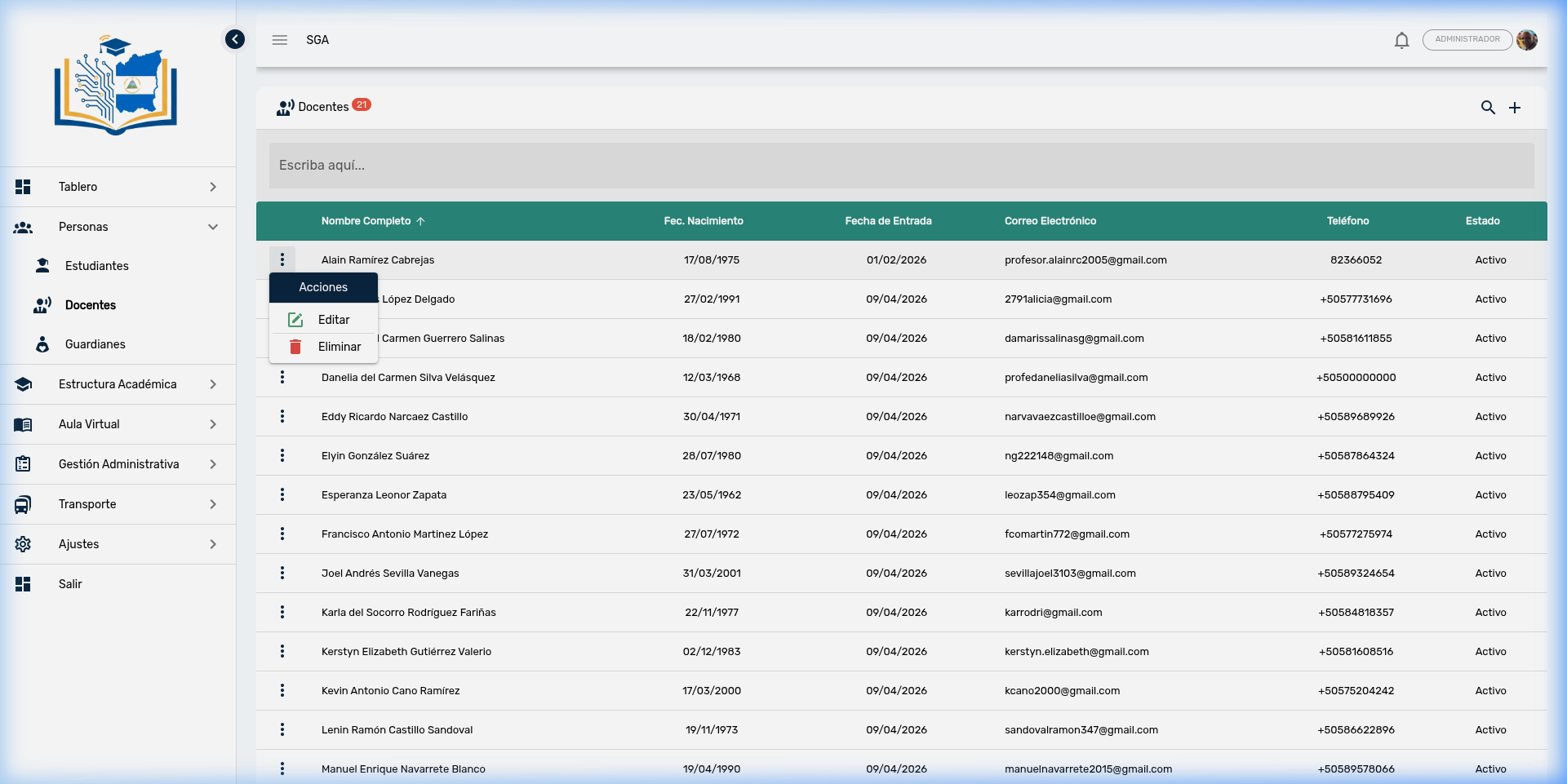
| Action | Icon | Description |
|---|---|---|
| Edit | ✏️ | Opens the teacher's complete profile for viewing or editing |
| Delete | 🗑️ | Deletes the teacher record (requires confirmation) |
Note
Unlike students, teachers do not have an ID Card option. If a teacher leaves the institution, the recommended approach is to change their Status to Inactive instead of deleting them, to preserve the history of associated courses and grades.
Permissions
The Edit and Delete actions are only available to users with the Teacher management permission. Users with Teacher query permission can view the list and teacher profile but cannot make changes.
4. Teacher Profile
When you select Edit, the teacher's profile opens, organized into 4 tabs that group all their academic and personal information. At the top, a statistics panel with key indicators for the teacher in the active school year is displayed.
Statistics Panel
When the teacher has academic assignments, a top bar with 5 informational cards is displayed:
| Indicator | Icon | Description |
|---|---|---|
| Homeroom Sections | 🏫 | Number of sections where the teacher is the Homeroom Teacher |
| Courses | 📖 | Total courses (subjects) assigned to the teacher |
| Blocks/Week | 📅 | Number of scheduled time blocks per week |
| Hours/Week | 🕐 | Total weekly teaching hours calculated automatically |
| Students | 👥 | Total students served by the teacher (sum of all their sections) |
Tip
Statistics are automatically calculated based on the active school year. If a teacher has no assigned sections or courses, the panel is not displayed.
4.1 Tab: General
Contains the teacher's personal and contact data.
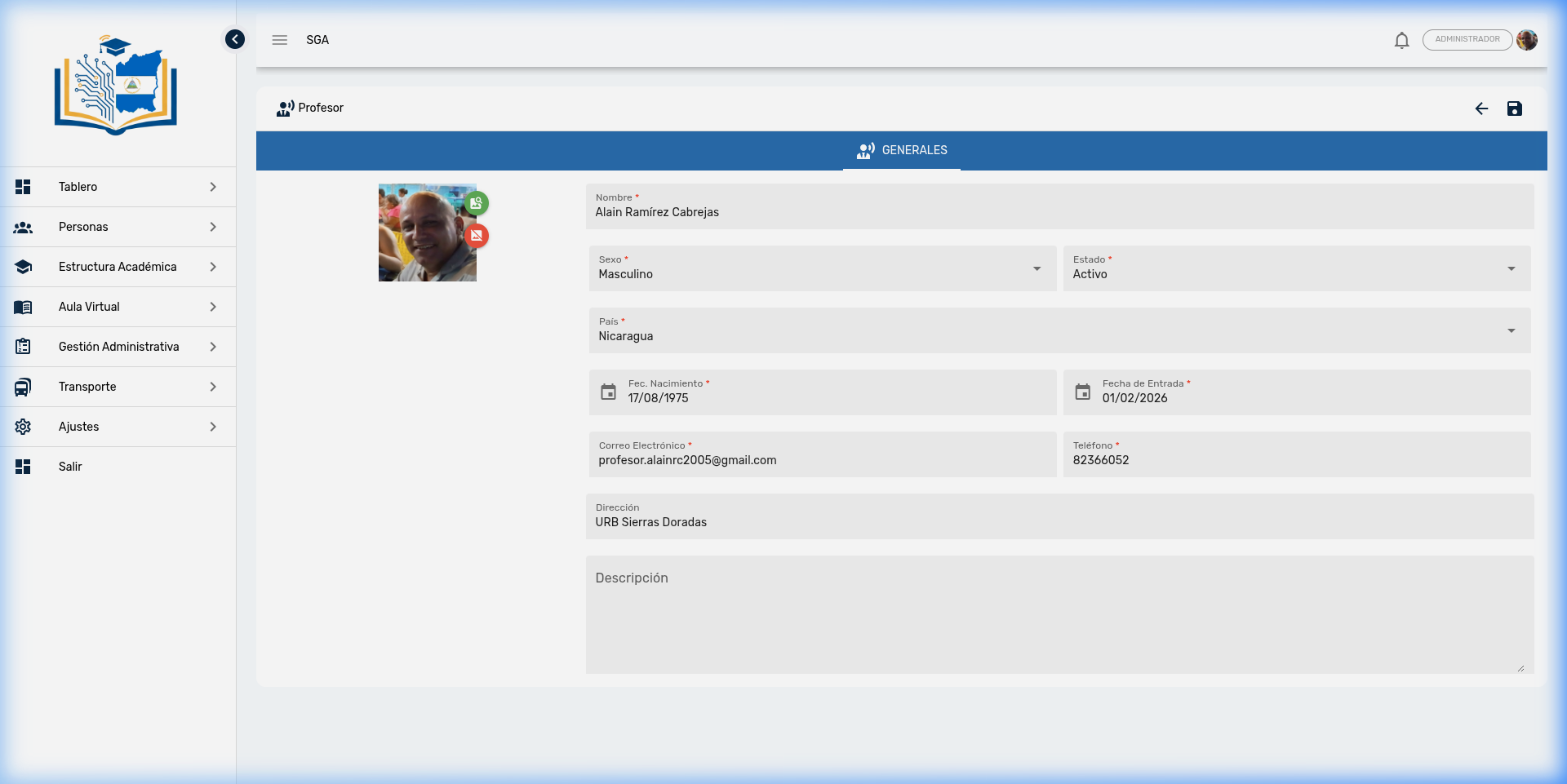
Available fields
| Field | Description | Required |
|---|---|---|
| Photo | Teacher photograph (can be uploaded or taken with camera) | No |
| Name | Teacher's full name | ✅ |
| Sex | Male or Female | ✅ |
| Status | Teacher's employment situation | ✅ |
| Country | Country of nationality | ✅ |
| Date of Birth | Date of birth | ✅ |
| Start Date | Date of joining the institution | ✅ |
| Teacher's email (used for system access) | ✅ | |
| Phone | Contact number | ✅ |
| Address | Home address | No |
| Description | Additional notes, specialty, or academic background | No |
Tip
The teacher's email is also their system access credential. Make sure to register a valid email, as the teacher will need it to log in to the SGA and manage their courses, grades, and attendance.
4.2 Tab: Homeroom Sections
Shows the sections where the teacher has been designated as Homeroom Teacher. This information is automatically obtained from assignments made in the Structure → Sections module.
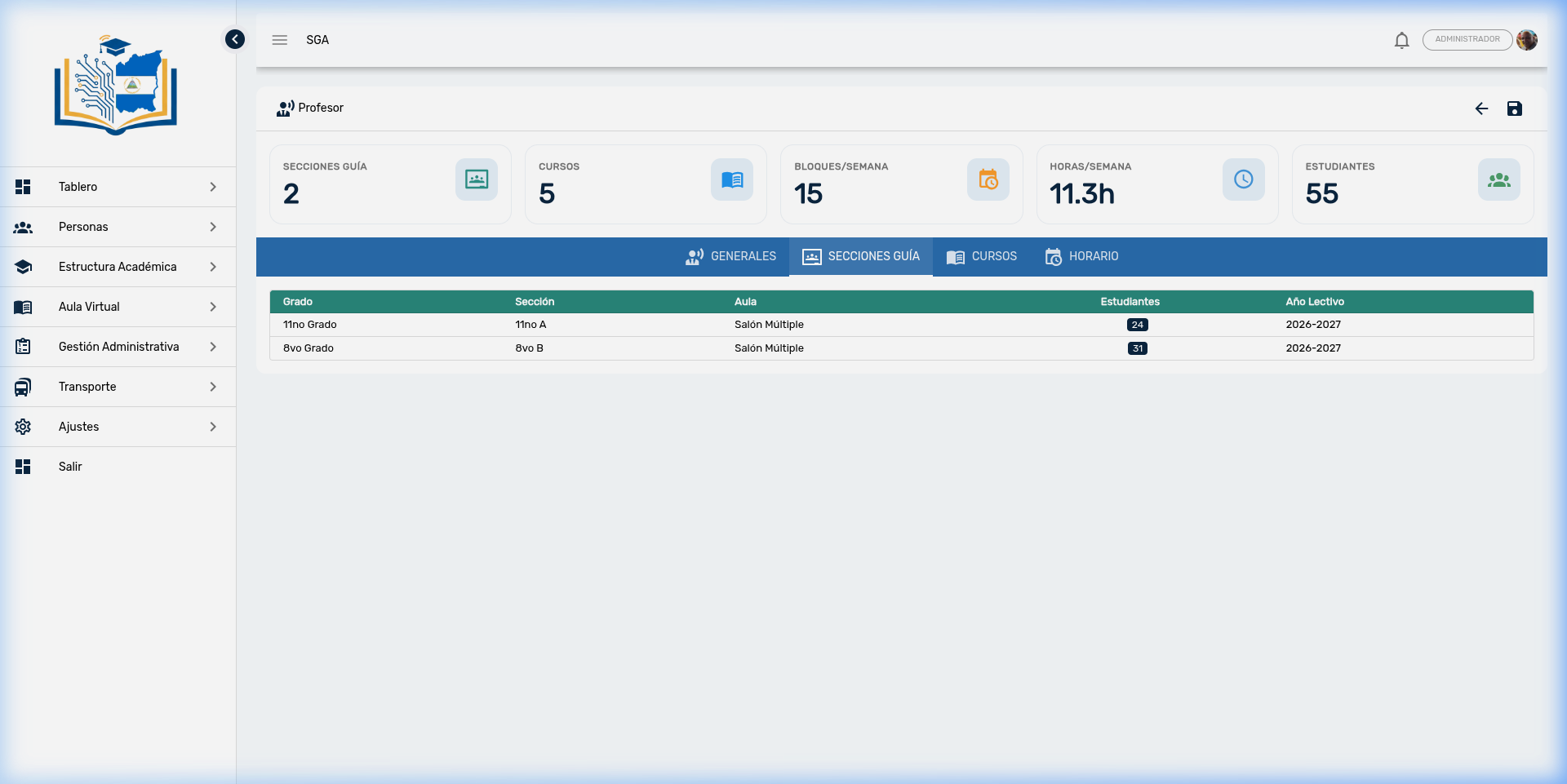
| Column | Description |
|---|---|
| Grade | Educational level of the section (e.g., 7th, 10th) |
| Section | Section name (e.g., 7th A, 10th B) |
| Classroom | Physical classroom assigned to the section |
| Students | Number of students enrolled in the section (numeric badge) |
| School Year | Academic period the assignment belongs to |
Note
This tab is read-only. To change the Homeroom Teacher of a section, you must do so from the Structure → Sections module. If the teacher is not a homeroom teacher for any section, a message will be displayed indicating no records exist.
4.3 Tab: Assigned Courses
Lists all courses (subjects) the teacher instructs in the active school year. Each row shows the relationship between the subject, section, and grading type.
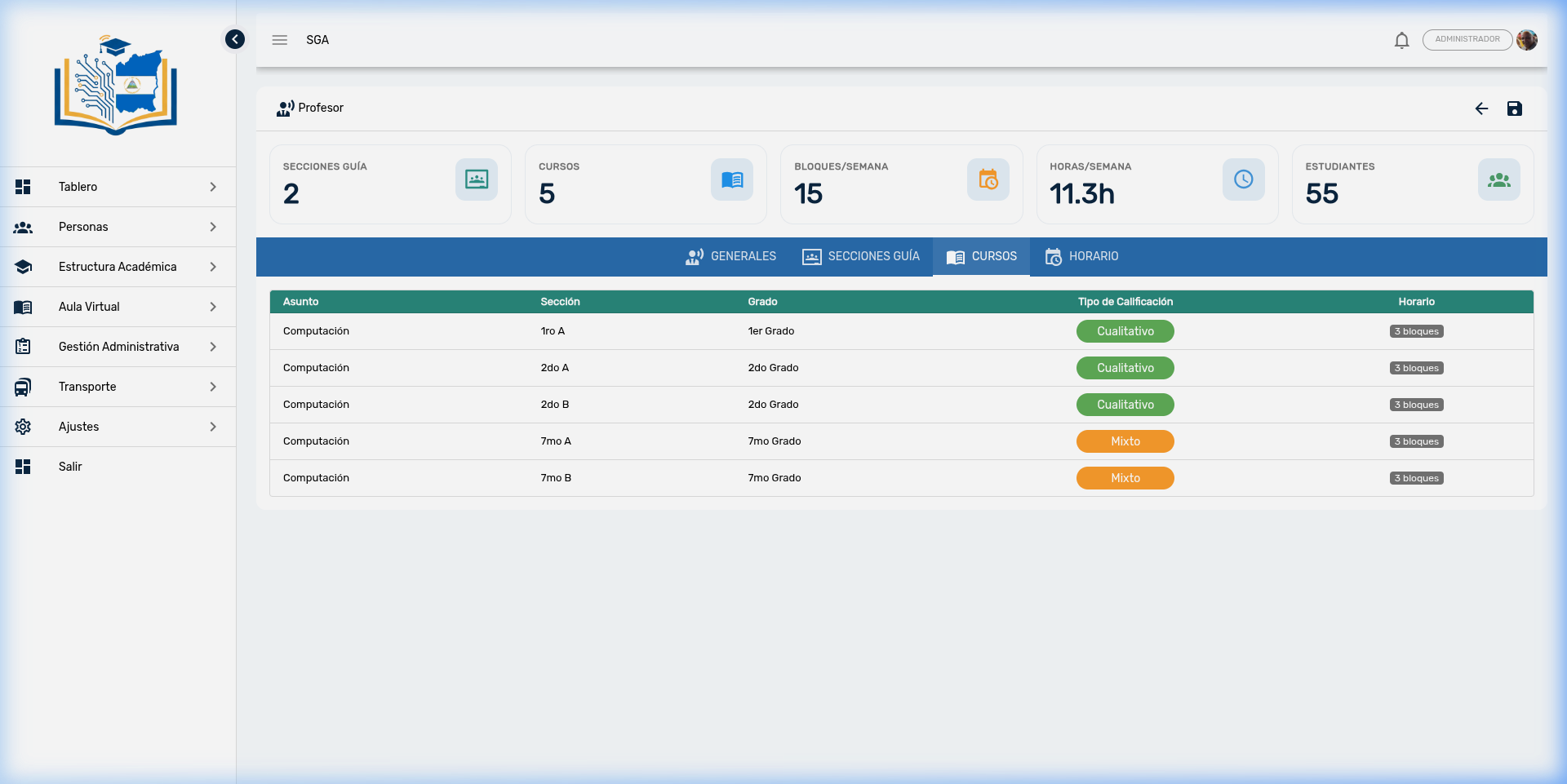
| Column | Description |
|---|---|
| Subject | Subject name (e.g., Mathematics, Language and Literature) |
| Section | Group where the subject is taught (e.g., 7th A) |
| Grade | Educational level of the section |
| Grading Type | Evaluation mode with color chip: 🔵 Quantitative (numerical grades), 🟢 Qualitative (descriptive indicators), 🟠 Mixed (combines both) |
| Schedule | Number of class blocks scheduled for that course (e.g., 3 blocks) |
Note
This tab is read-only. Course assignments are made from the Structure → Courses module. If the teacher has no assigned courses, a notice will be displayed indicating no records exist.
Tip
The Schedule column allows you to quickly identify which courses have scheduled blocks and which have not yet been added to the calendar in the Schedule module.
4.4 Tab: Weekly Schedule
Presents a grid view of the teacher's complete weekly schedule. Each column represents a day of the week (Monday through Saturday) and each row shows the assigned class blocks.
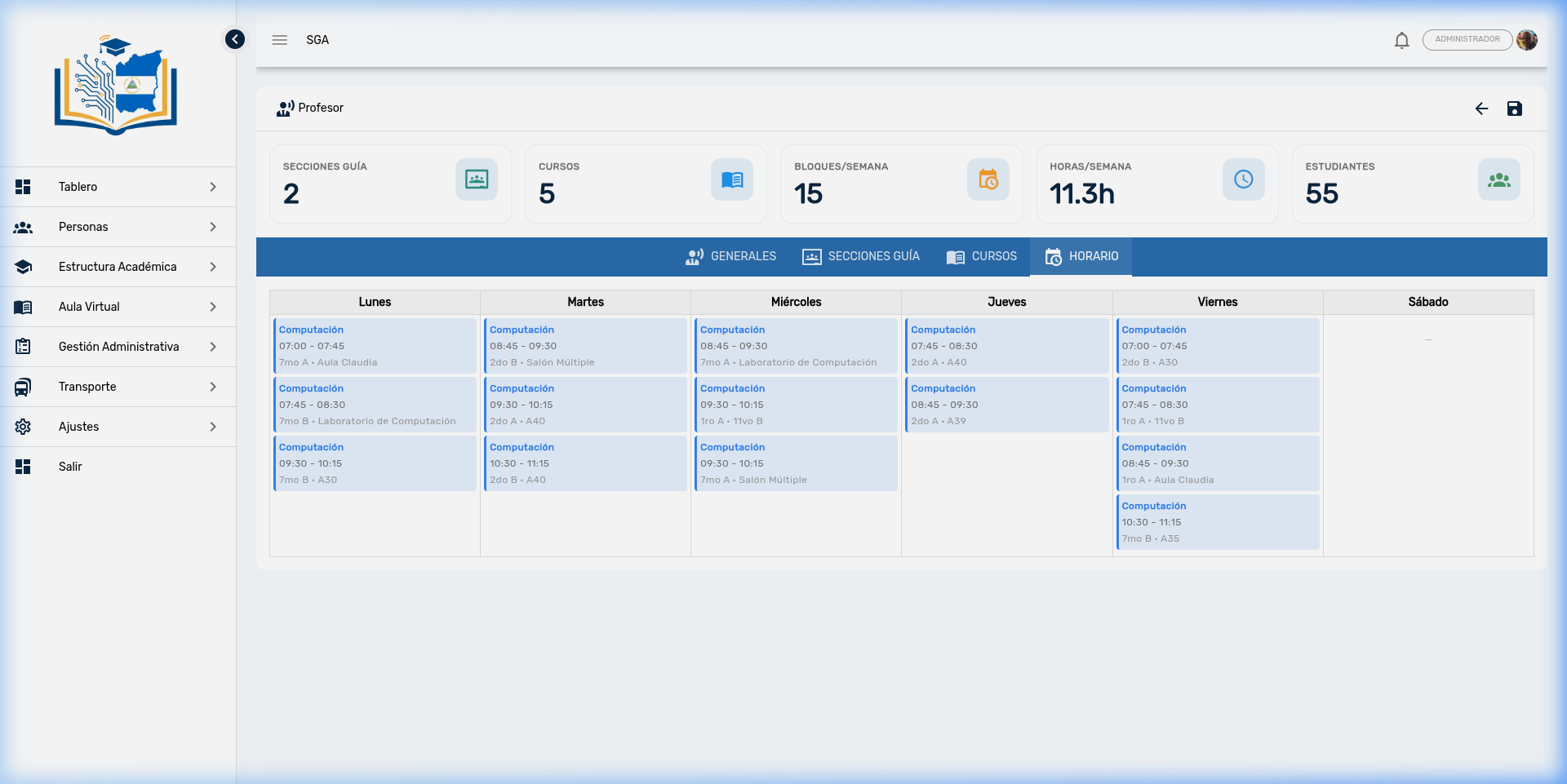
Each class block displays:
| Data | Description |
|---|---|
| Schedule | Block start and end time (e.g., 07:00 - 07:45) |
| Subject | Subject name in bold |
| Section | Class group |
| Classroom | Classroom assigned for the class |
Tip
Blocks are visually identified with a unique color per subject, making it easy to recognize the distribution of subjects throughout the week. If a day has no assigned classes, the column will appear empty with a dash (—).
Note
This view is read-only and reflects the schedules registered for the active academic period. To modify schedules, use the Structure → Schedules module.
5. Registering a New Teacher
The new teacher registration process includes a preliminary verification step to prevent duplicates:
Step 1: Search or Create
When you click the + button (upper right corner), a dialog opens with two options:
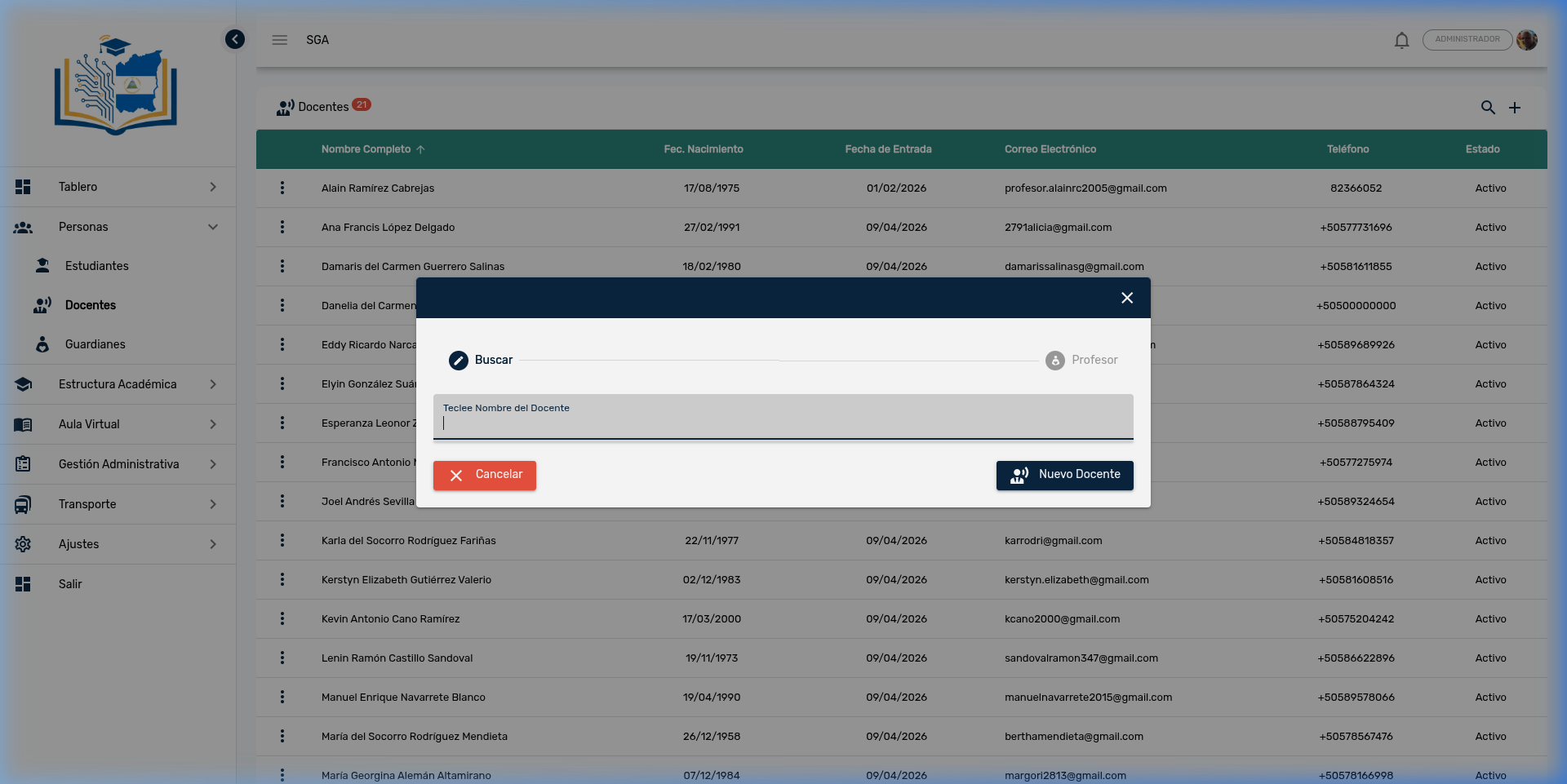
- Search: Type the teacher's name to verify if they are already registered in the system
- New Teacher: If they don't exist, click this button to open the registration form
Important
Always search first before creating a new record. If a teacher already exists in the system, duplicating their record will cause problems with course assignments and access credentials.
Step 2: Complete the Form
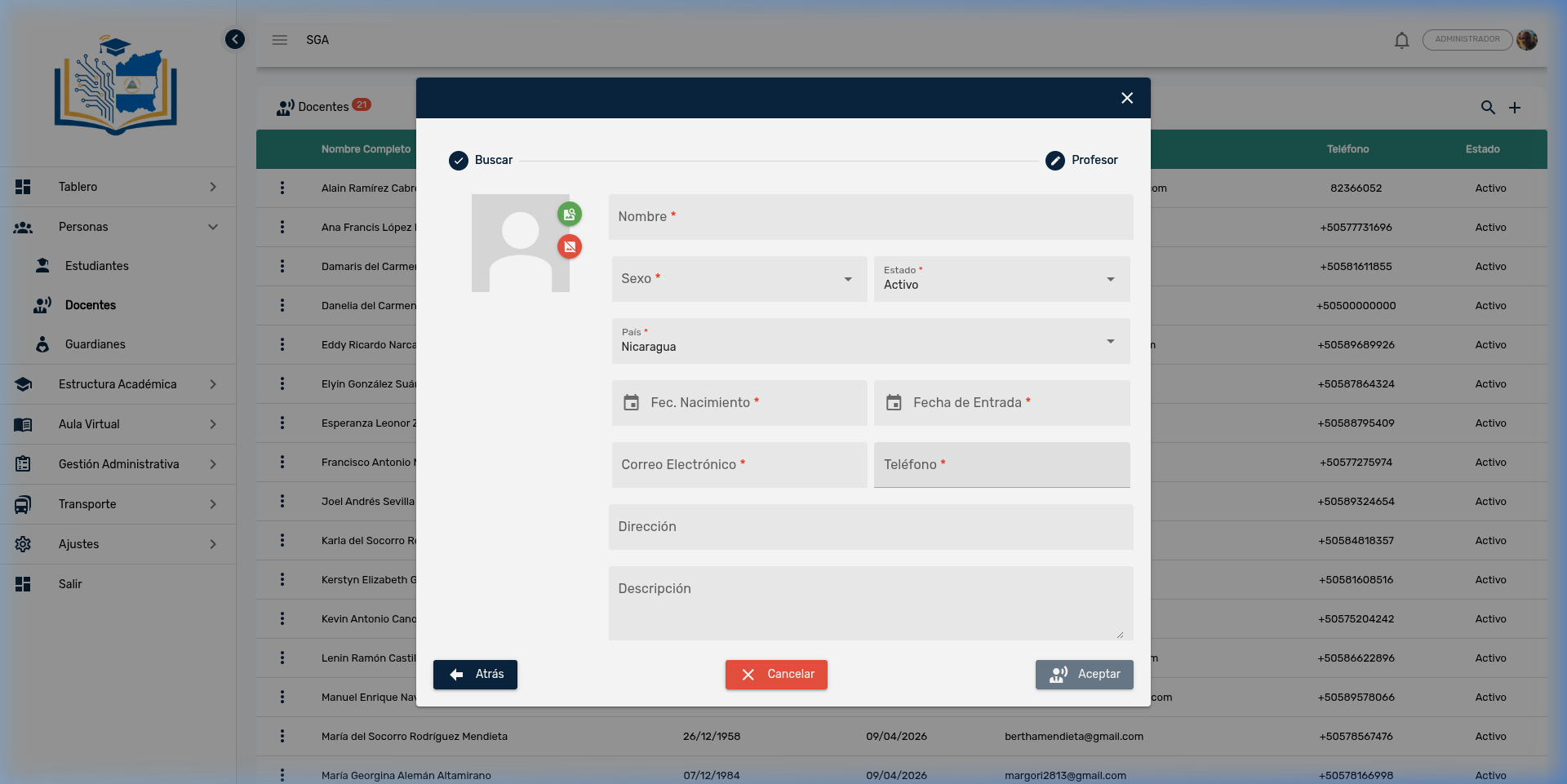
- Complete all required fields (marked with a red asterisk *)
- Optionally add a photograph
- Click Accept to save the record
- The system will automatically create the teacher's access credentials
Form buttons:
| Button | Function |
|---|---|
| ← Back | Returns to the search step |
| ✕ Cancel | Closes the form without saving |
| 👤 Accept | Saves the new teacher in the system |
6. Teacher Statuses
Teacher statuses (such as Active, Inactive, Suspended) are customizable from the Settings module. Each status has a name, background color, and text color that are reflected in the list badges.
Status management: Side menu → Settings → Categories → Teacher Statuses
From this screen, an administrator can:
- Create new statuses according to the institution's needs
- Assign distinctive colors to each status for easy identification
- Enable or disable statuses that are no longer in use
7. R-09 Report: Teachers and Academic Workload
The system includes a printable report that consolidates teacher information with their workload. This report shows for each teacher: assigned sections, subjects taught, total active courses, and weekly class hours.
Access: Side menu → Reports → R-09 Teachers and Academic Workload
8. Differences Between Students and Teachers
| Feature | Students | Teachers |
|---|---|---|
| Profile tabs | 7 (General, Family, Documents, Incidents, Attendance, History, Billing) | 4 (General, Homeroom Sections, Assigned Courses, Weekly Schedule) |
| Statistics Panel | ❌ No | ✅ Yes (5 indicators) |
| ID Card | ✅ Yes | ❌ No |
| Customizable status | Not applicable | ✅ Active / Inactive / Custom |
| Start Date | No | ✅ Yes |
| System access | Via Parent Portal (guardian) | Direct with email and password |
| Registration process | Direct (+ button) | Search first, then create |
9. Navigation Summary
| Element | Location | Function |
|---|---|---|
| 🔍 Magnifying glass | Upper right corner | Search for teachers |
| ➕ More | Upper right corner | Register a new teacher |
| ⋮ Three dots | Beginning of each row | Actions: Edit, Delete |
| ← Arrow | Upper right corner (in profile) | Return to the list |
| 💾 Save | Upper right corner (in profile) | Save changes |
| Tabs | Blue top bar (in profile) | Navigate: General, Homeroom Sections, Courses, Schedule |
Module Navigation
| Path | Description |
|---|---|
| People → Teachers | Main teacher list |
| People → Students | Student management |
| People → Guardians | Guardian and parent management |
| Structure → Sections | Assign Homeroom Teacher |
| Structure → Courses | Assign courses to the teacher |
| Structure → Schedules | Configure weekly schedule |
| Settings → Categories | Manage teacher statuses |
| Reports → R-09 | Teachers and Academic Workload Report |
Frequently Asked Questions
| Question | Answer |
|---|---|
| Can I delete a teacher? | Yes, but only if they have no courses, sections, or schedules assigned. If the teacher left, it's better to change their status to Inactive to preserve the history. |
| How do I change a teacher's status? | Open the teacher's profile (Edit), go to the General tab, and change the Status field to the desired value. |
| Can I create custom statuses? | Yes. From Settings → Categories → Teacher Statuses, an administrator can create new statuses with custom colors. |
| What happens if a teacher has no assigned courses? | The statistics panel will not be displayed and the Homeroom Sections, Assigned Courses, and Schedule tabs will indicate no records exist. |
| Does the schedule include Saturdays? | Yes. The weekly schedule grid spans Monday through Saturday. If the institution has no Saturday classes, that column will appear empty. |
| What email does the teacher use to access the system? | The email registered in the General tab. It serves as their SGA access credential. |
| Who can view teacher information without being able to edit it? | Users with the Teacher query permission can view the list and complete profile but cannot create, edit, or delete records. |
| Where can I see a summary of all teachers' academic workload? | In the R-09 Report (Reports → R-09 Teachers and Academic Workload), which shows sections, subjects, active courses, and weekly hours per teacher. |
| How do I assign a course to a teacher? | The assignment is done from Structure → Courses, not from the teacher's profile. The Assigned Courses tab is read-only. |
| How do I designate a teacher as Homeroom Teacher? | From Structure → Sections, select the section and assign the teacher as Homeroom Teacher. The Homeroom Sections tab is read-only. |