

💰 Billing — Cashier Manual
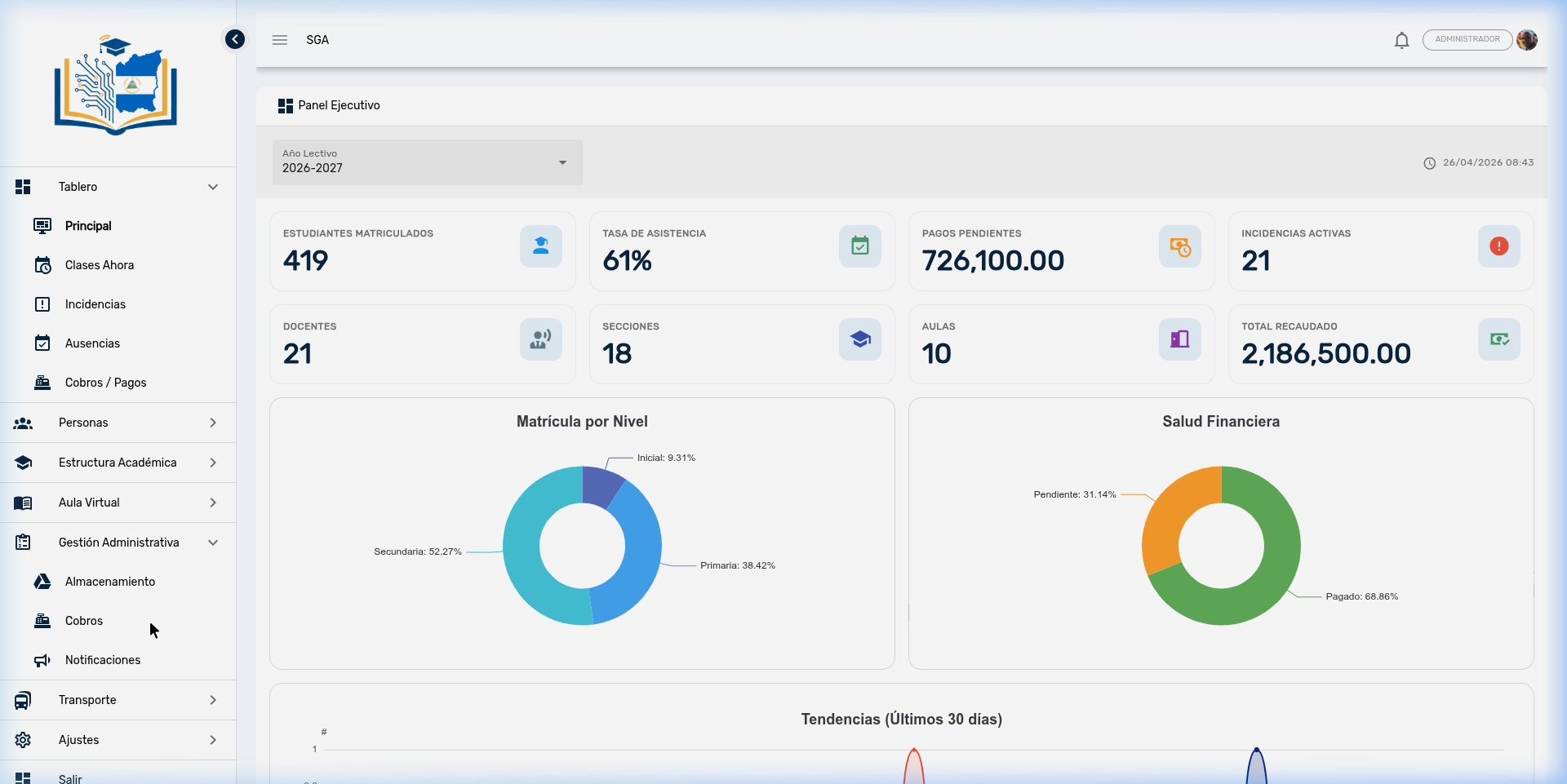
The Billing module is the SGA's invoicing and collection system. It manages the entire financial cycle: invoice generation (FAC-YYYY-NNNN), full or partial payment, issuance of QR-verifiable receipts, refunds, payment arrangements, cash reconciliation, and financial analytics.
👤 Primary profile: Cashier / Financial Administration
Access: Administrative Management → Cashier → Payments
Required permissions:
| Permission | Scope |
|---|---|
| Billing management | Create, edit, delete, collect, refund |
| Billing query | Read-only: list, dashboard, queries |
1. Invoice Lifecycle
Each SGA invoice follows a cycle of three accounting statuses:
| Status | Indicator | Accounting meaning |
|---|---|---|
| Pending | 🟡 Yellow | Account receivable — no cash movement recorded |
| Partial | 🟠 Orange | Account receivable with payment(s) — outstanding balance |
| Paid | 🟢 Green | Account settled — receipt generated (REC-XXXXXX) |
Automatic numbering
The system automatically generates:
- Invoice number:
FAC-YYYY-NNNN(e.g.,FAC-2026-0001) — sequential per year - Receipt number:
FAC-YYYY-NNNN/N(e.g.,FAC-2026-0001/1,/2,/3...) — increments with each transaction
2. Billing List
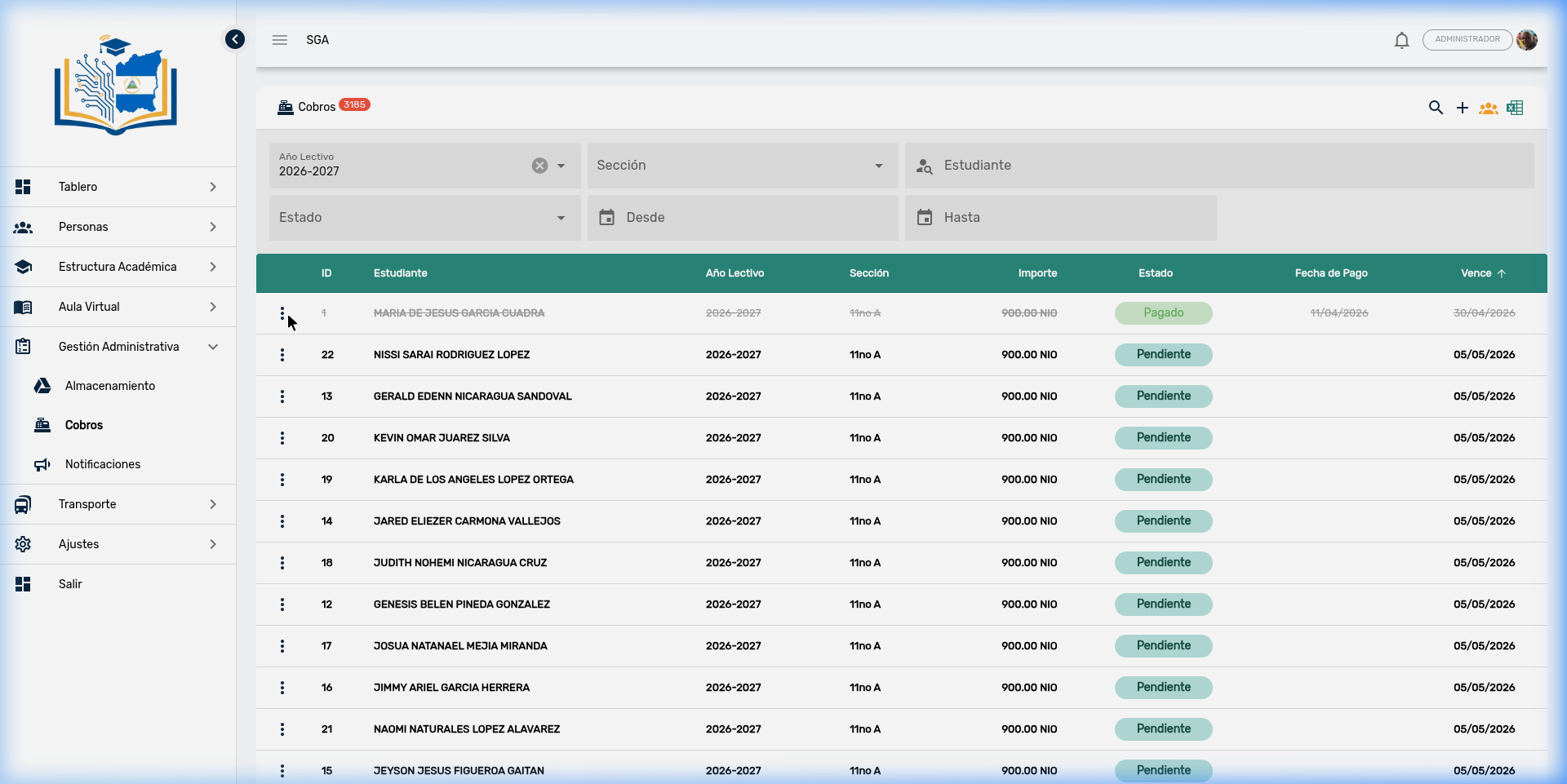
When accessing the module, the master list of all invoices for the school year is displayed with search by student name.
Available filters
| Filter | Description |
|---|---|
| School Year | Academic period (e.g., 2026-2027) |
| Level | Filter by educational level (Preschool, Primary, Secondary) |
| Section | Specific grade/section (e.g., 11th A) — loaded based on the year |
| Status | Pending, Partial, Paid, or Overdue |
| From / To | Due date range |
| Currency | Córdobas (NIO), Dollars (USD), or other configured currency |
| Search | Free text — search by student name (accent-insensitive) |
Table columns
| Column | Description |
|---|---|
| Invoice No. | Identifier FAC-YYYY-NNNN |
| Student | Student's full name |
| School Year | Period it belongs to |
| Section | Student's grade |
| Concepts | Detail of invoiced items |
| Amount | Total invoice amount |
| Total Paid | Sum of registered partial transactions |
| Outstanding Balance | Difference: Amount − Total Paid |
| Status | Color badge according to the lifecycle |
| Payment Date | Date the full payment was recorded |
| Due Date | Payment deadline |
Toolbar
| Icon | Action | Description |
|---|---|---|
| 🔍 | Search | Activates quick text search |
| ➕ | New Charge | Creates an individual invoice |
| 📋 | Advance Payment | Generates multiple future installments for a student |
| 👥 | Mass Generate | Creates batch charges for an entire section |
| 📊 | Dashboard | Accesses the financial analytics panel |
| 🧾 | Cash Reconciliation | Generates the cash closing report by date range |
| 📄 | Export to Excel | Downloads the filtered list in Excel format |
| 📷 | Verify QR | Opens the scanner to validate receipts |
3. Actions per Invoice
Each table row has a context menu (⋮) with actions depending on the status:
| Action | Available when | Description |
|---|---|---|
| Payments | Always | Transaction panel: history, progress bar, register new payment |
| Pay | Pending / Partial | Quick form to cover the full balance |
| Refund | Paid | Generates a refund as an accounting expense |
| Student | Always | Navigates to the student's record |
| Edit | Pending / Partial | Modifies concept, amount, or due date |
| Delete | Only if no payments exist | Deletes the invoice from the system |
Accounting integrity rules
- A Paid invoice cannot be edited or deleted — this protects the integrity of the issued receipt and accounting record.
- An invoice with registered payments cannot be deleted — transactions must be voided first.
- A payment cannot exceed the invoice's outstanding balance.
4. Register a Payment (Partial Payment)
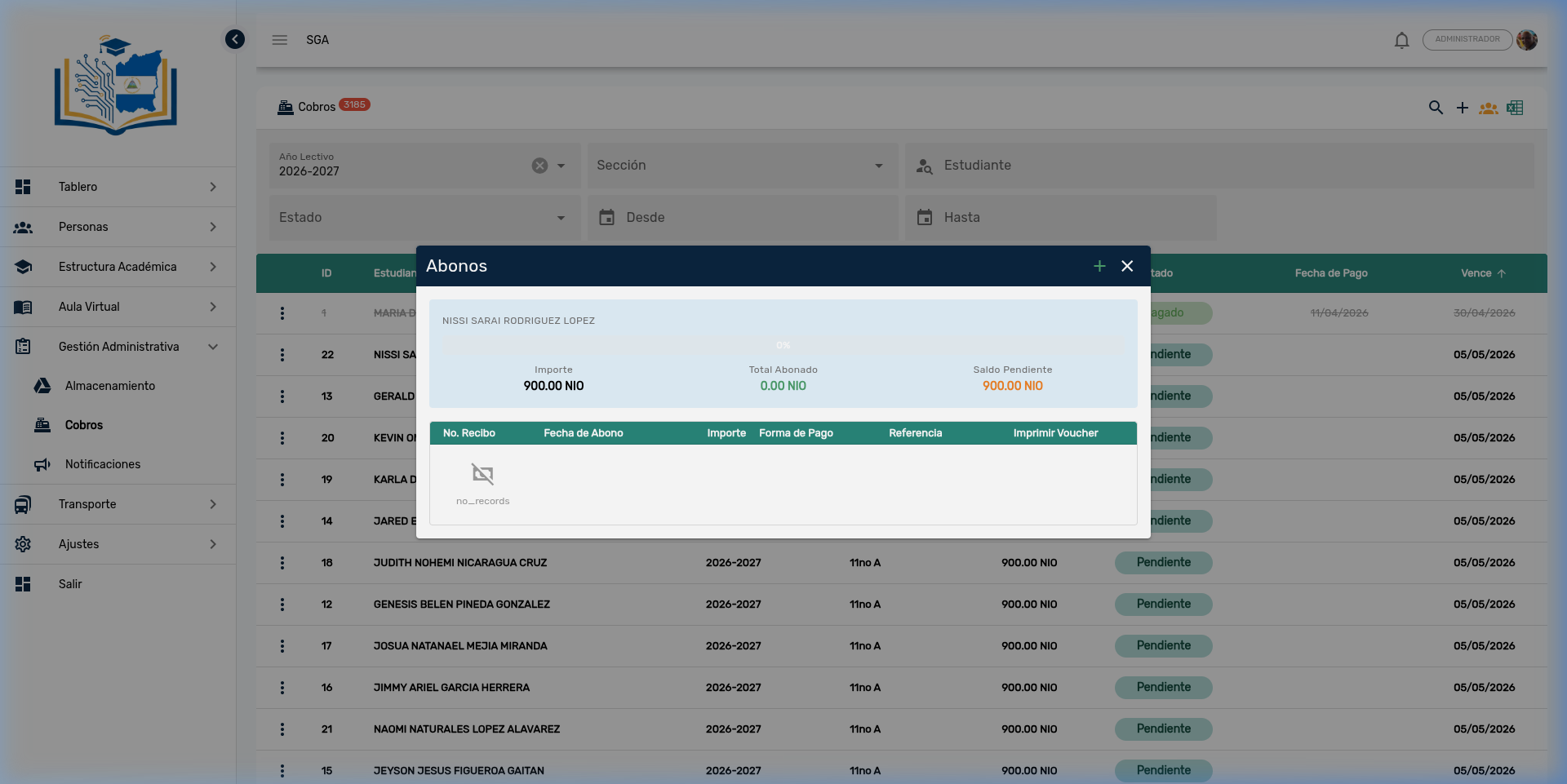
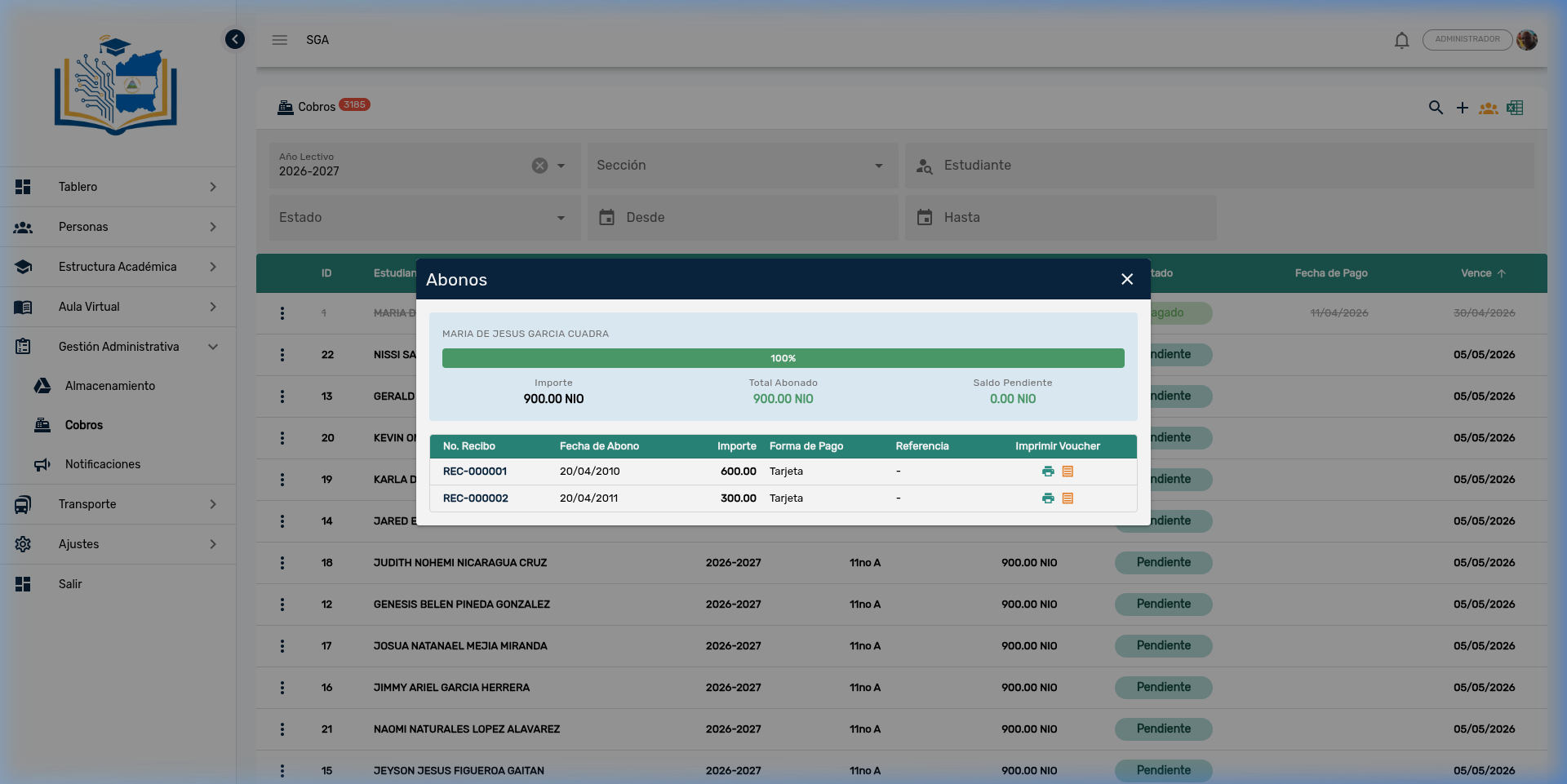
The payments panel is the heart of the cash flow. It shows the collection progress and allows registering partial transactions.
Pending Invoice (0%)
Paid Invoice (100%)
Step-by-step procedure
- In the list, locate the invoice → ⋮ menu → Payments
- In the payments panel, complete:
| Field | Required | Description |
|---|---|---|
| Amount | ✅ | Amount to pay (cannot exceed the outstanding balance) |
| Payment method | ✅ | Cash, Transfer, Card, Check, etc. |
| Date | ✅ | Transaction date (default: today) |
| Reference | — | Bank reference number or receipt (max. 20 characters) |
| Note | — | Internal note about the transaction |
- Press "Register Payment"
- The system automatically:
- Creates a transaction record with receipt number
FAC-YYYY-NNNN/N - Updates the visual progress bar
- Changes the status: Pending → Partial or Partial → Paid
- Sends a push notification to the student's guardian
- Creates a transaction record with receipt number
For cashiers
Each payment generates an independent printable receipt. Use "Pay" (⋮ menu) only when the parent covers the full balance in a single transaction. For any partial amount, use "Payments".
5. Process Full Payment
Quick shortcut for when the parent covers 100% of the balance in a single transaction.
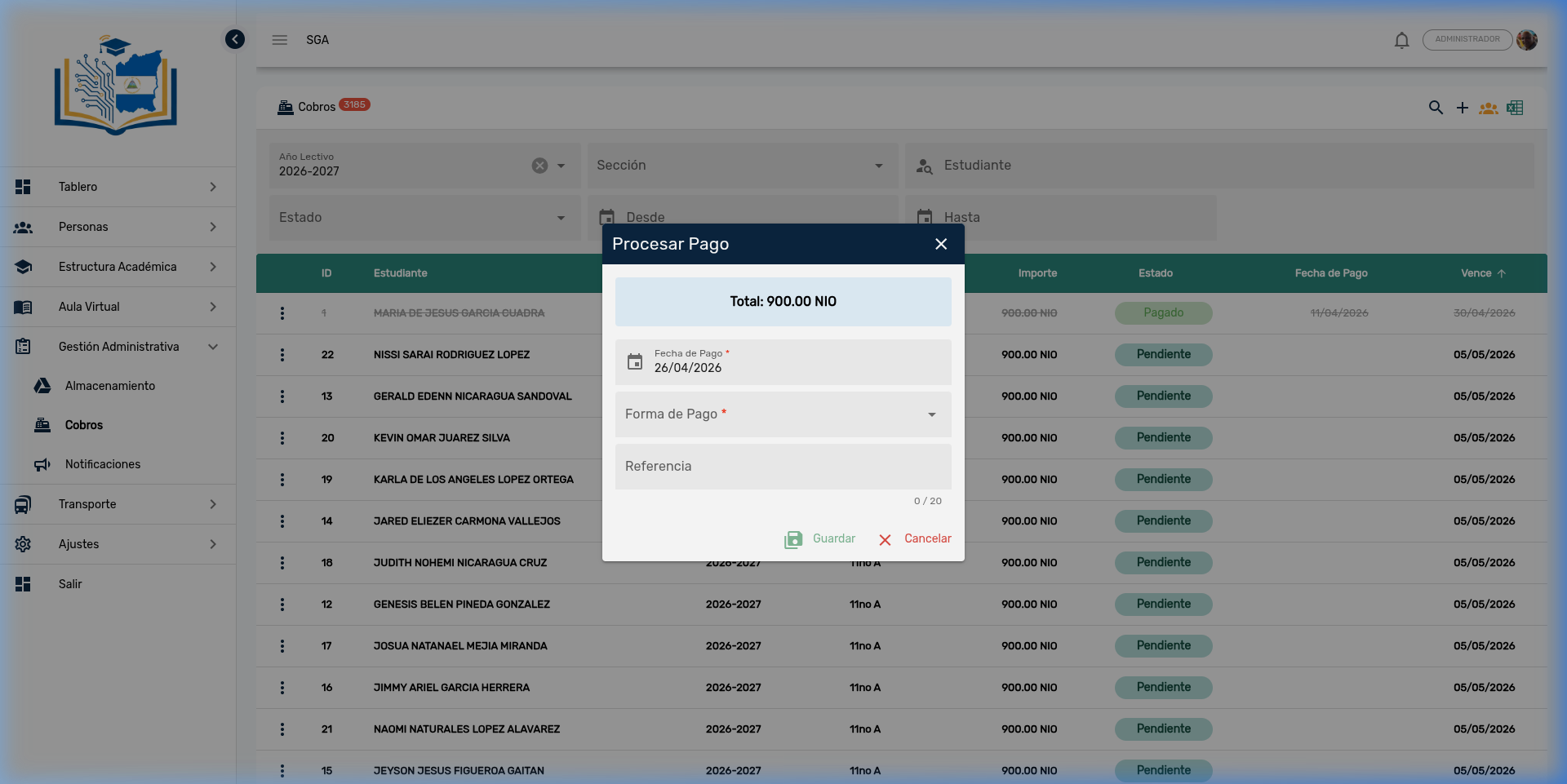
| Field | Description |
|---|---|
| Total | Outstanding balance (read-only) |
| Payment Date | Transaction date (default: today) |
| Payment Method | Cash, Transfer, Card, etc. |
| Reference | Bank receipt (optional, max. 20 characters) |
6. Create Individual Charge
To invoice a specific student, use the ➕ button on the toolbar.
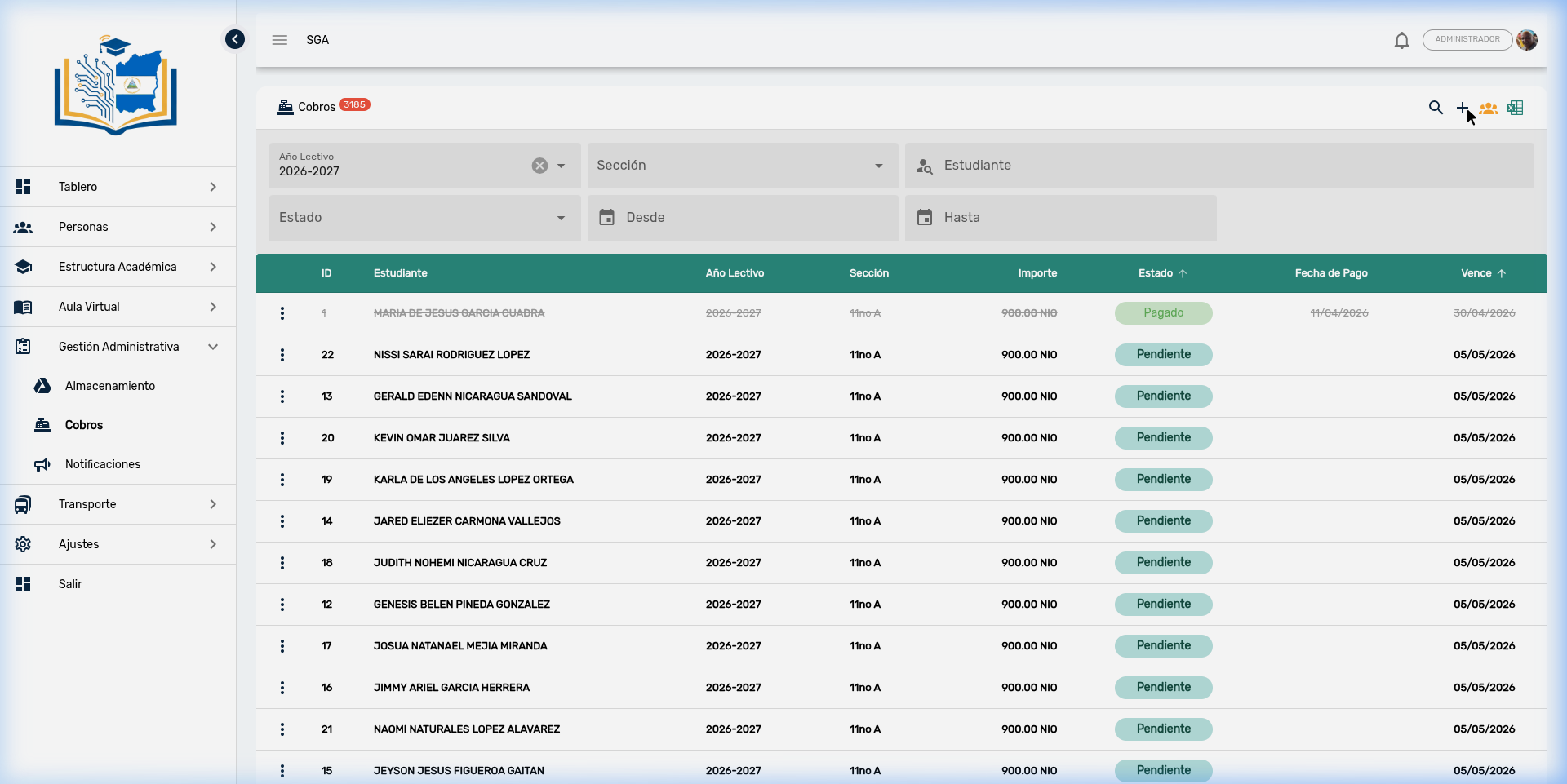
Form fields
| Field | Required | Description |
|---|---|---|
| Student | ✅ | Select the enrolled student |
| Currency | ✅ | Invoicing currency (NIO by default) |
| Due date | ✅ | Payment deadline |
| Description | — | Note visible on the invoice and receipt |
Detail lines (Concepts)
Each invoice can have multiple concept lines:
| Field | Description |
|---|---|
| Concept | Charge type: Enrollment, Monthly Fee, Uniform, Transportation, etc. |
| Amount | Amount per concept |
| + Button | Adds an additional line |
The total amount of the invoice is the automatic sum of all detail lines.
7. Advance Payments (Multiple Installments)
This feature allows generating multiple future installments for a single student. Ideal for planning the full year's monthly fee collection.
Procedure
- Press the 📋 Advance Payment button on the toolbar
- Select the student
- Select the concept (e.g., Monthly Fee)
- Add installments with their due dates:
| Installment | Amount | Due Date |
|---|---|---|
| Installment 1 | C$ 2,500.00 | 02/01/2026 |
| Installment 2 | C$ 2,500.00 | 03/01/2026 |
| Installment 3 | C$ 2,500.00 | 04/01/2026 |
| ... | ... | ... |
- Each installment generates an independent invoice with its own
FAC-YYYY-NNNN
Accounting
Unlike mass generation (by section), advance payments are per individual student and allow planning the full year's accounts receivable with different amounts and dates per installment.
8. Mass Charge Generation
Creates invoices for all enrolled students in a section (or entire level) in a single step. Ideal for recurring charges like the monthly fee.
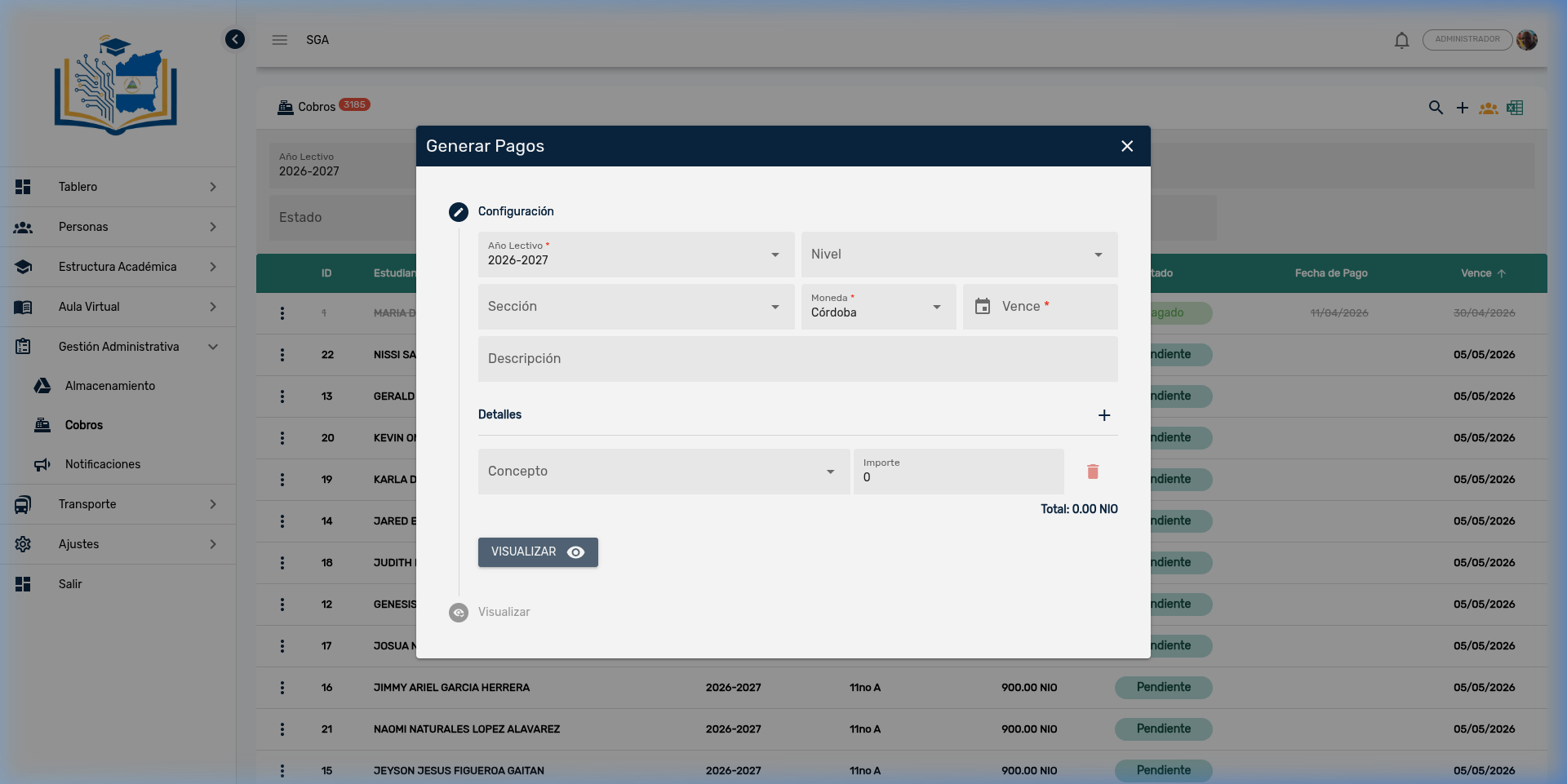
Configuration
| Field | Required | Description |
|---|---|---|
| School Year | ✅ | Academic period |
| Level | — | Optional filter (Preschool, Primary, Secondary) |
| Section | — | Specific grade. If left empty, applies to the entire level |
| Currency | ✅ | Invoicing currency |
| Due Date | ✅ | Payment deadline for all charges |
Details (concept lines)
| Field | Description |
|---|---|
| Concept | Select from the list of concepts |
| Amount | Amount per student |
| + Button | Adds additional lines (e.g., monthly fee + transportation) |
Preview step
Before confirming, the "PREVIEW" button shows:
- Number of students who will receive the invoice
- Students who already have that charge (automatically excluded)
- Students with a type 2 payment arrangement (reduced amount applied)
Mandatory verification
Always use the "Preview" button before confirming. Mass generation cannot be easily undone — you would have to delete each invoice individually.
9. Payment Arrangements
Payment arrangements allow establishing special conditions for students with particular financial situations.
Access: Administrative Management → Cashier → Payment Arrangements
Arrangement types
| Type | Name | Effect |
|---|---|---|
| Type 1 | Authorized late payment | Allows payment after the due date without penalty. It is informational — does not alter amounts |
| Type 2 | Reduced amount | The student pays a specific reduced amount. Applied automatically during mass generation |
Arrangement fields
| Field | Description |
|---|---|
| Student | Beneficiary student |
| School Year | Validity period |
| Type | Type 1 (late) or Type 2 (reduced) |
| Reduced Amount | Type 2 only — the amount the student will pay |
| Description | Justification for the arrangement |
| Active | Toggle to enable/disable |
Integration with mass generation
When a mass charge is generated, the system automatically detects students with a Type 2 arrangement and applies the reduced amount instead of the standard amount. Students with a Type 1 arrangement receive the same amount.
Export
The payment arrangements list can be exported to Excel from the download button on the toolbar.
10. Refunds
When a parent requests a payment refund, the system allows generating an accounting refund.
Requirements
- The invoice must be in Paid status (✅)
- The refund amount cannot exceed the paid amount minus previous refunds
Procedure
- In the list, locate the paid invoice → ⋮ menu → Refund
- The system shows:
- Student name
- Amount paid
- Previous refunds (if any)
- Balance available for refund
- Enter the amount to refund and the justification
- Upon confirmation, the system generates an Expense record (Refund type) with PAID status
Accounting record
The refund does not cancel or modify the original invoice — it is recorded as an independent expense in the Expenses module. This maintains accounting traceability: the income (charge) and the expense (refund) remain as separate records in the cash book.
11. Payment Receipts and QR Verification
Print formats
Each transaction (partial payment or full payment) generates a printable receipt in two formats:
Voucher Format (Standard Receipt)
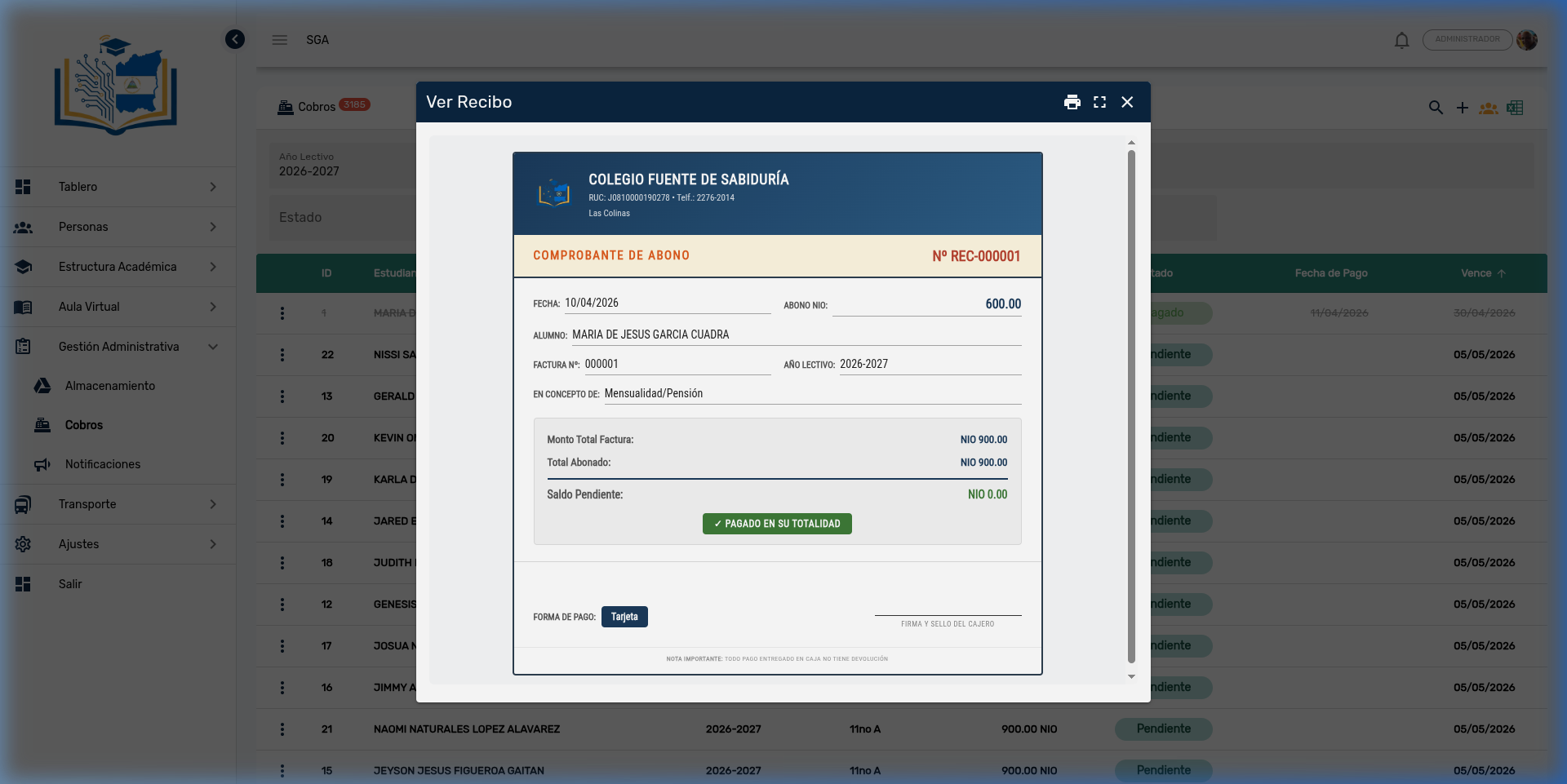
Letter-type receipt with:
- Institutional header (logo, name, tax ID, phone)
- Receipt number (
FAC-YYYY-NNNN/N) - Student data and section
- Concept table with amounts
- Financial summary: Invoice Total, Total Paid, Outstanding Balance
- QR code for verification with digital signature
- "PAID IN FULL" stamp when the balance is zero
POS Format (Thermal Printer)
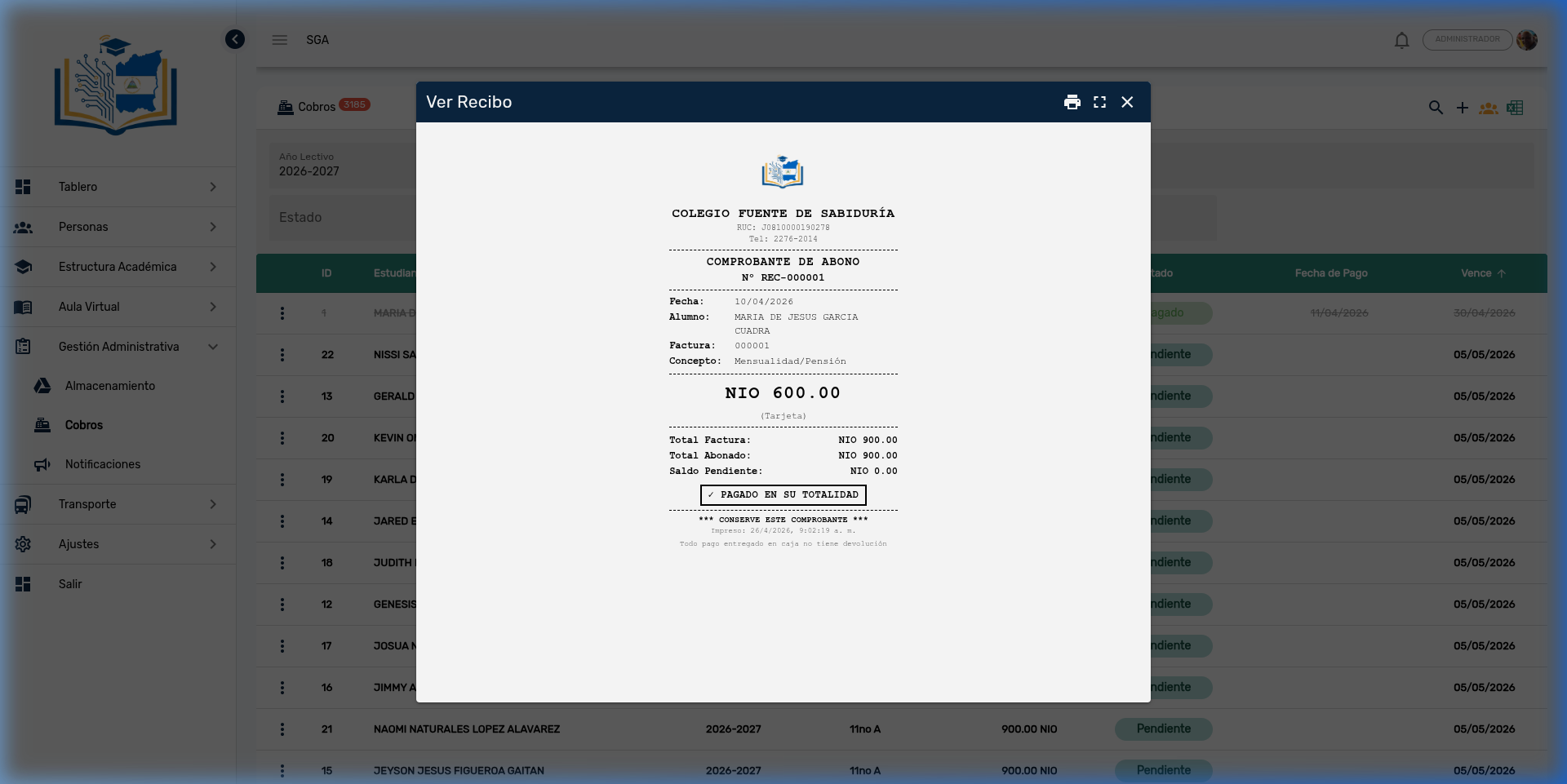
Format optimized for 80mm thermal paper with the same information in a compact monospace design. Includes verification QR.
QR Verification System
Each receipt includes a digitally signed QR code with a security code that guarantees its authenticity.
How to verify a receipt?
- Press the 📷 Verify QR button on the toolbar
- Scan the QR using:
- USB scanner (gun type) — automatic keyboard reading
- Device camera — using the browser's built-in camera
- The system validates the digital signature and shows:
- ✅ Verified: Receipt data (student, amount, date, number)
- ❌ Invalid: Alert for unrecognized or tampered receipt
Practical QR use
The QR is useful for verifying receipts presented by parents. If a parent says "I already paid" and shows a receipt, the office staff can instantly scan it to confirm its authenticity without searching through the system.
12. Cash Reconciliation
Cash reconciliation (cash closing) generates a report of all transactions recorded in a specific period.
Procedure
- Press the 🧾 Cash Reconciliation button on the toolbar
- Select the date range (From / To)
- The system generates an HTML report that opens in a new window with:
- School letterhead
- Closing period
- Detail of all transactions (income)
- Totals by payment method
- Grand total
- Signature line for the cashier in charge
- Use the browser's Print button to generate the PDF
For the cashier
Cash reconciliation is the document presented at the end of the day or shift. It includes all charges recorded in the period, grouped by payment method (cash, transfer, card). Daily closing is recommended for reconciling with cash on hand.
13. Financial Dashboard
The dashboard presents a complete overview of the school's financial health. Access: 📊 button on the toolbar or from the Dashboards → Payments Dashboard menu.
Dashboard filters
| Filter | Description |
|---|---|
| School Year | Period to analyze |
| Section | Optional filter by grade |
| Currency | Amount currency |
| From / To | Date range |
KPI Indicators
| KPI | Description |
|---|---|
| Total Collected | Sum of all completed charges |
| Total Pending | Accumulated uncollected amount |
| Partial Payments | Number of invoices with incomplete payments |
| Collection Rate | Effectiveness percentage: Collected / (Collected + Pending) × 100 |
| Overdue Payments | Count and amount of invoices past their due date |
Analytical charts
| Chart | Type | Description |
|---|---|---|
| Distribution by Status | Pie / Donut | Paid vs. Partial vs. Pending vs. Overdue (with lifecycle colors) |
| Revenue Trend | Smooth line (area) | Accumulated revenue over time |
| By Payment Method | Donut | Cash, Transfer, Card, Check |
| By Concept | Donut | Enrollment, Monthly Fee, Uniform, Transportation, etc. |
| Revenue by Section | Grouped bars | Collected vs. Pending by section (with data zoom) |
| By Grade | Pie | Distribution of charges by level/grade |
Top 10 Debtors
Table with the students with the largest pending debt:
| Column | Description |
|---|---|
| Student | Student name |
| Section | Current grade |
| Pending Amount | Total owed balance |
| Pending Invoices | Number of unsettled invoices |
| Days Overdue | Maximum days since the due date (with color badge by severity) |
14. Export to Excel
The billing list is exported to Excel with all applied filters. Use the 📄 button on the toolbar.
File contents
The generated Excel includes 15 columns:
| Column | Description |
|---|---|
| ID / Invoice No. | Invoice identifier |
| Student | Full name |
| School Year | Academic period |
| Section | Student's grade |
| Concepts | Invoiced items |
| Amount | Total amount |
| Currency | Currency code |
| Total Paid | Sum of transactions |
| Outstanding Balance | Difference |
| Status | Paid / Partial / Pending / Overdue |
| Due Date | Payment deadline |
| Payment Date | Settlement date |
| Payment Method | Last method used |
| Reference | Bank receipt |
| Description | Invoice notes |
Excel format
- Color-coded cells by status: 🟢 Paid, 🔵 Partial, 🟡 Pending, 🔴 Overdue
- Alternating shaded rows for readability
- Totals row with SUM formulas at the bottom
- Filters applied at the time of export are preserved
15. Expenses Module (Related)
Access: Administrative Management → Cashier → Expenses
The Expenses module manages the school's money outflows: vendor payments, purchases, services, and refunds (generated from the Billing module).
Includes:
- CRUD for expenses with types, vendors, and beneficiaries
- Status flow: Pending → Paid / Canceled
- Expense receipt printing (standard and POS formats)
- QR verification (reuses the same digital signature system)
- Expense cash reconciliation (shared with billing)
Module Navigation
| View | Description |
|---|---|
| Billing list | Master list of invoices |
| Financial dashboard | Financial analytics panel |
| Payment arrangements | Payment arrangements by student |
| Expenses | Money outflow module |
Frequently Asked Questions — Cashier
| Question | Answer |
|---|---|
| Can I modify a charge that has already been paid? | No. Paid charges are immutable to protect the integrity of the receipt and accounting record. |
| What if the parent pays less than the total? | Register the amount as a payment. The invoice changes to Partial status and the remaining balance stays pending. Each payment generates its own receipt. |
| Can I register a payment with a past date? | Yes. The date field allows selecting the actual transaction date. Useful for retroactive records of payments received on previous days. |
| Do parents receive a notification? | Yes. When generating a charge or registering a payment, the guardian receives an automatic push notification. |
| How do I print a receipt? | In the Payments panel, each transaction has print buttons: Voucher (letter) or POS (thermal). |
| How do I verify if a receipt is authentic? | Use the Verify QR button on the toolbar. Scan the receipt's QR code with the USB scanner or the device camera. |
| Can I issue a refund? | Yes. From the paid invoice menu → Refund. An independent accounting expense is generated that does not modify the original invoice. |
| How do I generate the daily cash closing? | Use the Cash Reconciliation button, select the shift dates, and generate the report for printing. |
| What is a type 2 payment arrangement? | It is an authorized discount for a student. When mass charges are generated, the system automatically applies the reduced amount configured in the arrangement. |
| Can I charge in dollars? | Yes. The system supports multiple currencies. Select the currency when creating the charge or in mass generation. |
| How do I export the delinquent list? | Filter by "Pending" status, apply the desired date range, and use the Export to Excel button. Also check the Top 10 Debtors in the Dashboard. |
| Can I generate monthly installments for a student? | Yes. Use the Advance Payment feature (📋) to create multiple installments with different due dates for a single student. |